

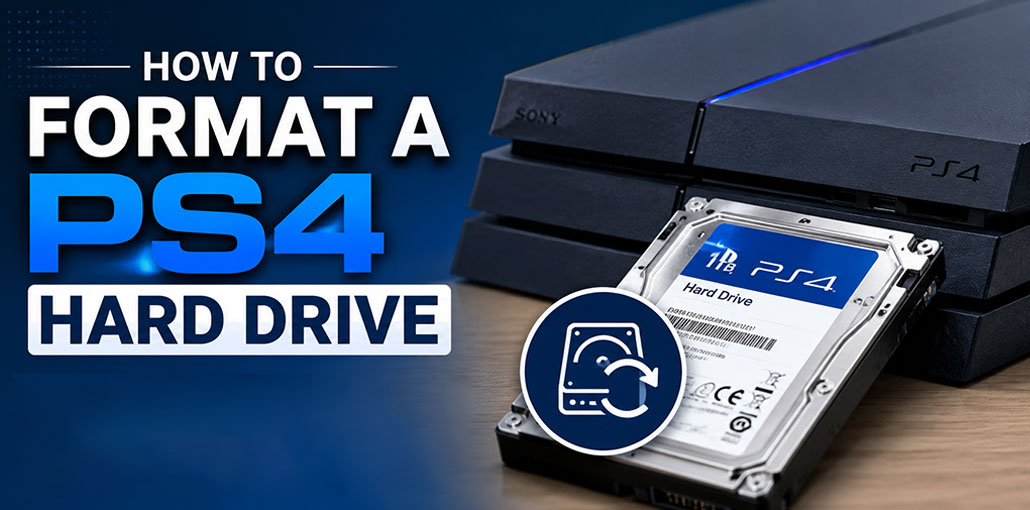
If your PlayStation 4 is running out of storage or experiencing performance issues, or you need to replace an internal drive, knowing how to format a PS4 hard drive is an invaluable skill. Formatting erases all data stored on it so it is ready for use by your PS4.
With this beginner-friendly guide, you will discover how to format a PS4 hard drive safely, when to do it, and what you need before getting started.
Why Format Your PS4 Hard Drive?
Similar to formatting a computer hard drive, formatting the PS4’s internal hard drive can be very helpful in various scenarios. Take a look below!
- Improve performance: If your PS4 has become slow or unresponsive, formatting the hard drive may remove corrupted data and restore smoother operation.
- Fix hard drive errors: Corroded file systems or defective sectors can lead to crashes, installation failures, and storage errors on hard drives, which formatting can often resolve.
- Prepare the drive for reuse: If you have replaced your PS4 hard drive with a new one, formatting the old hard drive could provide useful external storage or be used in another computer system.
- Erase Personal Data: Before selling, recycling, or giving away your PS4 or its hard drive, formatting will ensure all games, saved files, screenshots, and personal information have been erased.
- Resolve software conflicts: System updates or corrupt game files may cause instability issues. A clean format and clean installation help eliminate these problems.
Also read: Why Is My PS4 Controller Not Connecting? 6 Easy Fixes Guide
How to Format PS4 Hard Drive?
With a variety of methods to format a PS4 internal hard drive, choosing the right one for your needs can be difficult. But we’ve done deep research and provided steps for various ways to format a PS4 Hard Drive. Before you proceed to the steps, make sure you connect the PS4 hard drive to the computer using a cable.
Method 1: Format the PS4 Hard Drive Using a SATA Cable
If your computer supports a direct SATA connection, this method is simple and effective.
1. Use a used or free SATA data cable along with another free power cable to connect your PS4 HDD to your computer.
2. Turn off your computer
3. The PC recognizes the hard drive, and you can format your drive the same way as you format an internal drive.
Method 2: Format the PS4 Hard Drive Using an External Hard Drive Enclosure
If your PC doesn’t have an available SATA port, you can use a USB hard drive enclosure.
1. Place the PS4 hard drive in a USB enclosure and connect it to your PC via a USB connection.
2. Your PC can detect your drive and download the necessary driver files instantly! Then you can format the drive as you would format a hard drive.
How to Format PS4 Hard Drive: exFAT Vs. FAT32
There are two formats you can select from, so which should you pick? Each one has its distinct pros and cons to help you decide which one you’d like to use. Whatever you choose, it must be perfect since I’ll guide you through the formatting for both kinds of rooms.
FAT32 is more compatible with other systems like PS3 and PC. But the drawback is that it allows single files up to 4GB and supports 2 TB in volume. ExFAT, in contrast, is not affected by this disadvantage, but it can be compromised more rapidly than FAT32.
How to Format a PS4 Hard Drive on a Computer
If you’ve just updated to a new PS4 hard drive, you may have noticed that it doesn’t show in Windows Explorer when you connect it to your PC. The reason is that Windows doesn’t recognize the format that used by the PS4.
If you want to make it work on your PC, the existing partition must be deleted, and you must create a brand new partition that Windows recognises. The steps below explain the format that is used in Windows 10. But the procedure is the same for Windows 8 and 7. Furthermore, you don’t have to install any third-party program.
- Connect the PS4 hard drive to your PC using a SATA cable or USB enclosure.
- Press Windows + X and select Disk Management.
- Locate the PS4 hard drive. You’ll notice several existing partitions.
- Right-click each partition and select Delete Volume until the entire drive becomes Unallocated.
- Right-click the unallocated space and select New Simple Volume.
- Follow the New Simple Volume Wizard.
- When prompted, select:
File System: exFAT
Allocation Unit Size: Default
Volume Label: Choose any name you prefer. - Enable Perform a Quick Format if desired, then click Finish.
Also read: Repair External Hard Drive Using CMD: 4 Easy Fixes That Work
Troubleshooting Steps
| Problem | Solution |
|---|---|
| PS4 Hard Drive Not Detected by PC | Check the SATA cable, USB enclosure, and power connection. Try reconnecting the drive or using another port. If detected, open Disk Management to initialize and format the drive. |
| Windows Cannot Recognize PS4 Hard Drive | PS4 creates a unique partition structure that Windows may not read. Open Disk Management, delete the existing PS4 partitions, and create a new volume. |
| Formatting Process Fails or Gets Stuck | Check the drive connection, remove corrupted partitions, or use DiskPart to clean and format the drive if Windows tools fail. |
| PS4 Shows Storage Errors or Corrupted Data | Back up important data and format the hard drive to remove corrupted files or damaged file system issues. If errors continue, the drive may be failing. |
| Formatted Hard Drive Not Working on PS4 | Make sure the drive meets PS4 requirements and install the correct PS4 system software after replacing the internal hard drive. |
| Slow PS4 Performance After Formatting | If formatting does not improve speed, the hard drive may have physical problems. Consider upgrading to a new HDD or SSD for better performance. |
Tips to Protect Your Data
- Back up important saves regularly.
- Avoid unplugging external drives without safely disconnecting them.
- Keep your PS4 software updated.
- Use high-quality hard drives or SSDs.
Conclusion
Formatting a PS4 hard drive can be an efficient and simple way to fix storage issues, optimize performance, and prepare it for reuse or replacement. Before upgrading or clearing personal information before selling off an old console, always back up all important files first, as formatting deletes everything permanently.
FAQs: Format PS4 Hard Drive
Does formatting a PS4 hard drive delete everything?
Yes. Formatting a PS4 hard drive permanently removes all games, saved data, screenshots, videos, and other files stored on the drive. Always create a backup before starting the formatting process.
Should I choose FAT32 or exFAT for a PS4 hard drive?
In most cases, choose exFAT because it supports larger files and is better suited for modern storage devices. FAT32 is mainly useful for older systems that require wider compatibility.
How long does it take to format a PS4 hard drive?
The time depends on the drive size and formatting method. A quick format may take only a few minutes, while a full format of a large hard drive can take several hours.
Why is my PS4 hard drive not showing on my PC?
A PS4 hard drive uses a different partition structure that Windows may not recognize. Open Disk Management and delete the existing PS4 partitions before creating a new volume.





Leave a comment