

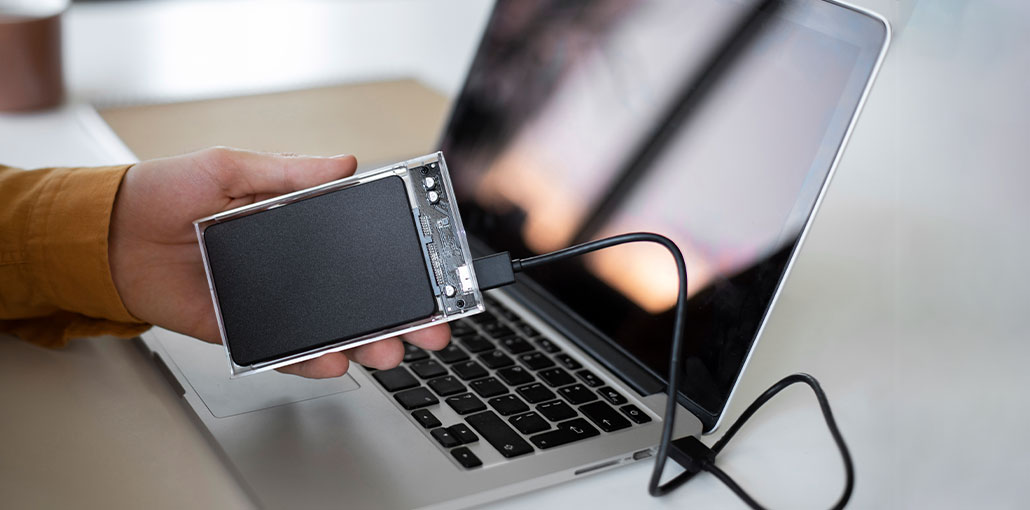
Everyone has experienced a corrupted and damaged drive on their external storage device at one time or another. There is no doubt that external hard drives are a helpful device for those struggling to manage their data. However, if you encounter data corruption or an error on the drive, it could result in a huge disappointment.
However, every issue has a solution, and a damaged hard drive is no exception. It is possible to use the Windows built-in Command Prompt to repair external hard drive in various situations. For example, if you’re a Windows 7 user and are not inclined to download third-party software to get the drive repaired, then the command prompt is the best option.
If you think that’s the scenario for you, read on to learn the steps to repair external hard drives using CMD on a Windows system.
What Is Command Prompt (CMD)?
If you’ve never had any idea about Command Prompt before, you’re not all on your own. A lot of people aren’t familiar with this amazing program, even after working with a Windows OS for several years. In essence, Command Prompt (CMD) is a command-line interface used to run shell commands. All commands in the Command Prompt are defined, and you’ll need to execute the same method to accomplish the task you want.
CMD has been an essential component of Windows OS since its inception and can help you overcome numerous Windows errors by performing various commands. If your external hard drive has been damaged, you can utilize CMD to repair it. Perhaps you are curious about the reasons for issues with your hard drive and how to repair external hard drive by using the Command Prompt. We’re here to help you grow stronger mentally and emotionally. I will list some.
Also read: External Hard Drive Not Showing Up? Try These 5 Troubleshooting Steps
What Hard Drive Problems Can Be Fixed Using Command Prompt?
- Logical Errors: Sometimes, you might have experienced strange behavior in a specific software running on your computer. This could be because of bugs and fall under logic errors. It’s more than a hassle, yes, it’s possible to repair external hard drive using CMD.
- Bad sector: The term “bad sector” refers to a damaged sector within the hard drive, which is essentially a small area of storage that isn’t readable and is damaged. Normal wear and tear (hardcore or overtime use) or physical damage can lead to bad sectors. If your hard drive has bad sectors due to over time or heavy use (but there is no physical damage ), using CMD to repair external hard drive is a good option.
- Data Loss: To a certain extent, data loss on the hard drive can be repaired using the command prompt.
How to Repair a External Hard Drive Using Command (CMD)?
To repair a damaged hard drive, you’ll need to use CHKDSK, also called CheckDisk, an official Windows program to test the hard drive’s condition and fix it if it’s damaged. CHKDSK runs in CMD and is used to repair internal and external hard drives regardless of storage space.
Let’s check how to repair external hard drive using CHKDSK in the Command Prompt. In this guide, you can follow the same procedure with every Windows version to run the CHKDSK tool.
1. Repair External Hard Drive Using CHKDSK
Let’s first look at how to use CHKDSK to repair a hard drive with logical issues.
- Start your “Start” menu and search for “CMD”. Click the first result, and tap “Open as Administrator” to start CMD as the Administrator.
- After that, use the command below to test the external drive for any logical errors.
- chkdsk f: (Make sure you change “f” with the letter that is assigned to the external hard disk that’s on your computer).
- The previous command will check the hard drive for possible errors, but won’t solve them. Therefore, if you want to fix the error, you’ll need to run the next command.
chkdsk f:/f (“/f” is a CHKDSK parameter that will look for problems that are logical to the drive and then try to fix the problem as well).
2. Repair External Hard Drive Bad Sectors Using CMD
If the command above doesn’t repair external hard drive and shows a drive I/O device error, it likely has bad sectors. This suggests that you’ve already lost important data from the drive, too. It is possible to use the CHKDSK tool to search for bad sectors and recover deleted files.
Here’s how you can repair damaged sectors on your hard drive by using CMD.
- Launch CMD as an administrator, following the steps that were previously mentioned. After that, run this command: chkdsk f:/f/r/x” (“/r” can search for bad sectors, and retrieve any data that can be read. “/x” will dismount the hard drive before scanning it to ensure that the process is not interrupted by an external event).
- Be patient and wait for the command above to complete successfully. Then, type in the drive number of the external drive and press Enter. This will switch the drive currently to the external drive.
- Then, finally, type “attrib -h -r -s *.* /s /d” and then press enter.
The command will try to restore hidden files. When the process is complete, a new folder will be created on the hard drive. It will contain all the recovered data.
3. Repair External Hard Drive Using DiskPart
If the above commands don’t resolve the issue, try this DiskPart command to repair external hard drive by formatting it.
(All data stored on the disk will be erased after formatting. Be sure to back up or transfer the files on a different storage device before executing using the method described above.)
Here are the steps to follow:
- Enter Command Prompt in the search box next to the Start Menu and run it as administrator.
- Type list disk or list volume in the search box and press Enter to display all storage devices that are connected to your PC.
- Choose the corrupted external hard drive by entering “select disk X” or “select volume X”. (Replace X with the number of the corrupted external hard drive.)
- After that, type in the following command to begin formatting:
format fs=ntfs quick - The process will take time to be completed. Close your command prompt.
Also read: Fix DiskPart Virtual Disk Service Error: 5 Reliable Solutions for Windows
4. Repair External Hard Drive by Running SFC
A corrupted hard drive could result in a damaged file system. You can fix the corrupted hard drive by using SFC. Follow this process:
- Launch Command Prompt as administrator.
- For Windows 10 and above users, copy this command prompt into the window and then press enter: DISM.exe /Online /Cleanup-image Restorehealth
- Users who have older versions of Windows do not need to run it.
- After the scanning process has been completed, enter the command “sfc /scannow” and press Enter. If you’re fixing your external drive, use the command below:
sfc /scannow /offbootdir=X:\ /offwindir=C:\Windows - Replace X with the initials from the drive, and then change C: Windows to match in case the Windows operating system isn’t installed on the C drive.
Third-Party Tools to Repair External Hard Drives
If you are trying to find solutions for a broken or malfunctioning external hard disk repair, but can’t find anything, you might have to turn to third-party tools to repair external hard drive.
Best external hard drive repair software like MiniTool Partition Wizard Pro, EaseUS Partition Master, Paragon Partition Manager, TestDisk, WinDirStat, etc., could be on your list to test.
When CMD Cannot Repair an External Hard Drive
Command Prompt can fix many logical problems, but it cannot repair physical hardware damage.
Seek professional help if you notice:
- Clicking or grinding noises
- Water damage
- Burnt components
- Drive not spinning
- Severe impact damage
Continuing to use a physically damaged drive can worsen the problem and reduce the chances of successful data recovery.
Tips to Prevent External Hard Drive Failure
Protect your data with these best practices:
- Safely eject the drive before unplugging.
- Keep backups of important files.
- Avoid dropping or shaking the drive.
- Use surge protectors.
- Scan regularly for malware.
- Store drives in a cool, dry environment.
Preventive maintenance can significantly extend the lifespan of your storage device.
Conclusion
Follow the methods outlined above to troubleshoot and repair external hard drives not working, not reading, or not responding. In many cases, you can fix them yourself. If you don’t have the expertise of a professional computer user, the step-by-step instructions can be enough to help you.
FAQs: Repair External Hard Drive
What does CHKDSK do on an external hard drive?
CHKDSK (Check Disk) scans an external hard drive for file system errors, corrupted data, and bad sectors. It can automatically repair logical errors and recover readable information from damaged sectors.
What causes an external hard drive to become corrupted?
Common causes include improper ejection, sudden power loss, malware infections, bad sectors, file system corruption, and physical damage to the drive.
Will repairing a external hard drive delete my files
In most cases, repair tools such as CHKDSK do not delete files. However, if the drive is severely corrupted, some data may become inaccessible. It is always recommended to back up important files before performing repairs.
How can I repair external hard drive without formatting it?
You can use CHKDSK by running the command: chkdsk F: /f /r This scans the drive for errors and bad sectors without formatting or erasing existing data.
When should I use third-party hard drive repair software?
If built-in Windows tools cannot resolve the issue, you may consider third-party software such as EaseUS Partition Master, MiniTool Partition Wizard, or TestDisk for advanced repair and recovery options.









Leave a comment