

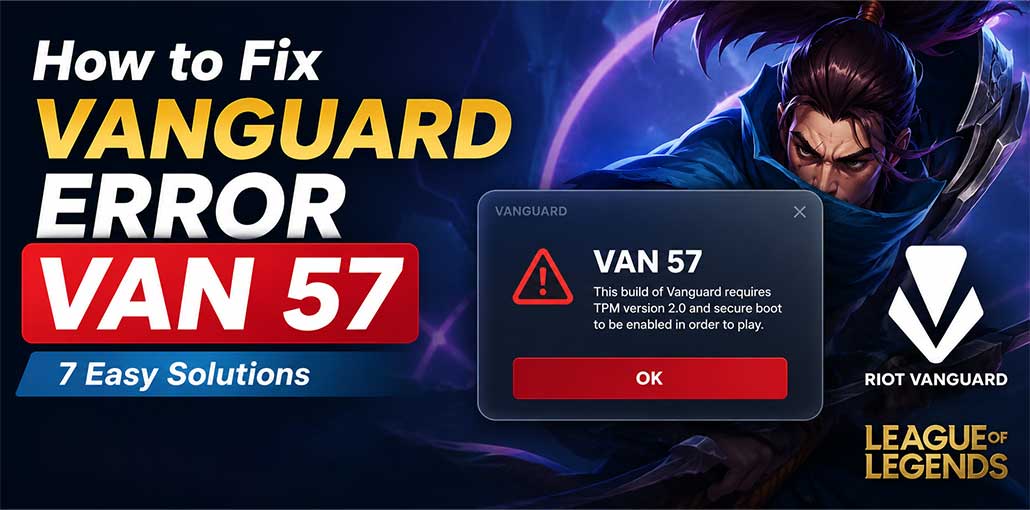
Many League of Legends players are unable to play LOL because of the Vanguard error VAN 57. One player’s Reddit post said: “I keep getting the Vanguard Error VAN 57 or the Vanguard session is starting error in LOL.” The VAN 57 error message states, “An unexpected error with Vanguard has occurred, and the client will now close.” This is how to solve the League of Legends Vanguard error VAN 57 on a Windows PC.
What Is Vanguard Error VAN 57?
VAN 57 is a Riot Vanguard error that occurs when Vanguard is not running correctly.
Riot Vanguard is Riot Games’ anti-cheat software. League of Legends requires Vanguard to be active, so if the Vanguard service fails to initialize, the game may close before you can enter the client or start a match.
According to Riot’s Vanguard error documentation, Vanguard Error VAN 57 means that Vanguard is not running. Riot’s recommended troubleshooting sequence is to restart the computer and Riot Client. If the problem remains, reinstalling Vanguard and the game may be necessary.
Common symptoms of Vanguard Error Code 57
You may encounter one or more of these symptoms:
- League of Legends refuses to launch.
- Riot Client opens but the game closes.
- A VAN 57 error appears during startup.
- You see an “unexpected error with Vanguard” message.
- Vanguard appears not to initialize after Windows starts.
- Restarting League of Legends does not resolve the problem.
Why Does Vanguard Error VAN 57 Happen?
There isn’t always one single cause. Because the Vanguard 57 error indicates that Vanguard is not running, troubleshooting should focus first on Vanguard’s startup and the Windows environment it depends on.
Common possibilities include:
- Vanguard failed to start after Windows booted.
- The VGC service is stopped or disabled.
- Vanguard installation files have become corrupted.
- League of Legends or Riot Client has an incomplete update.
- A temporary Riot Client or Vanguard process conflict occurred.
- Windows or system software is interfering with Vanguard.
- A previous Vanguard installation did not complete correctly.
Other troubleshooting guides similarly point to restarting Riot Client, checking the VGC service, reinstalling Vanguard, and—only as an advanced measure—checking certain Windows configuration settings.
Also read: How to Fix AMD Error 207 on Windows 10 & 11
How to Fix Vanguard Error VAN 57
Try the following solutions in order. Start with the simplest fixes before making system-level changes.
1. Restart Riot Client and Your PC
The first thing to try is a complete restart.
A normal game restart may not be enough if a Vanguard process has become stuck. Restarting Windows gives Vanguard another opportunity to initialize during startup.
Steps to restart properly
- Close League of Legends.
- Exit the Riot Client completely.
- If necessary, open Task Manager with Ctrl + Shift + Esc.
- Look for Riot Client or Vanguard-related processes that are still running.
- End the relevant Riot processes.
- Restart your computer.
- After Windows starts, open Riot Client.
- Launch League of Legends.
Riot specifically recommends restarting the computer and Riot Client for VAN 57.
If VAN 57 disappears after the restart, you don’t need to make any additional changes.
2. Check and Start the VGC Service
If restarting doesn’t work, check whether the VGC service is running.
VGC is the Windows service associated with Riot Vanguard. If it is stopped or disabled, Vanguard may not initialize correctly, which can result in Vanguard error VAN 57. Multiple troubleshooting guides identify the VGC service as an important part of resolving this error.
How to enable VGC
- Press Windows + R.
- Type services.msc.
- Press Enter.
- Find VGC in the Services list.
- Double-click vgc.
- Set Startup type to Automatic.
- If the service is stopped, click Start.
- Click Apply, then OK.
- Restart your PC.
- Open Riot Client and launch League of Legends.
If VGC was disabled, this can restore Vanguard’s normal startup behavior.
What if VGC is already running?
If VGC is already running, you can try stopping the service and starting it again, then restart Windows.
If Vanguard error VAN 57 continues to appear, move on to the next solution rather than repeatedly restarting the service.
3. Update League of Legends and Riot Client
An outdated or incomplete game installation can sometimes contribute to Vanguard startup problems.
Open the Riot Client and allow any available League of Legends or Riot Client updates to finish.
After the update:
- Close Riot Client.
- Restart Windows.
- Open Riot Client again.
- Launch League of Legends.
Keeping the Riot software current is particularly important because Vanguard and League of Legends need to work together during the game’s startup process. The troubleshooting sources reviewed for this guide also recommend ensuring the game and Vanguard installations are updated.
4. Reinstall Riot Vanguard
If VAN 57 still appears, reinstalling Vanguard is one of the most useful next steps.
Riot’s official documentation lists reinstalling Vanguard and League of Legends as the next step when restarting does not resolve Vanguard error VAN 57.
How to reinstall Riot Vanguard
- Press Windows + R.
- Type appwiz.cpl.
- Press Enter.
- Find Riot Vanguard in the installed programs list.
- Right-click it and select Uninstall.
- Follow the on-screen instructions.
- Restart your computer.
- Open the Riot Client.
- Launch League of Legends.
- Allow Vanguard to reinstall when prompted.
- Restart your computer again if Riot Client requests it.
A fresh Vanguard installation can replace damaged or incomplete Vanguard files and restore the components required for the anti-cheat service to start.
Important
Don’t download Vanguard from unofficial websites. Use the Riot Client and Riot’s official installation process.
5. Reinstall League of Legends and Vanguard
If reinstalling Vanguard alone doesn’t solve the problem, the League of Legends installation itself may need to be refreshed.
Before doing this, make sure you know your Riot account credentials.
A clean reinstall can help when:
- Vanguard remains unable to initialize.
- Game files are corrupted.
- An update was interrupted.
- Vanguard repeatedly reinstalls incorrectly.
- VAN 57 returns after every restart.
Riot’s own VAN 57 guidance recommends removing Riot Vanguard and League of Legends and reinstalling them if restarting does not solve the issue.
This should generally be treated as a later troubleshooting step because reinstalling the entire game takes considerably longer than restarting Vanguard.
6. Check Windows for Pending Updates
Windows updates can affect system components, drivers, and security features that Riot software relies on.
To check for updates:
- Press Windows + I.
- Open Windows Update.
- Click Check for updates.
- Install available updates.
- Restart the computer.
- Try League of Legends again.
You should also make sure your graphics and chipset drivers are reasonably up to date.
However, don’t assume every Windows-related Vanguard error is the same. Riot has separate documentation for other Vanguard codes involving Windows security requirements, so avoid applying fixes intended for VAN 9002, VAN 9005, or other codes when your actual error is Riot Vanguard error VAN 57.
Also read: How to Fix Windows Update Errors in Windows 10
7. Use Advanced Windows Troubleshooting Only If Necessary
Some third-party troubleshooting guides suggest changing Windows Registry settings related to DevOverrideEnable when Vanguard error VAN 57 persists.
However, Registry editing should not be your first solution.
The Windows Registry contains important system configuration data, and changing the wrong value can create additional problems. The sources reviewed also describe different registry locations for the setting, which is another reason not to blindly copy a registry modification from a troubleshooting article.
If the basic solutions above have failed, it is safer to:
- Back up important data.
- Avoid downloading registry “fixers.”
- Follow Riot’s current support instructions.
- Contact Riot Player Support if Vanguard still refuses to initialize.
For Vanguard error VAN 57 specifically, Riot’s documented troubleshooting path prioritizes restarting and reinstalling rather than requiring registry modification.
Final Thoughts
This League of Legends Vanguard Error VAN 57 is a typical startup error that is simple to fix. It can be fixed by restarting your computer and updating the game, or by reinstalling Vanguard. A DNS flush can be beneficial for network-related issues.
FAQs: League of Legends Vanguard Error VAN 57
Is VAN 57 a League of Legends account ban?
No. VAN 57 is generally a Vanguard/connection or service-related error, not an indication that your League of Legends account has been banned.
Do I need to reinstall Vanguard to fix VAN 57?
Not always. Try restarting Vanguard and your computer first. If the error continues, uninstalling and reinstalling Riot Vanguard can help replace damaged or incorrectly configured Vanguard files.
What should I do if VAN 57 still won't go away?
If the basic fixes don't work, try reinstalling Riot Vanguard, restarting Windows, and checking whether other security software is interfering with Vanguard. If the problem continues, contacting Riot Support is the next step.
Can I play League without Riot Vanguard?
No. League of Legends requires Riot Vanguard to be running properly for gameplay under Riot's current anti-cheat system.







Leave a comment