

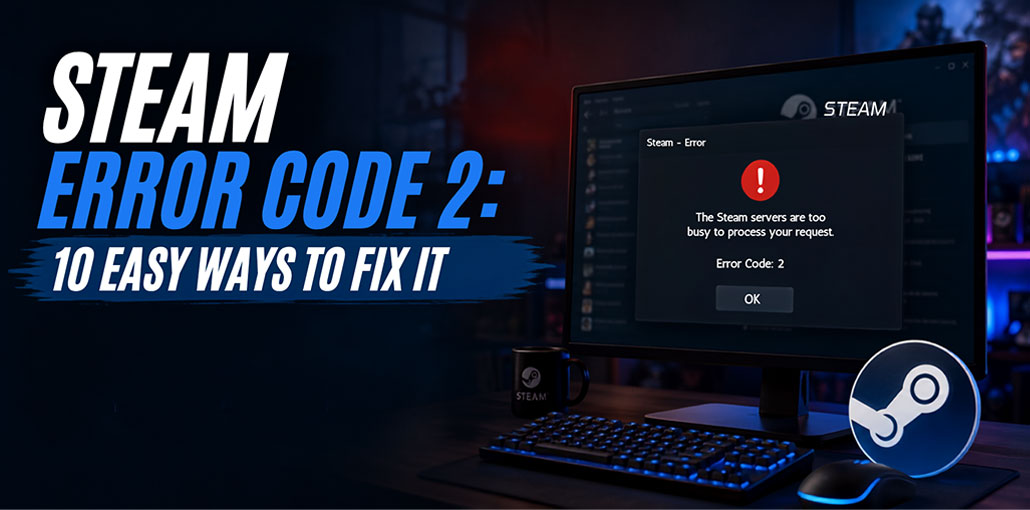
Steam Error Code 2 may occur when installing, updating, or uninstalling applications through the Steam Library. In many instances, this message pops up: ” The Steam servers are too busy to process your request,” along with the affected game’s name and Error Code 2
Steam servers are usually the problem. Sometimes they are. But not all the time. It can also happen due to corrupted game files and a corrupt download cache, an inefficient download region, firewall blocking, VPN routing, or even a stuck Steam client.
Don’t be rushed to reinstall everything. Start with the basics before moving further into more extensive Steam and network issues. Test after each step to fix the issue.
What Does Steam Error Code 2 Mean?
Steam Error Code 2 translates to “Steam could not complete a request.” This request might be loading an online game, checking game files, launching an update, joining a gaming service, or loading some data from Steam servers.
If your servers are overloaded, the problem could lie with Steam itself. It could be on the PC, the internet connection, client software, or locally hosted files. In essence, something was attempted but failed, was blocked, or ran out of resources.
Why Does Steam Error Code 2 Appear?
There are several possible reasons why Steam Error Code 2 appears. The most common ones include:
- Steam servers are temporarily unavailable or overloaded
- Your selected download region is experiencing heavy traffic
- Steam’s download cache is corrupted
- Game files are missing or damaged
- Your internet connection is unstable
- A VPN or proxy is interfering with Steam
Because there are several possible causes, start with the easiest solutions and work your way through the list.
Also read: Steam Error Code E87: How to Fix Steam Login Error
How to Fix Steam Error Code 2
Try each solution in order; start with simple methods and move to advanced troubleshooting only if necessary.
1. Check Steam Server Status
Before troubleshooting your computer, make sure Steam’s servers are working properly. If Steam is experiencing an outage or heavy traffic, the problem may be completely outside your control. In that situation, changing settings on your PC will not help until the Steam service is working normally again.
Steps:
- Check Steam’s server status.
- Look for recent outage reports.
- Check whether other Steam users have the same problem.
- If Steam is experiencing issues, wait for the service to recover.
- Try again later.
2. Restart Steam
A temporary Steam process or connection problem can sometimes cause Steam Error Code 2. Completely closing the Steam client and starting it again refreshes its background processes and connection. This is a quick fix, so try it before making changes to your Steam or Windows settings.
Steps:
- Close Steam.
- Press Ctrl + Shift + Esc.
- Open Task Manager.
- Find any remaining Steam processes.
- Select the process and click End task.
- Open Steam again.
- Try the download or update.
3. Change the Steam Download Region
Your current Steam download server may be busy or experiencing temporary problems. Switching to another nearby region can give Steam a different server to connect to. This solution is particularly useful when the error appears while downloading or updating a game.
Steps:
- Open Steam.
- Go to Steam > Settings.
- Select Downloads.
- Find Download Region.
- Choose another nearby region.
- Restart Steam.
- Try the download again.
4. Clear Steam Download Cache
A corrupted download cache can cause Steam downloads and updates to behave unexpectedly. Clearing the cache removes temporary download information and allows Steam to create fresh data. If your download repeatedly stops, gets stuck, or fails, this is one of the easiest solutions to try.
Steps:
- Open Steam.
- Go to Steam > Settings.
- Select Downloads.
- Click Clear Download Cache.
- Confirm the action.
- Sign in again if required.
- Retry the download or update.
5. Verify Game Files
If Steam Error Code 2 happens with only one game, damaged or missing files could be responsible. Steam’s built-in verification tool checks the game installation and replaces files that are missing or corrupted. This can be especially helpful after an interrupted download or unsuccessful game update.
Steps:
- Open your Steam Library.
- Right-click the affected game.
- Select Properties.
- Click Installed Files.
- Select Verify integrity of game files.
- Wait for the process to finish.
- Launch the game again.
6. Disable VPN or Proxy
A VPN or proxy can sometimes interfere with Steam’s connection to its servers. If you normally use one, temporarily disconnect it and test Steam again. If the problem disappears, your VPN or proxy configuration may be affecting the connection.
Steps:
- Disconnect your VPN.
- Close Steam completely.
- Open Steam again.
- Try the download or update.
- If you use a proxy, temporarily disable it.
- Test Steam again.
- Re-enable your VPN if it was not the cause.
7. Check Firewall and Antivirus
Your firewall or antivirus program may occasionally block Steam from accessing the internet or certain files. Instead of disabling your security software completely, check whether Steam is allowed through the firewall. This can help resolve connection problems while keeping your computer protected.
Steps:
- Open Windows Security.
- Select Firewall & network protection.
- Click Allow an app through firewall.
- Make sure Steam is allowed.
- Check your third-party antivirus settings if applicable.
- Restart Steam.
- Try again.
8. Run Steam as Administrator
Windows permissions can sometimes prevent Steam from accessing or modifying files in its library. Running Steam as an administrator can help identify whether permissions are causing the problem. This is worth trying if the error appears while installing, updating, or accessing game files.
Steps:
- Close Steam.
- Find the Steam shortcut.
- Right-click it.
- Select Run as administrator.
- Wait for Steam to open.
- Try the affected operation again.
Also read: Steam No License Error? Here’s How to Solve It Fast
9. Check Your Steam Library and Storage
A full drive, disconnected storage devices, or library folder permission issues could obstruct Steam downloads and updates. If the issue continues after checking your internet connection and Steam settings, make sure that the drive containing your games is open and has enough free space.
Steps:
- Open Steam.
- Go to Settings > Storage.
- Check your Steam library drive.
- Make sure the drive is connected.
- Check available storage space.
- Make sure Steam can access the library folder.
- Try the download or update again.
10. Restart Your Router and Internet Connection
An unstable internet connection can prevent Steam from communicating properly with its servers. Restarting your router can refresh the connection and clear temporary network problems. If the error continues, try connecting your computer to another network to see whether the issue is related to your normal internet connection.
Steps:
- Close Steam.
- Turn off your router.
- Wait around 30 seconds.
- Turn the router back on.
- Wait for the internet connection to return.
- Restart Steam.
- Try the download or update again.
What Should You Try First?
If you don’t want to go through all solutions immediately, start with these:
- Check Steam server status
- Restart Steam
- Change the download region
- Clear the download cache
- Verify game files
These steps cover many of the common causes without making major changes to your PC.
If they don’t work to fix Steam Error Code 2, continue with the VPN, firewall, permissions, storage, and network solutions.
Final Thoughts
Steam Error Code 2 can have multiple causes, so there’s no single fix that applies to everyone. Start with simple solutions, like checking Steam server status and restarting the client, before moving on to more in-depth solutions such as changing the download region, clearing the cache, verifying game files, and checking for network issues.
These solutions can often help you diagnose errors without needing to reinstall Steam or your games right away.
FAQs: Steam Error Code 2
Is Steam Error Code 2 caused by Steam servers?
Sometimes. Steam Error Code 2 can occur when Steam servers are unavailable or experiencing heavy traffic, but local issues such as corrupted game files, download cache problems, VPN interference, or firewall restrictions can also cause it.
Why does Steam Error Code 2 happen with only one game?
If the error affects only one game, corrupted, missing, or incomplete game files may be responsible. Use Steam's Verify integrity of game files option to check the installation.
Do I need to reinstall Steam to fix Error Code 2?
Not usually. Reinstalling Steam should be a last resort after trying basic troubleshooting methods.
Can a VPN cause Steam Error Code 2?
Yes. A VPN or proxy can sometimes interfere with Steam's connection. Temporarily disabling it can help determine whether it is causing the problem.






Leave a comment