

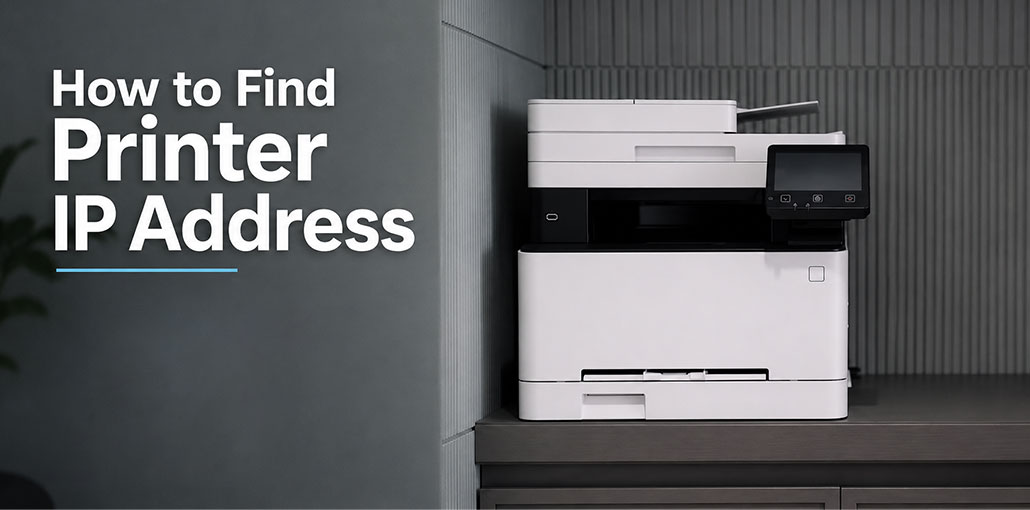
Is your wireless printer not connecting to your computer? Or maybe your computer can’t find the printer at all?
Before you start changing settings or reinstalling the printer, check its IP address. It can help you find the printer on your network and fix connection problems.
The good news is that finding a printer’s IP address is pretty easy. You don’t need to be a tech expert. You can find it from the printer, your Windows PC, Mac, router, or Command Prompt.
In this guide, we’ll show you how to find printer IP address step by step.
What Is a Printer IP Address?
A printer IP address is a number that identifies your printer on your network. Your computer uses this address to find and communicate with the printer.
A printer’s IP address may look like this:
192.168.1.25
Your printer will have its own IP address. It may be different from the IP address of your computer or phone.
You may need your printer’s IP address when you want to:
- Connect your printer to a computer
- Fix a wireless printer connection
- Add a network printer
- Check if the printer is connected to your network
- Open your printer’s network settings
Now, let’s look at the different ways to find it.
Also read: Shared IP Address vs. Dedicated IP Address
How to Find Printer IP Address From the Printer
Not sure where to find IP address on your printer? You can usually find it in the printer’s Network or Wireless Settings.
Follow these steps:
- Turn on your printer.
- Open Settings or Setup.
- Go to Network Settings or Wireless Settings.
- Look for Network Information, TCP/IP, or IPv4.
- Find the IP Address.
For example, you may see:
IPv4 Address: 192.168.1.25
That’s your printer’s IP address.
What If the Printer Doesn’t Show the IP Address?
Some printers don’t show the IP address on the screen. In that case, you can print a Network Configuration Page or Network Status Report.
Look for an option like:
- Print Network Configuration
- Network Status
- Network Report
- Wireless Network Report
Print the page and look for IP Address, IPv4 Address, or TCP/IP.
The exact steps may be different for your printer model.
How to Find Printer IP Address on Windows
If your printer is already connected to your Windows computer, you can check its IP address from the printer settings.
Using Windows Settings
Here’s how:
- Press Windows + I to open Settings.
- Click Bluetooth & devices.
- Select Printers & scanners.
- Click your printer.
- Select Printer properties.
- Open the Ports tab.
- Look for the port your printer is using.
If your printer uses a Standard TCP/IP Port, you may see the printer’s IP address there.
Using Control Panel
You can also use Control Panel:
- Open Control Panel.
- Click Devices and Printers.
- Find your printer.
- Right-click it.
- Select Printer properties.
- Click the Ports tab.
- Look for the selected port.
If your printer is connected over your network, its IP address may be shown there.
How to Find Printer IP Address on Mac
Using a Mac? You can check your printer through System Settings.
Follow these steps:
- Click the Apple menu.
- Open System Settings.
- Click Printers & Scanners.
- Select your printer.
- Open the printer’s information or settings.
- Look for network or address information.
Depending on your printer and macOS version, you may not see the IP address here.
If you can’t find it, check the printer’s network settings or print a network configuration page.
You can also check your router’s connected devices to find the printer’s IP address.
How to Find Printer IP Address From Your Router
Your router keeps a list of devices connected to your network. Your printer should be listed there if it’s connected properly.
This is a useful method if you can’t find the IP address on the printer or computer.
Follow these steps:
- Connect your computer or phone to your network.
- Open a web browser.
- Sign in to your router.
- Look for Connected Devices, Attached Devices, Network Map, or DHCP Clients.
- Find your printer in the list.
- Check the IP address next to it.
Your printer may appear under its brand name, model name, or another device name.
For example:
Office Printer — 192.168.1.25
Router settings are different for each brand, so your menu may look different.
If you’re not sure which device is your printer, compare its information with the printer’s network report.
Also read: Printer Driver Is Unavailable? Here’s the 8 Real Solution
How to Find Printer IP Address Using Command Prompt
If you’re using Windows, you can also use Command Prompt to find devices on your network.
Here’s how:
- Press Windows + R.
- Type cmd.
- Press Enter.
- Type:
arp -a - Press Enter.
You’ll see a list of IP addresses and MAC addresses for devices your computer has recently connected to.
You may be able to find your printer in this list.
If you’re not sure which IP address belongs to your printer, check the printer’s network information and compare the MAC address.
If your printer doesn’t appear, make sure it’s turned on and connected to the same network as your computer.
What If You Can’t Find Your Printer IP Address?
Can’t find the IP address after trying these methods? Don’t worry. There are a few things you can check.
Check the printer’s connection.
Make sure the printer is connected to Wi-Fi or Ethernet. If it’s offline, it may not have a working network connection.
Check your network.
Make sure your computer and printer are connected to the same network. If they are on different networks, your computer may not be able to find the printer.
Restart the printer.
Turn the printer off. Wait a few seconds, then turn it back on. This can help it reconnect to the network.
Restart your router.
If other devices are also having connection problems, restarting the router may fix the issue.
Print a network report.
If your printer supports it, print a Network Configuration Page. It should show the printer’s current IP address.
Final Thoughts
Finding out the cause of printer problems isn’t easy. If you know how to find printer IP address, it means you can solve the issue quickly. Find the printer IP address on the printer, computer, router, or even in Command Prompt. Select the easiest method to use.
FAQs: How to Find Printer IP Address
Where can I find the IP address on my printer?
Open your printer's Network or Wireless Settings and look for Network Information, TCP/IP, IPv4, or IP Address. Some printers can also print a network configuration report.
Why can't I find my printer's IP address?
Make sure the printer is turned on and connected to the same network as your computer. You can also restart the printer, check its network settings, or print a network configuration report.
What is the easiest way to find a printer IP address?
The quickest option is usually to check the printer's Network Settings or print its network configuration page.
Why does my printer IP address keep changing?
Your network may automatically assign the printer an IP address. If the address changes, your computer may sometimes have trouble finding the printer.






Leave a comment