

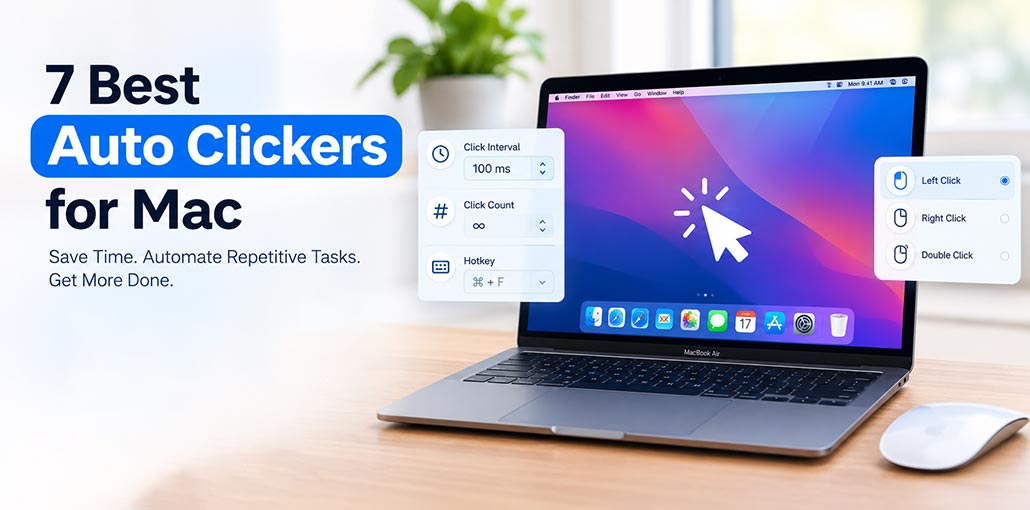
Finding a reliable auto clicker for Mac can save you time by automating repetitive mouse clicks and simplifying everyday tasks. Whether you need automatic clicking for gaming, testing, or routine work, choosing the right auto clicker for MacBook depends on its features, ease of use, and compatibility.
In this guide, we’ll explore 7 auto clickers for Mac in 2026, covering their advantages and limitations. By the end, you’ll have a clearer idea of which auto clicker for Mac best suits your needs.
Best Auto Clicker for Mac
1. AutoClicker by MurGaa
If I had to pick just one auto clicker for Mac, I’d choose AutoClicker by MurGaa. What stands out to me is the level of customization it offers macOS users.
You can adjust the number of clicks, set the interval between clicks, and schedule clicking sessions by the minute or hour. These features make it a practical choice for tasks that demand precise timing, such as automated testing or idle gaming. It also supports hotkey controls, allowing you to start or pause clicking instantly without switching between windows.
Although its interface feels dated and hasn’t changed much over the years, AutoClicker by MurGaa remains reliable and stable, with one of the most comprehensive feature sets available for Mac users.
Pros
- Adjustable click delays and hotkeys
- Supports left and right-clicking
- Compatible with Intel and Apple Silicon Macs
Cons
- Free trial has usage limits
- Paid activation required after the trial
- Activation lasts up to six months per Mac.
Also read: Top 10 MacBook Memory Cleaner to Improve Mac Speed Instantly
2. Mac Auto Clicker by FileHorse
Mac Auto Clicker by FileHorse takes a simpler approach, which can be a plus if you don’t need advanced customization. It covers the essentials, letting you set click intervals, control the duration, and choose between left and right clicks. Everything is accessible through a straightforward interface, making it a good option for users who want a basic auto clicker for Mac without unnecessary settings.
It’s a solid choice for quick, simple tasks, such as skipping intros or repeating actions in casual games. However, if you need advanced features like scheduling or scripting, its limited customization may leave you wanting more.
Pros
- Simple interface
- Adjustable click intervals and click counts
- Supports left-, right-, and double-clicking
Cons
- Limited cursor movement automation
- Fewer advanced automation features
- Verify the specific listing and pricing.
3. OP Auto Clicker
OP Auto Clicker is a popular Mac auto clicker for its cross-platform support and straightforward controls. Although it first gained popularity among Windows users, its macOS version offers similar ease of use and responsive clicking. You can set click intervals down to milliseconds and choose between a fixed click location or a dynamic position, making it suitable for tasks that require precise timing and flexible cursor placement.
The main drawback is that OP Auto Clicker doesn’t feel fully optimized for macOS. While it gets the job done, its overall experience lacks the polish you’d expect from a native Mac utility. Still, if you want a lightweight tool with cross-platform compatibility, it’s worth considering.
Pros
- Fixed-position or cursor-following clicks
- Adjustable click counts and intervals
- Customizable hotkeys
Cons
- Official desktop project may not support macOS
- Third-party Mac downloads require careful verification
- Compatibility can vary between versions
4. iMouseTrick
iMouseTrick keeps things simple with a clean interface designed primarily for continuous clicking. It’s a good fit for tasks that require repeated mouse presses without fine-tuning click intervals. For example, it works well for idle games or apps where maintaining a steady stream of clicks matters more than precise timing.
Unlike other auto clicker for Mac, iMouseTrick lacks hotkey support and click count controls, which makes it less practical for tasks that require a specific number of clicks or brief clicking sessions. However, if you’re after a simple, continuous click loop without unnecessary features, it gets the job done with minimal fuss.
Pros
- Simple, lightweight design
- Useful for continuous clicking
- Minimal setup required
- Suitable for idle games and repetitive actions
Cons
- Limited customization options
- May lack hotkey support
- Limited control over click counts
- Not ideal for precisely timed clicking tasks
5. SakaLite
SakaLite strikes a good balance between advanced functionality and ease of use. It supports custom hotkeys, multiple click modes—including single, double click, and hold—and lets you save configurations for future sessions. These features make it particularly useful for automating repetitive tasks across different applications without having to reconfigure your settings every time.
SakaLite is a bit heavier than some alternatives, and its interface doesn’t feel fully native to macOS. Still, it’s a solid choice if you frequently switch between auto-clicking tasks and need customizable settings for each.
Pros
- Supports multiple clicking modes
- Customizable hotkeys
- Allows saved configurations, if supported by the current version
- Useful for switching between repetitive tasks
Cons
- Interface may not feel native to macOS
- May use more resources than simpler alternatives
- Advanced options can take time to configure
6. ClickBot
ClickBot offers a more polished experience than many free auto clickers, with detailed controls for click type, frequency, and position. It auto clicker for Mac also lets you save multiple profiles, making it easier to switch between different setups. Its clean interface and support for custom click patterns are particularly useful for tasks that involve clicking at multiple locations rather than repeatedly targeting the same spot.
ClickBot also supports triggering clicks in response to pixel color changes or changes within a specific screen area, enabling more responsive automation. Although these features require a bit more setup, they offer greater flexibility for advanced users who need more than basic repetitive clicking.
Pros
- Clean, polished interface
- Controls for click type, frequency, and position
- Multiple profiles for different tasks, if supported
- Potentially useful for more complex automation
Cons
- Advanced features may require additional setup
- Can be more complicated for beginners
- Pixel-based triggers and custom click patterns for the specific version
7. Automator + AppleScript
You don’t always need a third-party app for basic automation on Mac. With built-in tools like Automator and AppleScript, you can create custom scripts without spending anything or installing additional software. They’re particularly useful for streamlining repetitive workflows, such as launching apps, navigating windows, and automating menu or dropdown selections.
The main drawback is its learning curve, especially for beginners. You’ll need to write or adapt scripts and understand how to trigger actions correctly. However, if you want greater control over your automation without installing a third-party auto clicker for Mac, Automator and AppleScript offer a built-in solution that integrates naturally with macOS.
Pros
- Built into macOS
- No dedicated third-party auto clicker required
- Supports customized workflows and repetitive actions
- Integrates with compatible macOS applications
Cons
- Requires scripting knowledge for more advanced workflows.
- Mouse-click automation may require additional code or tools.
- Not every application or interface can be automated reliably.
Also read: Top 10 Best Mouse for MacBook Users to Buy in 2026
Auto Clicker for Mac: Comparison Table
| Tool | Key Features | Mac Compatibility | Price |
|---|---|---|---|
| MurGaa Auto Clicker | Adjustable click delays, hotkeys, mouse and keyboard automation | Intel and Apple Silicon Macs; check macOS version requirements | Free trial; paid license |
| AutoClicker by Playsaurus | Adjustable click intervals, random delays, multiple mouse buttons | Check compatibility with your macOS version | Free version; paid upgrade may be available |
| OP Auto Clicker | Click intervals, repeat limits, cursor position options | Depends on the specific Mac version | Varies by version |
| Mac Auto Mouse Click | Automates clicks at specified screen coordinates | macOS; check current version requirements | Free trial; paid license |
| Mac Random Clicker by MurGaa | Left, right, and middle clicks; random delays and hotkeys | Check current macOS compatibility | Free trial; paid license |
| Autoclick (open-source app) | Basic automatic clicking and start/stop controls | Depends on the current release | Free |
| Automator + AppleScript | Automates repetitive workflows and scripted actions | Built into macOS; some tasks require additional scripting | Free |
Note: Features, prices, and compatibility may change between versions. Verify each tool’s current details before publishing.
How to Choose an Auto Clicker for Mac
Choosing the right auto clicker for Mac depends on your needs. Before downloading one, consider these key factors:
- macOS Compatibility: Make sure the tool supports your macOS version and Apple Silicon or Intel processor.
- Click Customization: Look for adjustable click intervals, click counts, and mouse button options.
- Ease of Use: Choose a simple interface if you only need basic automation.
- Advanced Features: Hotkeys, saved profiles, and custom automation can be useful for complex tasks.
- Security: Download from the official developer website and review the permissions the app requests.
- Pricing: Check whether the tool is completely free, offers a limited trial, or requires a paid license.
Wrap up
The best auto clicker for Mac depends on what you need it to do. If you want advanced controls and precise timing, consider AutoClicker by MurGaa. For simple, no-fuss clicking, Mac Auto Clicker by FileHorse may be a better fit. If you prefer more control without installing extra software, explore macOS’s built-in automation tools.
Not sure which auto clicker for Mac to choose? Start with the tool that matches your workflow, check its macOS compatibility, and make sure it comes from a trusted source. The right auto clicker can save you hours of repetitive work—without adding unnecessary complexity to your setup.
FAQs: Auto Clicker for Mac
Is there a free auto clicker for Mac?
Yes, some auto clicker for Mac offer free versions or trials. You can also use built-in macOS automation tools, such as Automator and AppleScript, for certain repetitive tasks.
How do I install an auto clicker on Mac?
Download a compatible application from its official website, follow the installation instructions, and review any required macOS permissions before using it.
Does macOS have a built-in auto clicker?
macOS does not include a standard, general-purpose auto-clicking app. However, Automator, AppleScript, and accessibility features can automate certain actions.
Can I customize the clicking speed?
Many auto clickers let you adjust the interval between clicks. Available settings vary by application, so check the tool's features before installing it.








Leave a comment