

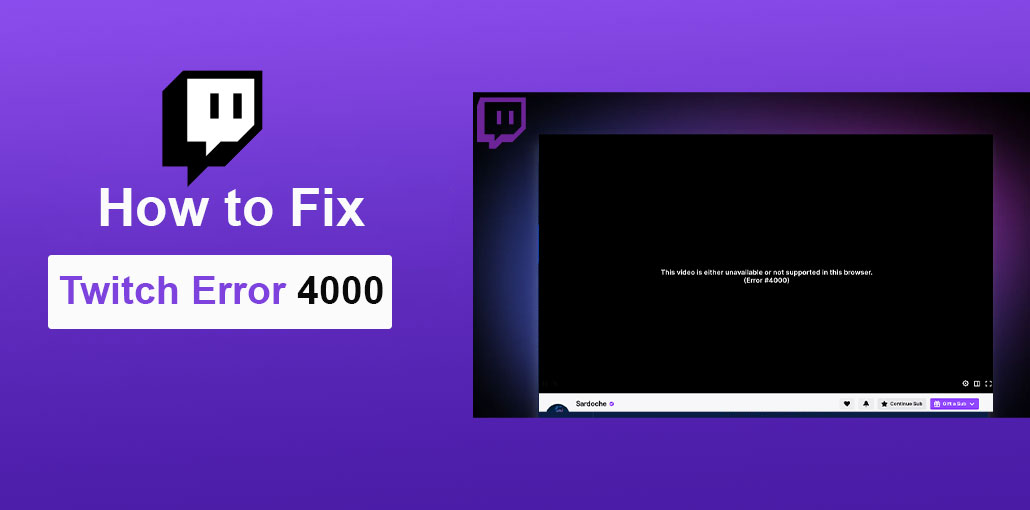
Are you trying to watch a Twitch stream but getting Twitch Error 4000: Resource Format Not Supported? This error can prevent a stream from playing correctly and may also cause missing or interrupted audio.
Fortunately, Twitch Error 4000 is usually a browser, media playback, audio device, cache, or extension-related problem. In most cases, you can fix it without reinstalling your operating system or making complicated changes.
In this guide, we’ll explain what Twitch Error 4000 means, why it happens, and 10 ways to fix Twitch Error 4000 on your device.
What Is Twitch Error 4000?
Twitch Error 4000 is a playback error that commonly appears with the message:
“Media resource format not supported.”
It generally means the Twitch player is unable to properly handle or access the media resource needed to play the stream.
Why Does Twitch Error 4000 Happen?
There isn’t always one single cause. Twitch Error 4000 can appear because of:
- Corrupted browser cache or cookies
- Browser extensions interfering with Twitch
- Another media player using audio resources
- Incorrect default audio device
- Connected or conflicting audio hardware
- Outdated browser software
- Outdated audio or graphics drivers
- DNS or temporary network problems
- Twitch player glitches
- Problems with autoplay or browser media settings
Before trying complicated solutions, start with the simplest fixes and work your way down.
Also read: Twitch Error 2000: How to Fix Network Error on Twitch
How to Fix Twitch Error 4000
Here are 10 fixes for Twitch Error 4000 that you can try.
1. Refresh the Twitch Stream
The easiest solution is to refresh the Twitch page.
A temporary problem with the Twitch player can sometimes prevent the video from loading correctly. Reloading the page forces the player to establish playback again.
How to refresh Twitch:
- Open the Twitch stream.
- Press Ctrl + R on Windows or Command + R on Mac.
- Wait for the page to reload.
- Start the stream again.
You can also close the Twitch tab completely and open the stream in a new tab.
If the error disappears after refreshing, it was likely a temporary playback problem.
2. Try Twitch’s Popout Player
Another quick solution is to open the stream using Twitch’s popout player.
The popout player provides an alternative way to load the video and can sometimes bypass a problem with the normal Twitch page.
- To use the Twitch popout player:
- Open the Twitch stream.
- Look for the player options.
- Select Popout Player, if available.
- Allow the new window to load.
- Check whether the stream plays normally.
This is one of the commonly recommended fixes for Error 4000.
3. Clear Your Browser Cache and Cookies
A corrupted cache is another possible reason Twitch videos fail to load correctly.
Your browser stores temporary files, cookies, and other website data to make websites load faster. Occasionally, old or corrupted data can interfere with Twitch playback.
- On Google Chrome:
- Open Chrome.
- Press Ctrl + Shift + Delete.
- Select a suitable time range.
- Select Cached images and files.
- Select Cookies and other site data if necessary.
- Click Delete data.
- Restart Chrome.
- Open Twitch again.
After clearing the data, you may need to sign in to Twitch again.
4. Disable Browser Extensions
Browser extensions can interfere with video playback.
Ad blockers, privacy extensions, script blockers, media tools, and other extensions can sometimes change how a website loads or handles media.
- Try Twitch without extensions:
- Open your browser’s extensions page.
- Temporarily disable your extensions.
- Restart the Twitch tab.
- Play the stream again.
You can also open Twitch in an Incognito or Private window. If the stream works there, an extension or stored browser data may be responsible.
Instead of disabling every extension permanently, enable them one at a time to identify the problematic extension.
5. Close Other Media Players and Streams
One of the most overlooked solutions is closing other applications that are using your computer’s media or audio resources.
For example, close: VLC, Windows Media Player, Video-editing software, or Other browser tabs playing audio or video
Then reopen Twitch and test the stream.
Some Twitch troubleshooting reports specifically identify conflicts with other active media streams or players as a potential cause of Error 4000.
Windows users can also check Task Manager
- Press:
- Ctrl + Shift + Esc
- Then close unnecessary applications that use significant system resources or are playing media.
6. Check Your Default Audio Device
If Twitch Error 4000 appears alongside audio problems, check your Windows default playback device.
A disconnected, incorrectly selected, or conflicting audio device may cause playback problems.
- Change the default audio device in Windows:
- Right-click the speaker icon on the taskbar.
- Open Sound settings.
- Find the output device.
- Select the headphones or speakers you actually use.
- Play the Twitch stream again.
If you have multiple audio devices connected, temporarily select your primary device and test Twitch.
7. Disconnect Extra Audio Hardware
If you have multiple audio devices connected, temporarily disconnect the ones you’re not using.
For example, you might have:
- USB headphones
- Bluetooth headphones
- External speakers
- A USB microphone
- HDMI audio
- An audio interface
Windows may occasionally switch between audio devices or applications may compete for audio resources.
Disconnect unnecessary devices, select your main output device, and reload Twitch.
This is worth trying because removing extra audio hardware is among the troubleshooting steps recommended for Twitch Error 4000.
8. Update Your Browser and Drivers
An outdated browser or system driver can create compatibility problems with modern web video.
First, make sure your browser is updated.
- Update Chrome:
- Open Chrome.
- Click the three-dot menu.
- Select Help.
- Choose About Google Chrome.
- Install any available update.
- Restart the browser.
Also check for updates to your graphics and audio drivers, especially if Twitch has playback problems across multiple browsers.
For Windows, use your computer manufacturer’s or hardware manufacturer’s official driver sources whenever possible.
Also read: How to Watch Twitch on Roku (2026 Easy Guide)
9. Flush Your DNS Cache
If the previous solutions don’t work, flushing the DNS cache can help eliminate certain temporary network-resolution problems.
- Flush DNS on Windows:
- Press the Windows key.
- Search for Command Prompt.
- Right-click it.
- Select Run as administrator.
- Enter:
ipconfig /flushdns - Press Enter.
- Restart your browser.
- Try Twitch again.
You can also restart your router before testing the stream again.
Keep in mind that DNS flushing won’t fix every Twitch Error 4000 case. It is simply another troubleshooting step worth trying when browser and playback fixes haven’t helped.
10. Try Another Browser or the Twitch App
If Twitch Error 4000 continues in your current browser, test the stream somewhere else.
For example, if you’re using Chrome, try:
- Microsoft Edge
- Firefox
- Another supported browser
How to Prevent Twitch Error 4000
You can’t prevent every Twitch playback error, but a few habits can reduce the likelihood of recurring problems.
- Keep your browser updated.
- Keep Windows and hardware drivers updated.
- Remove unnecessary browser extensions.
- Avoid running multiple media applications simultaneously when troubleshooting.
- Keep your audio devices properly configured.
- Restart your browser when Twitch playback becomes unstable.
- Check Twitch’s status page during widespread problems.
Twitch continues to update its video technology. For example, Twitch announced in June 2026 that Dual Format streaming was being rolled out for creators and that 1440p streaming was becoming available to Partners and Affiliates.
Final Thoughts
Twitch Error 4000 can be annoying, especially when you’re in the middle of watching a live stream. Fortunately, most cases can be resolved with a few straightforward troubleshooting steps.
FAQs:
Why does Twitch say Resource Format Not Supported?
The Resource Format Not Supported message usually means Twitch is having trouble processing the media format required for playback. Browser cache, extensions, outdated software, or audio/video configuration issues can trigger the error.
How do I clear Twitch cache to fix Error 4000?
Clear your browser's cached images and files, then restart the browser and open Twitch again. You can also remove Twitch cookies if the error continues.
Can VPN cause Twitch Error 4000?
Yes. A VPN can sometimes interfere with Twitch connections or media delivery. Temporarily disabling the VPN can help determine whether it is responsible.
Is Twitch Error 4000 a server problem?
Sometimes, but not always. Before assuming Twitch is down, test another stream, browser, or device and check whether other websites are working normally.





Leave a comment