

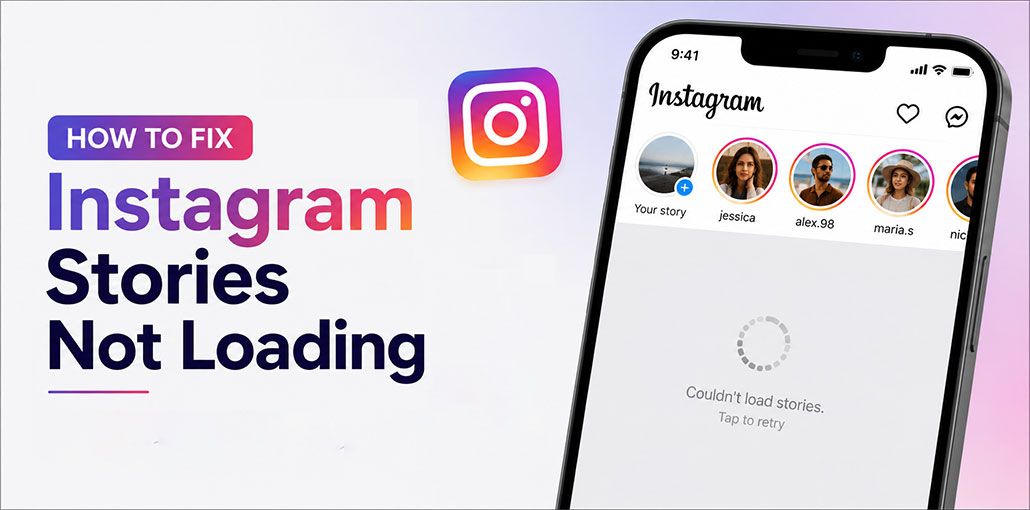
You open Instagram to check your friends’ latest Stories, but they keep loading or won’t open. It can be frustrating, especially when everything else in the app seems to work normally. This problem can happen because of a weak internet connection, an app glitch, or a temporary Instagram server issue.
Fortunately, you can usually fix the issue with a few simple troubleshooting steps. In this guide, we will explain the best ways to fix Instagram stories not loading on Android and iPhone.
Why Are Instagram Stories Not Loading?
Before moving to the fixes, it helps to understand what may be causing the problem.
Instagram Stories may not load because of:
- Slow or unstable internet
- Temporary Instagram server problems
- An Instagram app glitch
- An outdated version of the app
- Corrupted cache files
- VPN or Data Saver restrictions
- Background app problems
- Temporary phone glitches
- Login or account-related issues
- Damaged Instagram app files
Try the following methods one by one until Instagram stories not loading is fixed.
Also read: How to Fix Instagram Black Screen Issue (7 Easy Fixes)
How to Fix Instagram Stories Not Loading
1. Check Your Internet Connection
A poor internet connection is one of the most common reasons why Instagram stories not loading.
Stories contain photos and videos, so they need a stable connection to load properly. If your internet is slow or keeps disconnecting, Stories may remain stuck on the loading screen.
Try these quick fixes:
- Open another website or app to test your internet.
- Switch from Wi-Fi to mobile data.
- If you are using mobile data, try Wi-Fi instead.
- Turn Airplane Mode on for a few seconds and turn it off.
- Restart your Wi-Fi router if the connection is unstable.
Once your connection becomes stable, reopen Instagram and check the Stories again.
2. Check If Instagram Is Down
If Instagram Stories are not loading for many users, the problem may be on Instagram’s side rather than your phone.
Check Instagram’s official status channels or a reliable outage-monitoring service. If there is a widespread outage, you may need to wait until Instagram fixes the issue.
If Instagram is working normally for everyone else, continue with the solutions below.
3. Restart the Instagram App
A temporary app glitch can sometimes prevent Stories from loading correctly.
Completely close Instagram and open it again. This gives the app a fresh start and can clear minor temporary problems.
If your Instagram story not loading, restarting the app can be a quick way to refresh the content.
On Android and iPhone:
- Open the recent apps screen.
- Find Instagram.
- Swipe it away to close the app.
- Wait a few seconds.
- Open Instagram again.
- Tap on a Story and check whether it loads.
If Stories are still stuck, move to the next method.
4. Force Stop Instagram
If simply closing Instagram doesn’t help, Android users can force stop the app.
Force stopping Instagram ends its active processes and starts the app again when you reopen it.
To force stop Instagram on Android:
- Open Settings.
- Go to Apps or Apps & notifications.
- Find and select Instagram.
- Tap Force Stop.
- Confirm the action if prompted.
- Open Instagram again.
The exact menu names can vary between Android phones.
If you’re using an iPhone, there isn’t a traditional Force Stop option. Instead, close Instagram from the app switcher and launch it again.
5. Update the Instagram App
An outdated version of Instagram can sometimes cause problems with Stories, videos, or other features.
Developers regularly release updates that fix bugs and improve compatibility.
To update Instagram:
Android:
- Open the Google Play Store.
- Search for Instagram.
- Tap Update if an update is available.
- Wait for the installation to finish.
- Open Instagram again.
iPhone:
- Open the App Store.
- Search for Instagram.
- Tap Update if available.
- Launch Instagram after the update.
After updating, check whether your Instagram stories not loading issue has been resolved.
6. Clear Instagram Cache
If you’re using Android, corrupted or outdated cache data can sometimes cause Instagram to behave unexpectedly.
Clearing the cache removes temporary files without deleting your Instagram account.
To clear the Instagram cache:
- Open Settings.
- Tap Apps.
- Select Instagram.
- Tap Storage or Storage & cache.
- Select Clear Cache.
- Open Instagram again.
The settings may look different depending on your Android phone.
Note: iPhone does not provide the same direct cache-clearing option. If you’re using an iPhone and the problem continues, try restarting, updating, or reinstalling Instagram.
7. Disable VPN and Data Saver
If you’re using a VPN or Data Saver, they may affect how Instagram loads photos and videos. Disable your VPN and Data Saver temporarily. Then reopen Instagram and check whether Stories are loading properly.
Try the following:
- Turn off your VPN.
- Disable your phone’s Data Saver.
- Check Instagram’s data-saving settings.
- Reopen Instagram.
- Try loading a Story again.
If Stories start working after disabling these features, one of your network restrictions was likely causing the problem.
Also read: The Best Time to Post on Instagram
8. Restart Your Phone
If Instagram Stories not loading is still happening, try restarting your phone. A simple restart can clear temporary glitches and background processes that may be affecting Instagram. Once your phone starts again, open Instagram and check whether the Stories are loading normally.
Simply:
- Restart your Android phone or iPhone.
- Wait for the device to start completely.
- Open Instagram.
- Try viewing Stories again.
This is a simple fix, but it can solve problems caused by temporary system or app issues.
9. Log Out and Log Back In
If the previous methods don’t fix the Instagram stories not loading issue, try logging out of Instagram and then signing back in. This can refresh your account session and may help when Stories are not appearing in your feed. Follow these simple steps to log out and log back into Instagram.
Then:
- Open Instagram.
- Go to your profile.
- Open the menu.
- Go to Settings and activity.
- Scroll down and log out account.
- Close and reopen Instagram.
- Sign in again.
- Check whether Stories are loading.
If your Instagram story not working issue is related to your account session, signing in again may help.
10. Reinstall Instagram
If the previous fixes don’t work, try reinstalling Instagram. A fresh installation can remove corrupted files and fix app-related problems. Before uninstalling, make sure you remember your login details. Then reinstall the app and check whether Stories are loading properly.
If Instagram stories not loading continues because of damaged app files, reinstalling the app can give it a fresh start.
Then:
- Uninstall Instagram from your phone.
- Restart your device.
- Open the Google Play Store or App Store.
- Search for Instagram.
- Install the latest version.
- Sign in to your account.
- Open Stories and check if they load.
Conclusion
If Instagram stories not loading, check your internet connection and Instagram’s server status first. The fixes above can help solve the problem and get Stories working again. If you know another useful method, share it in the comments and help other users facing the same problem.
FAQs: Instagram Stories Not Loading
Why are Instagram Stories not loading but posts are working?
This can happen because of a temporary Instagram glitch, connection problem, or issue with the Stories feature.
Can a VPN cause Instagram Stories not to load?
Yes. A VPN or Data Saver can sometimes affect how Instagram loads photos and videos. Try disabling them temporarily.
Is Instagram down if Stories are not loading?
It could be. Check whether other Instagram features work or whether other users are reporting an outage.
How do I fix Instagram Stories not loading?
Check your internet connection, restart Instagram, update the app, clear the cache on Android, restart your phone, or reinstall Instagram.






Leave a comment