

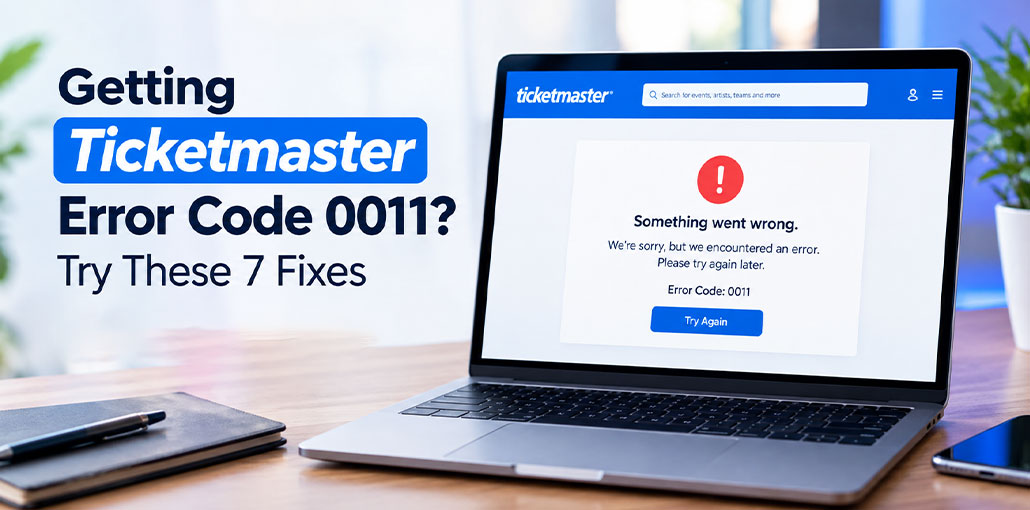
Trying to get tickets on Ticketmaster and suddenly seeing Ticketmaster Error Code 0011? It can be frustrating, especially when you’re waiting for tickets to go on sale or trying to finish a purchase.
This error can happen for different reasons. Your browser may have old data, your internet connection may be unstable, or a VPN or browser extension could be getting in the way.
The good thing is that you can try a few simple fixes before contacting support.
In this guide, we’ll look at what Ticketmaster Error Code 0011 means, why it happens, and what you can do to fix it.
What Is Ticketmaster Error Code 0011?
Ticketmaster Error Code 0011 is an error that may show up while you’re using the Ticketmaster website or app. You might see it when opening an event, signing in, searching for tickets, or trying to complete your order.
Why is Ticketmaster showing Error Code 0011?
There isn’t always one specific reason behind the error. It can be caused by something on your device or network, or it may be related to a temporary problem with Ticketmaster.
Some common reasons include:
- Old or corrupted cookies
- Browser cache problems
- An outdated browser
- VPN or proxy settings
- Browser extensions
- Poor internet connection
- Too many Ticketmaster tabs open
- An expired login session
- App-related problems
- Temporary website issues
If you’re dealing with this error, don’t worry. Try the fixes below one by one.
Also read: Paramount Plus Error Code 3005? Try These Easy Fixes
How to Fix Ticketmaster Error Code 0011
1. Clear Your Browser Cache and Cookies
Your browser saves cookies and other website data to make pages load faster. Sometimes, this saved information can cause problems when you visit Ticketmaster.
Clearing the cache and cookies gives the website a fresh start. This is one of the first things you can try if Ticketmaster Error Code 0011 keeps appearing.
Steps:
- Open your browser settings.
- Go to Privacy and Security.
- Find Clear browsing data.
- Select cookies and cached files.
- Clear the selected data.
- Close and reopen your browser.
- Open Ticketmaster and try again.
If possible, you can clear data for Ticketmaster only instead of removing cookies from every website.
2. Try Incognito or Private Mode
Another easy fix is to open Ticketmaster in an Incognito or Private window. This starts a fresh browser session and can help if your normal browser has a cookie, cache, or extension problem.
It is also a quick way to see whether the issue is connected to your usual browser settings.
Steps:
- Open your browser.
- Select New Incognito Window or Private Window.
- Go to the Ticketmaster website.
- Sign in to your account.
- Find your event.
- Try accessing or purchasing the tickets.
If Ticketmaster works in private mode, something in your regular browser may be causing the problem.
3. Disable Browser Extensions
Browser extensions can sometimes affect how websites work. This is especially true for ad blockers, privacy tools, and extensions that block scripts.
If you’re getting Ticketmaster Error Code 0011, try turning off your extensions for a moment and then visit the website again.
Steps:
- Open your browser’s extensions page.
- Turn off extensions you don’t need.
- Start with ad blockers and privacy extensions.
- Close and reopen your browser.
- Open Ticketmaster.
- Try the ticket process again.
If the error disappears, turn your extensions back on one at a time to find the one causing the issue.
4. Turn Off Your VPN
Using a VPN changes your internet connection and IP address. In some cases, this can cause problems when accessing websites or completing certain actions.
If you have a VPN turned on while using Ticketmaster, disconnect it temporarily and try again.
Steps:
- Open your VPN app.
- Disconnect the VPN.
- Check whether you have a proxy enabled.
- Turn off the proxy if necessary.
- Connect to your normal internet.
- Open Ticketmaster again.
- Try accessing your tickets.
If the website works after turning off the VPN, the VPN connection may have been part of the problem.
5. Use Another Browser or Device
Sometimes the issue is limited to one browser or device. Trying Ticketmaster somewhere else can help you figure this out.
For example, if you normally use Chrome, try another web browser like Edge or Firefox. You can also try your phone if you’re having trouble on a computer.
Steps:
- Close Ticketmaster on your current browser.
- Open another browser.
- Visit Ticketmaster.
- Sign in again.
- Search for your event.
- Try accessing the tickets.
If you still see the error, try another device as well.
6. Check Your Internet Connection
A poor internet connection can make it difficult for Ticketmaster to load pages or complete a ticket request. If the connection drops while you’re searching for tickets, you may run into an error.
Before trying anything complicated, check that your internet is working properly.
Steps:
- Open another website to test your connection.
- Restart your router if needed.
- Check your Wi-Fi signal.
- Try switching to mobile data.
- Reopen Ticketmaster.
- Try searching for your event again.
If Ticketmaster works after changing networks, your original connection may have been the issue.
Also read: WiFi Connected But No Internet? 7 Easy Fixes for All Devices
7. Restart or Update the Ticketmaster App
If you’re seeing Ticketmaster Error Code 0011 on your phone, the Ticketmaster app itself may need a restart or update.
An outdated app or temporary app problem can sometimes prevent the service from working properly.
Steps:
- Close the Ticketmaster app completely.
- Open it again.
- Sign out and sign back in if needed.
- Check your app store for an update.
- Install the latest available update.
- Restart your phone.
- Open Ticketmaster and try again.
If the error remains, try opening Ticketmaster through your phone’s web browser.
What If Ticketmaster Error Code 0011 Still Doesn’t Go Away?
If you’ve tried all seven fixes and the error is still there, the problem may not be on your side.
Ticketmaster can sometimes have temporary technical issues, especially when a very popular event is going on sale. A large number of people may be trying to access the same event at once.
In this situation, wait for a little while and try again. You can also test Ticketmaster on another browser, device, or internet connection.
Check Your Order Before Trying Again
Did Ticketmaster Error Code 0011 appear while you were checking out? Before clicking the payment button again, make sure your first order didn’t actually go through.
Check your:
- Ticketmaster account
- Order history
- Email inbox
- Payment account
- Bank or card statement
If you already received a confirmation or see the order in your account, don’t submit the payment again. This can help you avoid accidentally placing another order
Final Thoughts
Getting Ticketmaster Error Code 0011 can be annoying, especially when you are trying to book tickets quickly. In most cases, a few simple changes can help. Try clearing your browser data, turning off your VPN, checking your internet connection, or using another browser. If nothing works, give it some time and try again later.
FAQs: Ticketmaster Error Code 0011
Why am I getting Ticketmaster Error Code 0011 while buying tickets?
This error may appear during ticket purchases because of an expired session, browser problems, network issues, security checks, or high traffic on Ticketmaster. Try refreshing your session or using another browser.
Is Ticketmaster Error Code 0011 a server problem?
Sometimes the error can happen because of temporary Ticketmaster server issues. If the problem continues on different devices and networks, wait for some time and try again later.
Does Ticketmaster Error Code 0011 happen during high-demand events?
Yes, the error may appear when many users are trying to access the same event at the same time. Heavy website traffic can sometimes cause temporary access or checkout problems.
How do I fix Ticketmaster Error Code 0011 on my phone?
Restart the Ticketmaster app, update it from the app store, clear app data if available, switch between Wi-Fi and mobile data, or try opening Ticketmaster in your mobile browser.



Leave a comment