

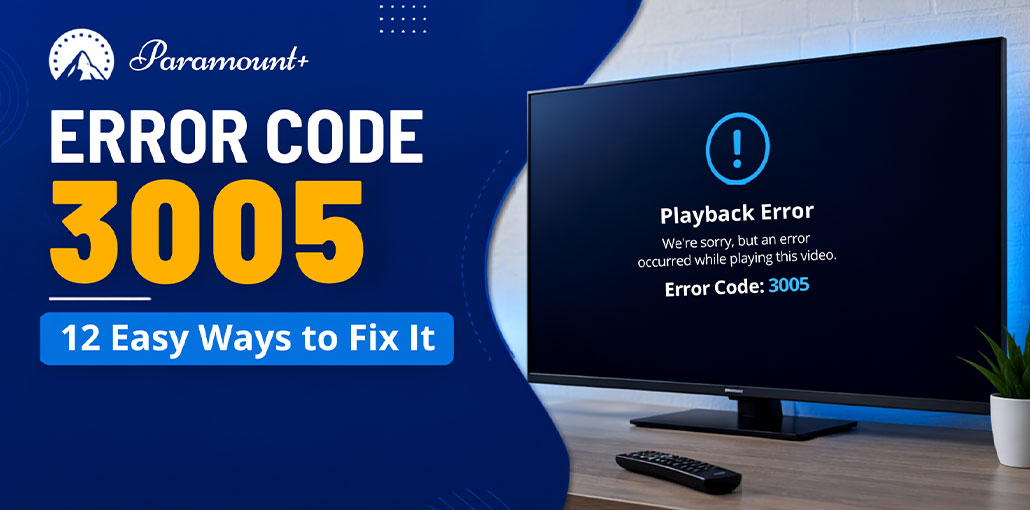
Many Paramount Plus streaming platform members have reported having trouble with the error code 3005. This Paramount Plus playback error prevents users from watching their favorite videos.
Before trying the Paramount Plus Error Code 3005 fixes below, restart your device and router to confirm your subscription is active. You can visit Paramount’s Official Help page to check whether the server is down.
Why Does Paramount Plus Error Code 3005 Happen?
Here are a few common reasons why you’re seeing this Paramount Plus error code 3005:
- Unstable or slow internet
- Temporary Paramount+ server problems
- Outdated Paramount+ app
- Corrupted app or browser cache
- Outdated device software
- Browser extensions interfering with playback
- VPN or DNS conflicts
- A damaged login session
- Device-specific playback problems
If Paramount+ works normally on another device using the same network, the problem is more likely related to the original device, app, or browser.
Also read: Paramount Plus Not Working? 8 Simple Fixes to Solve the Issue
How to Fix Paramount Plus Error Code 3005
Try these Paramount Plus Error 3005 fixes in order. Start with the first few quick fixes before changing advanced settings.
1. Close and Reopen Paramount+
Fully close the Paramount+ app and open it again.
Don’t simply return to your device’s home screen. On supported devices, force-close the app before relaunching it.
Then try playing the same movie or episode again.
2. Restart Your Device
Restart the device you’re using to watch Paramount+.
For a Smart TV or streaming device, you can also disconnect the power for around 30 seconds before reconnecting it.
A complete restart can clear temporary playback problems and stuck app processes.
3. Restart Your Router
Your internet connection may be responsible for Paramount Plus Error Code 3005.
Try this:
- Turn off your router or modem.
- Wait about 30 seconds.
- Turn it back on.
- Wait until the internet connection is restored.
- Open Paramount+ again.
If possible, try a wired Ethernet connection or move your streaming device closer to the router.
4. Check Your Internet Connection
Open another streaming service or website on the same device.
If other services are also slow or buffering, your network connection may be the problem.
You can also temporarily switch from Wi-Fi to mobile data on a phone to determine whether the error is network-related.
5. Update the Paramount+ App
An outdated app can cause Paramount+ playback problems.
Open your device’s app store and check whether an update is available for Paramount+.
Install the latest version, restart the app, and try streaming again.
6. Clear Paramount+ Cache and Data
Corrupted temporary data can interfere with video playback.
On Android-based devices, look for:
Settings → Apps → Paramount+ → Storage → Clear Cache
The exact menu names vary by device.
If clearing the cache doesn’t work, you may also need to sign out and back in or reinstall the application.
7. Clear Your Browser Cache and Cookies
If you experience Paramount Plus Error Code 3005 on Chrome, Edge, Firefox, or Safari, cached website data or browser extensions may be interfering with playback.
Try opening Paramount+ in a private or incognito window.
If the video works there, clear the Paramount+ site data in your normal browser and try again.
8. Disable Browser Extensions
Ad blockers, privacy extensions, and other browser add-ons can sometimes interfere with video playback.
Temporarily disable extensions and reload Paramount+.
If the Paramount Plus Error Code 3005 disappears, enable your extensions one at a time to identify the one causing the conflict.
9. Turn Off VPN or Proxy
If you’re using a VPN or proxy, temporarily disconnect it and try Paramount+ again.
VPN-related routing or location issues can interfere with streaming services.
If Paramount+ works after disconnecting the VPN, the VPN connection may be contributing to the problem.
Also read: 10 Best AdBlock VPNs for Fast, Secure, and Ad-Free Browsing
10. Sign Out and Sign Back In
Your Paramount+ session may have become corrupted.
Sign out of the application or website, completely close it, reopen it, and sign in again.
Then try playing the same title.
11. Reinstall Paramount+
If none of the previous solutions work, uninstall Paramount+ from your device and install it again.
Reinstalling gives you a fresh version of the app and removes locally stored application data that may be causing playback problems.
12. Check Whether Paramount+ Is Having an Outage
Sometimes the problem isn’t on your device.
If Paramount+ is experiencing a widespread service problem, changing your device settings won’t fix error 3005 on Paramount Plus.
Check Paramount+’s official support/service information and see whether other users are reporting playback problems.
How to Fix Paramount Plus Error Code 3005 on Smart TV
If the error appears specifically on a Smart TV, try these steps:
- Force-close Paramount+.
- Restart the TV.
- Restart your router.
- Update the Paramount+ app.
- Update the TV’s software.
- Sign out and sign back in.
- Clear the app’s cache if your TV provides that option.
- Reinstall Paramount+.
- Test Paramount+ on another device.
For Samsung TV users, network settings and DNS configuration can also be worth checking if the basic fixes don’t work.
Also read: Sony Smart TV in India 2026: Top Models, Prices, and Why They Are Worth Buying
How to Fix Paramount Plus Error Code 3005 on Roku
If the Paramount error 3005 appears specifically on Roku TV, try these steps:
- Closing and reopening Paramount+
- Restarting the Roku device
- Restarting your router
- Checking for Paramount+ updates
- Checking for Roku system updates
- Removing and reinstalling Paramount+
Then test another Paramount+ title.
If only one movie or episode produces the error, the problem may be specific to that content rather than your entire Paramount+ installation.
Also read: How to Screen Mirror on Roku TV: Step-by-Step Guide
How to Fix Paramount Plus Error Code 3005 on Fire TV
If you’re using Fire TV or Firestick:
- Go to Settings.
- Open Applications.
- Select Manage Installed Applications.
- Choose Paramount+.
- Force stop the app.
- Clear its cache.
- Relaunch Paramount+.
If the error continues, restart your Fire TV device and check for available app and system updates.
Final Thoughts
Facing Paramount Plus Error Code 3005? Don’t worry! This common playback error can often be fixed in minutes. Restart the app, check your internet, clear the cache, or update Paramount+. Try these simple fixes now and get back to streaming your favorite shows without interruptions.
FAQs: Paramount Plus Error Code 3005
Is Paramount Plus Error Code 3005 a server problem?
It can be. Error 3005 is primarily associated with playback failures, and temporary service-side problems can sometimes cause streaming to fail. However, network, app, browser, and device issues can produce similar symptoms.
Why does Paramount Plus keep showing Error 3005?
Repeated error 3005 can be caused by an unstable connection, outdated software, corrupted cache, browser conflicts, VPN interference, or a temporary service problem.
Can restarting my router fix Paramount Plus Error 3005?
Yes. Restarting the router can resolve temporary connection or routing problems that prevent Paramount+ from maintaining a video stream.
Why does Paramount Plus work on my phone but not my TV?
That usually suggests the issue is specific to the TV, its Paramount+ app, device software, network configuration, or cached data rather than the entire service.






Leave a comment