

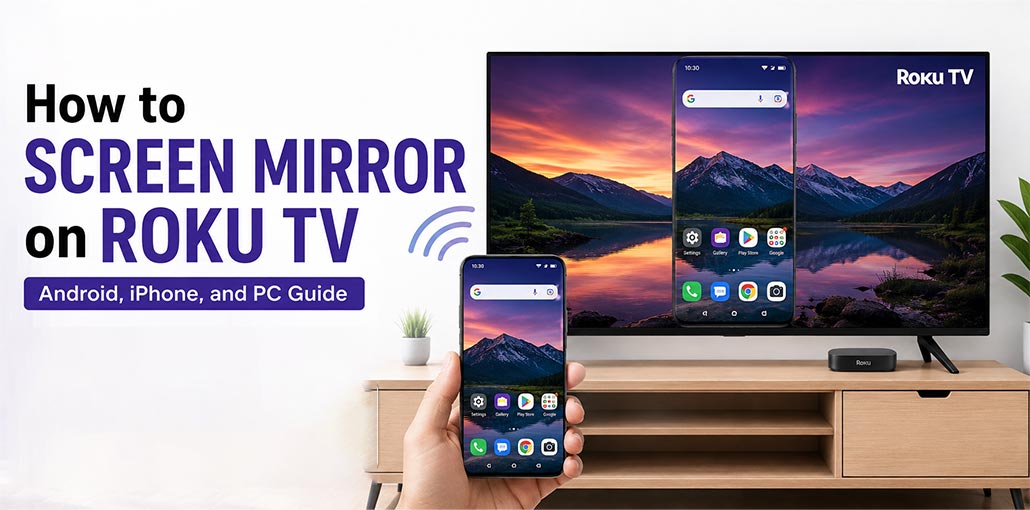
Are you looking to show your tablet, smartphone, or PC on your big Roku TV? This guide offers step-by-step directions on how to screen mirror on Roku TV from any device – such as Android phones, iPhones and Windows PC and troubleshooting tips for the most common connection problems.
Screen mirroring is a way to send live copies of the device’s screen directly to the Roku TV. In contrast to casting specific videos, mirroring displays all content that’s on screen in real time – ideal for sharing photos, showing slideshows, or playing games on the large screen.
Before You Start: Enable Screen Mirroring on Roku TV
For screen sharing to work, you must enable it on the Roku devices first. It takes only a few seconds.
- Press the Home button on your Roku remote.
- Navigate to Settings > System.
- Select Screen Mirroring.
- Select the Screen Mirroring mode and select Prompt. This is the safest choice, since it requires you to accept each connection request. You can also select ‘Always allow’ if you would prefer.
If you’ve enabled this setting, you’re now ready to connect to your device.
Also read: Roku YouTube Activate: Add & Sign In via yt.be/activate [2026]
How to Screen Mirror on Roku TV From a Windows PC
While streaming platforms are great, navigation will always be more user-friendly on a PC. If you prefer setting everything from the comfort of a mouse and keyboard or wish to display the content you already have on your PC, mirroring is simple by doing these three steps.
- Open Action Center from the Windows taskbar.
- Click Connect.
- Select your Roku TV from the available devices.
- Allow the connection on your Roku TV.
Note: This method works for Windows PCs that support Miracast.
Troubleshooting Tips:
- PC Can’t Find Roku: Verify that both devices are connected to the same Wi-Fi. Switch your PC’s network profile from ‘Public’ or ‘Private’ if necessary.
- Laggy Performance: Use the 5GHz Wi-Fi band if available. Update display and wireless drivers.
- Audio issues: Choose Roku as an audio source device in Windows options after connecting.
How to Screen Mirror on Roku TV From iPhone, iPad, or Mac
iPhones and iPads don’t feature built-in support for Roku screen mirroring. To screen mirror iPhone to Roku TV, you may require either Apple AirPlay on compatible Roku devices or installing third-party Roku screen mirroring apps from the App Store.
- Connect your iPhone/iPad/Mac and Roku TV to the same Wi-Fi network.
- Open the content you want to share.
- Tap the AirPlay icon (video or audio).
- Select your Roku device from the list.
- Enter the AirPlay code if required.
Troubleshooting Tips:
- App isn’t able to find Roku: Check that both devices are connected to the same Wi-Fi network. You can enable the “Local Network” permission for the mirroring app in Settings > App Name[App Name].
- Poor Quality/Disconnections: Free apps often have limitations. Consider a paid version or alternative app if problems persist.
- No Audio: Check app description for audio support. Certain apps mirror only video.
How to Screen Mirror on Roku TV From an Android Phone
Android devices come with the ability to mirror your screen built into them, which is often referred to as Smart View”, ‘Cast’ or Screen Cast. It is the most reliable method available to Android users.
- Open the Quick Settings panel by swiping down, and then select Screen Cast / Wireless Display / Screen Mirroring
- Choose and find your Roku device.
- Allow connection on your Roku device.
Troubleshooting Tips:
- Roku Not Appearing: Double-check that both devices are connected to similar Wi-Fi. If needed, restart both devices.
- Connection failed: Make sure the Roku’s software is up to date (Settings > System > System Update).
- Lag or Choppy Video: Get further away from your router, or switch off other devices with high bandwidth.
Also read: How to Fix Roku Not Connecting to WiFi: 7 Easy Solutions Try
Tips for Better Roku TV Screen Mirroring Performance
Use a strong Wi-Fi signal: This is important because slow internet can cause slow speeds, poor-quality images, and disconnections that degrade user experiences.
Keep your devices updated: Make sure that your Roku, phone or PC is running the latest software updates. They often include performance enhancements in wireless display features.
Use “Prompt” Mode for Security: Set your Roku’s mirroring setting to “Prompt” to prevent anyone else on the network from connecting with your television without permission.
Close unnecessary apps. On your phone or computer, close all background apps you do not require. This will free up your system’s resources and may improve the mirroring performance. Security is also protected through the SMS-based verification service.
Final Remarks
Knowing how to screen mirror on Roku TV makes enjoying content on a larger display easy and accessible. No matter which mobile phone, iPhone, iPad, Mac or Windows PC device you have access to, Roku provides wireless solutions that enable screen sharing!
FAQs About Screen Mirroring on Roku TV
Why is my Roku TV not showing up for screen mirroring?
Ensure both your Roku TV and your device are connected to the same Wi-Fi network. Also, verify that screen mirroring is enabled on your Roku TV and restart both devices if needed.
Does Roku TV support AirPlay?
Yes. Many Roku TVs and Roku streaming devices support Apple AirPlay 2. Make sure your Roku software is up to date.
Do I need Wi-Fi to screen mirror to Roku TV?
Yes. In most cases, your Roku TV and the device you're mirroring from must be connected to the same Wi-Fi network.
What's the difference between screen mirroring and casting on Roku TV?
Screen mirroring displays everything on your device's screen in real time, while casting only streams supported content from compatible apps. Mirroring is better for presentations, browsing, and games, whereas casting is ideal for streaming videos.







Leave a comment