

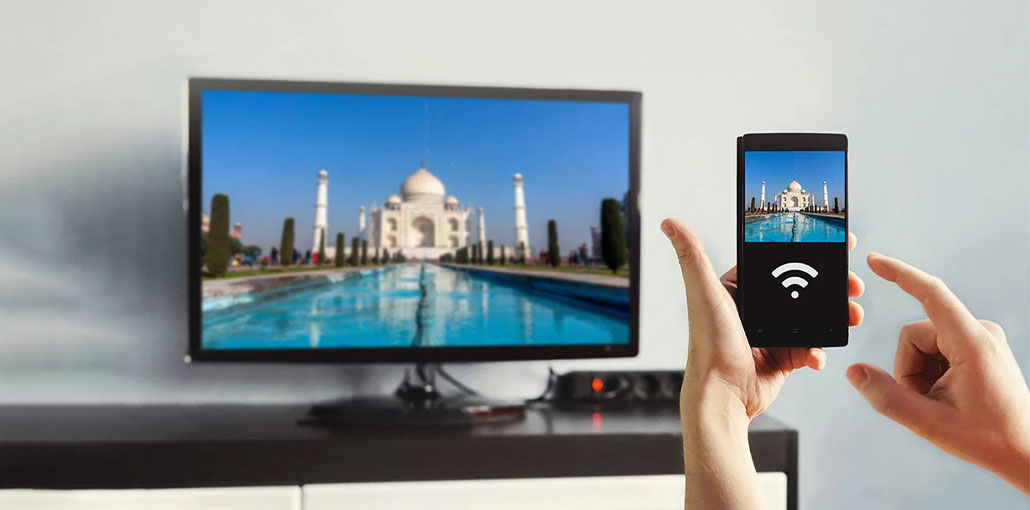
Have you ever considered projecting your Android screen onto a large, crisp, and clear screen? That’s right, I’m talking about Android Screen Mirroring!!! This technology lets you show an Android screen on another display device. This is a powerful tool for gaming, presentations, and even transforming your home into a mini-theater!
However, here’s the issue. There are many options available to choose from. How do you pick the one that fits your needs best? That’s the place we can help. We’ll look at the best ways to implement Android Screen mirroring. Prepare your Android devices and get ready for a thrilling screen!
What is Android Screen Mirroring?
Android Screen Mirroring is a technology that lets you mirror your Android screen on a bigger screen. It allows you to share your content using a TV, projector, or monitor. This is accomplished by wirelessly transmitting the data via the Android device to your display.
Then, where do we use the Android Screen Mirroring technology?
It’s an essential device for a variety of scenarios. For instance, you could project slides directly from devices to a large screen in presentations. In addition, gamers can enjoy the gaming experience more by projecting game images onto televisions. Additionally, media sharing can occur when you stream it onto larger screens.
So getting interested?
Let’s look at how we can mirror an Android display onto the TV in a magical way.
Also read: Mastering the Smart TV Experience: Tips and Tricks for Users
How to Mirror Android to TV
There is a basic question after you’ve got a grasp of Android screen mirroring. Where can I screen mirror on Android, and how can I mirror my Android phone to TV?
Let’s answer this question. Most Android phones today include a built-in feature called Cast that allows you to project the phone’s screen onto a TV. This feature can be found in your Android phone’s quick settings menu. However, it’s important to be aware that mirroring will only work if the TV supports Miracast and connects to WiFi.
Also, take a quick look at your Android TV and phone, and go through this Android screen mirroring guide for TV.
Steps to Mirror Android to TV
Here’s a step-by-step guide for you to follow.
Step 1. Ensure your Android device and TV are connected to the same Wi-Fi network.
Step 2. Swipe down from the top of your Android device to open the Quick Settings.
Step 3. You’ll see a button that says “Cast,” “Smart View,” or “Wireless Projection.” This may differ based on the device’s manufacturer. Tap the button.
Step 4. Your Android device will search for devices connected to that same network. Choose the TV you want to connect to the list of devices.
Step 5. Accept the connection to your TV, and your Android screen will be mirrored on the TV.
Best Android Screen Mirroring Apps (2026)
Are you aware of how to use Android screen mirroring? Keep in mind that the world does not end with this particular application; other apps are also very popular in this field.
Let’s take a look at other Android Screen Mirroring apps; each has unique features tailored to different users. This is a brief review of the five top screen mirroring applications.
1. AnyMiro
While AnyMiro may be a new tool in the screen mirroring market, it is superior to many of its competitors. It promises the most stable and reliable connection to alternatives, with up to 4K resolution. With audio and video sync, users have proven that the sync effect is the most effective of similar programs. In addition, the ability to join a live streaming service makes it a powerful tool for content creators.
Pros
- Supports up to 4K resolution
- Stable and low-latency connection
- Excellent audio-video synchronization
- Supports live streaming platforms
Cons
- Premium features require payment
- Newer than many competitors
2. ApowerMirror
ApowerMirror is a popular tool in the screen mirroring market. This application lets you mirror Android devices to PC, Mac, and other mobile devices. ApowerMirror offers more advanced features, including screen recording and controlling your Android device from your PC. It is a preferred choice for professionals and gamers alike.
Pros
- Mirrors Android to PC and Mac
- Built-in screen recording
- Remote control support
- Easy-to-use interface
Cons
- Advanced features require a subscription
- May lag on weak networks
- Uses significant system resources
3. AirDroid
AirDroid is more than screen mirroring. It lets you manage and control your Android device completely via your PC. You can respond to notifications, manage apps, and transfer files while mirroring your Android screen. Additionally, you can use your Android screen when you’re off.
Pros
- Combines screen mirroring and device management
- Supports wireless file transfers
- Provides notification access
- Works across multiple platforms
Cons
- Premium plan needed for full features
- Setup can be complicated
- Performance depends on internet stability
Also read: Best Gaming Projectors 2026: Top 4K Projectors for Video Gaming
4. Scrcpy
Scrcpy is an open-source screen mirroring application that allows you to display your Android device on a computer. You can connect your device via USB and wirelessly. It is known for its large-resolution screen, low latency, and high-quality performance even with slower devices.
Pros
- Completely free and open-source
- Low-latency performance
- High-quality screen output
- Supports USB and wireless connections
Cons
- Requires technical knowledge
- No beginner-friendly interface
- Limited advanced features
5. X-MIRAGE
X-mirage allows you to stream content wirelessly from an Android device to your Mac and Windows PC. It also supports screen recording and is ideal for creating tutorials, demos, or recording games.
Pros
- Supports Android and iOS mirroring
- Built-in screen recording
- Great for tutorials and presentations
- Compatible with Windows and Mac
Cons
- Paid software
- Limited free trial
- Occasional connection issues
Are you still debating? Do not rush! Consider it carefully, and then choose which mirroring application you’d prefer to utilize. If you run into any problems during the process, here are solutions to common issues with Google Screen Mirroring.
Troubleshooting Common Android Screen Mirroring Issues
There are many instances when users encounter issues such as “Android Screen Mirroring not working.” Let’s talk about common issues and solutions to ensure your screening experience is as seamless as possible.
1. Lagging or Delayed Response
Some users notice a delay in action on their Android phone and on the mirror screen. It is also possible that the mirroring may appear blurry. The reason for this is usually an unstable or weak Wi-Fi connection. To solve this issue, make sure your Wi-Fi signal is strong and steady. If your screen mirroring application allows it, connect your devices via USB to get a better connection.
2. Device Not Detected
One of the main issues is that the target device does not recognize the Android device. This typically happens when devices aren’t connected to the same Wi-Fi network. Check that both devices are connected to the same network before trying again. If the issue persists, restarting both devices usually resolves the issue.
3. No Sound
When encountering a lack of sound while mirroring, make sure the Android device’s volume is muted. If the issue persists, then examine the audio settings in the mirroring app on your screen and the receiving device. Make sure that the proper audio output is selected.
Screen Mirroring vs Casting
| Feature | Screen Mirroring | Casting |
|---|---|---|
| Content Displayed | Shows your entire Android screen, including apps and notifications. | Streams only selected content, such as videos, music, or photos. |
| Phone Usage | Your phone must remain on the mirrored screen. | You can use your phone for other tasks while content plays. |
| Performance | May experience lag depending on network quality. | Typically provides smoother and more stable playback. |
| Battery Usage | Consumes more battery because the entire screen is transmitted. | Uses less battery by streaming only specific content. |
| Best For | Gaming, presentations, tutorials, and app demonstrations. | Watching movies, streaming videos, and listening to music. |
Summing Up
Android Screen Mirroring opens up many possibilities for you. This guide will explain the fundamentals of Android Screen Mirroring and its advantages. We’ve also talked about how to mirror your Android screen on TVs.
FAQs About Android Screen Mirroring
What are the best Android Screen Mirroring apps?
Some of the best Android Screen Mirroring apps include AnyMiro, ApowerMirror, AirDroid, Scrcpy, and X-Mirage. Each offers different features for streaming, presentations, gaming, and remote device control.
What is the difference between Screen Mirroring and Casting?
Screen Mirroring displays your entire Android screen on another device, while Casting streams only selected content such as videos, music, or photos. Casting generally provides better performance and lower battery usage.
Can I mirror my Android screen to a PC?
Yes, you can mirror your Android screen to a Windows PC or Mac using apps like ApowerMirror, AirDroid, Scrcpy, or AnyMiro.
Can I use screen mirroring for gaming?
Yes, Android screen mirroring is commonly used for gaming on larger displays. For the best experience, use a low-latency app and a strong Wi-Fi connection.








Leave a comment