

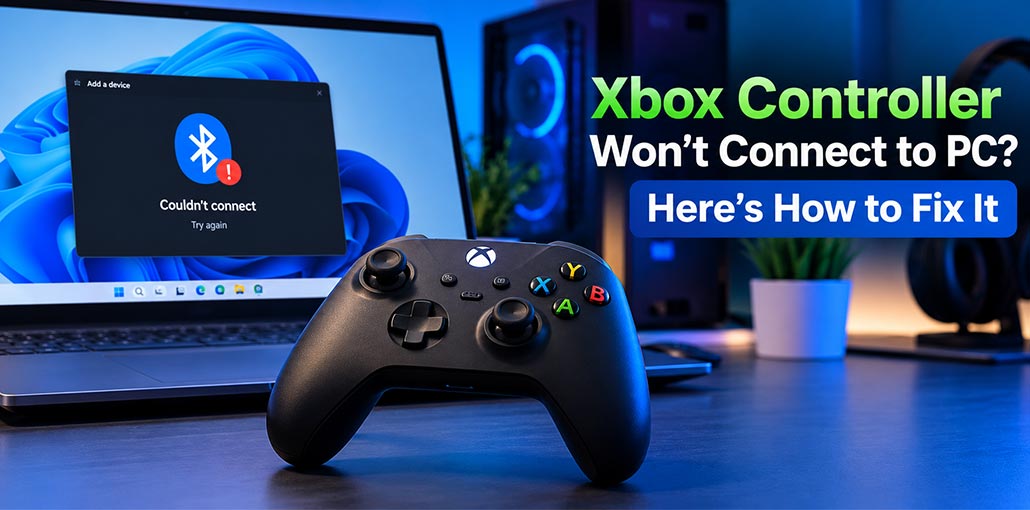
Having trouble getting your Xbox controller to work with your PC? If your Xbox Controller Won’t Connect to PC, the problem is usually related to Bluetooth, pairing, outdated drivers, battery power, or Windows settings. The good news is that you can try several simple fixes before considering a replacement.
This guide covers the most common causes and practical solutions for Xbox Controller Won’t Connect to PC. Start with the easiest method and move through the fixes until your controller connects.
Why Is Your Xbox Controller Not Connecting to Your PC?
There are several reasons why your Xbox Controller Won’t Connect to PC. Checking the common causes first can save you time and help you find the right solution faster.
- Bluetooth may be turned off or not working correctly.
- The controller battery may be low.
- The controller may already be connected to another device.
- Bluetooth or controller drivers may be outdated.
- Windows may have a temporary connection problem.
- The controller firmware may need an update.
- Your PC may not support Bluetooth properly.
Before changing advanced settings to fix Xbox Controller Won’t Connect to PC, make sure the controller has enough battery power and your PC is working normally.
Also read: Xbox Controller Blinking or Flashing? 7 Simple Fixes That Work
How to Fix Xbox Controller Won’t Connect to PC
If your Xbox Controller Won’t Connect to PC, don’t jump straight to complicated troubleshooting. Start with these simple solutions and test the controller after each one. This makes it easier to identify what is actually causing the connection problem.
1. Check the Controller Battery
A weak battery can prevent the controller from connecting or cause the wireless connection to drop. Before troubleshooting Bluetooth or Windows, make sure your controller has enough power. This quick check can save you time, especially if the controller does not turn on normally or keeps disconnecting during pairing.
Steps:
- Press the Xbox button on the controller.
- Check whether the Xbox light turns on.
- Replace the batteries if they are low.
- Charge the controller if you use a rechargeable battery.
- Try connecting it to your PC again.
2. Turn Bluetooth Off and On
If you’re connecting wirelessly, Bluetooth could be the reason your Xbox Controller Won’t Connect to PC. Restarting Bluetooth can refresh the wireless connection and remove temporary communication problems. After turning it back on, put the controller into pairing mode and check whether Windows detects it as a new Bluetooth device.
Steps:
- Open Settings → Bluetooth & devices.
- Turn Bluetooth off.
- Wait for a few seconds.
- Turn Bluetooth back on.
- Press and hold the controller’s pairing button.
- Select Add device.
- Choose Bluetooth.
- Select your Xbox controller.
3. Remove the Controller and Pair It Again
Windows can sometimes save an incorrect or outdated Bluetooth connection profile. If your controller was previously connected but suddenly stopped working, removing it and pairing it again can create a fresh connection. This is especially useful when Windows shows the controller but refuses to complete the pairing process.
Steps:
- Open Settings → Bluetooth & devices.
- Select Devices.
- Find your Xbox controller.
- Click Remove device.
- Restart your computer.
- Open Bluetooth settings again.
- Select Add device.
- Put the controller into pairing mode.
- Select it from the available devices.
4. Update Your Bluetooth Driver
An outdated Bluetooth driver can make it difficult for Windows to communicate with your controller. If your Xbox Controller Won’t Connect to PC even though Bluetooth appears to be working, updating the adapter driver is worth trying. A newer driver may resolve compatibility problems and improve how Windows detects connected wireless devices.
Steps:
- Right-click the Start button.
- Open Device Manager.
- Expand the Bluetooth section.
- Find your Bluetooth adapter.
- Right-click it.
- Select Update driver.
- Follow the instructions on screen.
- Restart your PC.
5. Update the Controller Firmware
Controller firmware updates can improve compatibility and resolve connection-related bugs. If other fixes haven’t worked, connect your controller to the PC using a compatible USB cable and check for an available update. Keeping the controller updated can also help it work correctly with newer Windows versions and gaming applications.
Steps:
- Connect the controller to your PC using USB.
- Open the Xbox Accessories app.
- Select your controller.
- Check for an available firmware update.
- Install the update if one is available.
- Disconnect the USB cable.
- Try connecting wirelessly again.
6. Try Connecting With a USB Cable
A USB connection is a useful way to determine whether the problem is with the controller or Bluetooth. If your Xbox Controller Won’t Connect to PC wirelessly but works through USB, the controller is likely functioning correctly. You can then focus on Bluetooth settings, drivers, or wireless interference instead of replacing the controller.
Steps:
- Connect the controller directly to the PC.
- Use a compatible USB cable.
- Wait for Windows to detect the controller.
- Open a game or controller test.
- Check whether the buttons and sticks respond.
- If USB works, troubleshoot the Bluetooth connection.
Also read: Xbox Won’t Connect to WiFi? 10 Easy Fixes to Get Back Online
7. Restart Your PC and Install Windows Updates
A temporary Windows error can sometimes prevent connected devices from working properly. Restarting your computer refreshes system services and hardware detection. If the problem continues, check Windows Update for pending updates. Keeping Windows current can also improve compatibility with Bluetooth devices and gaming accessories.
Steps:
- Save your work and restart the PC.
- Open Settings.
- Go to Windows Update.
- Select Check for updates.
- Install available updates.
- Restart the computer if required.
- Try connecting the controller again.
8. Disconnect Other Wireless Devices
If your Xbox Wireless Controller Won’t Connect to PC, other Bluetooth or wireless devices may interfere with the connection. Temporarily disconnect unnecessary wireless devices and keep your controller close to the PC while pairing it again.
Steps:
- Disconnect unused Bluetooth devices.
- Turn off unnecessary wireless accessories.
- Keep the controller close to the PC.
- Restart Bluetooth.
- Put the controller into pairing mode.
- Try connecting it again.
What If the Controller Still Doesn’t Connect?
If you’ve tried all the fixes and your Xbox Controller Won’t Connect to PC, test it with another compatible device if possible. This can help determine whether the problem is with your PC or the controller.
If it works on another device, focus on your PC’s Bluetooth adapter, drivers, Windows settings, or updates. If it fails on multiple devices, check the controller’s battery, firmware, USB cable, and physical condition.
Final Thoughts
Xbox Controller Won’t Connect to PC can be frustrating, but you don’t always need a new controller to solve it. Start with the battery and Bluetooth, then move on to pairing, drivers, firmware, USB testing, and Windows updates. In most cases, working through these steps carefully can help you find the cause and get back to gaming.
FAQs: Xbox Controller Won’t Connect to PC
Why is my Xbox controller not showing up in Bluetooth?
Make sure Bluetooth is enabled and the controller is in pairing mode. If it still doesn't appear, turn Bluetooth off and on, restart your PC, and try pairing the controller again.
How do I update my Xbox controller on PC?
Connect the controller using a compatible USB cable and open the Xbox Accessories app. Check whether a firmware update is available and install it before trying the wireless connection again.
Can other wireless devices interfere with my Xbox controller?
Yes. Other Bluetooth and wireless devices may interfere with the connection. Disconnect devices you aren't using, keep the controller close to your PC, and try pairing it again.
Which fix should I try first if my Xbox Controller Won't Connect to PC?
Start with the simplest checks: charge the controller, restart Bluetooth, and pair the controller again. If that doesn't work, move on to driver, firmware, USB, and wireless-interference troubleshooting.



Leave a comment