

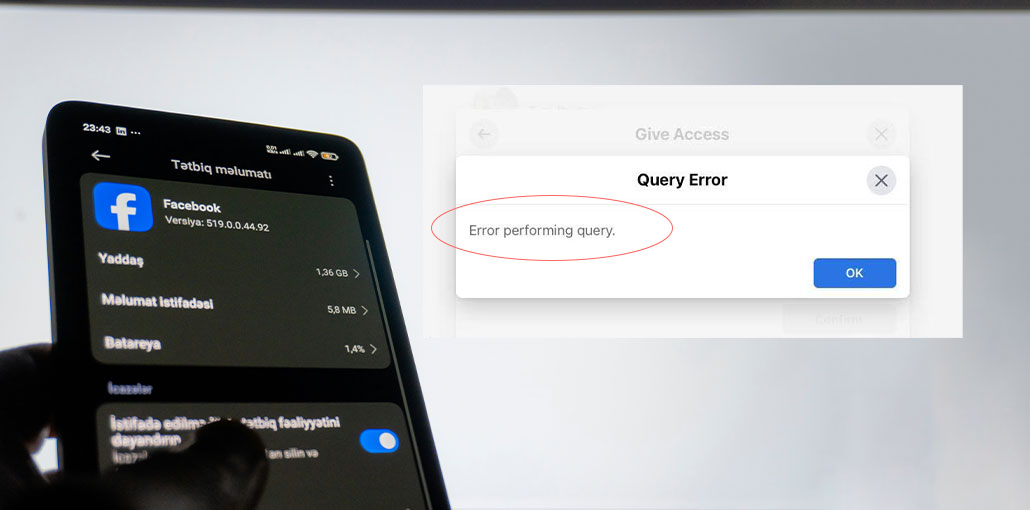
Facebook is one of the most widely used social media platforms, but users sometimes encounter unexpected errors, including the message “Error Performing Query.” This issue may appear when using Facebook Marketplace, interacting with sellers, managing advertising tools, posting in groups, or replying to classified listings. Even switching accounts may not solve the problem. If you are experiencing a Facebook Query Error, several troubleshooting methods can help identify the cause and restore Facebook’s normal functionality.
What Is Facebook Query Error?
A Facebook Query Error, also known as “Error Performing Query,” is an error message that may appear when Facebook fails to complete a requested action. It can occur while using Facebook Marketplace, posting in groups, replying to listings, or accessing certain features. The cause may vary depending on the action being performed and the technical issue involved.
Common Causes of Facebook Query Error
Several factors can cause you to experience the issue of getting Query error on Facebook:
- Facebook server issues or temporary outages.
- Corrupted app cache or browser data.
- Outdated Facebook app version.
- Weak or unstable internet connection.
- Browser extensions interfering with Facebook.
- Expired login sessions or account issues.
- Temporary Facebook bugs or technical glitches.
Also read: Solve: This Content Isn’t Available Right Now Facebook Error in 6 Steps
8 Ways to Fix Facebook Query Error on iPhone
1. Check Your Internet Connection
A weak or unstable internet connection can prevent Facebook from loading content correctly. Switch between Wi-Fi and mobile data to see whether the error disappears. You can also enable Airplane Mode for a few seconds and then disable it. Open another website or app to confirm that your internet connection is working properly.
2. Restart the Facebook App
Temporary app glitches can sometimes cause Facebook Query Error on iPhone. Close Facebook using the iPhone app switcher, then reopen it after a few seconds. This action refreshes the app and may resolve minor loading or processing problems. If the error continues, restart your iPhone before trying the next troubleshooting method.
3. Update the Facebook App
Using an outdated Facebook app may cause compatibility problems or unexpected errors. Open the App Store on your iPhone, search for Facebook, and check whether an update is available. Tap Update if you see that option. Once the installation finishes, reopen Facebook and check whether the query error has been resolved.
4. Restart Your Device
Restarting your device can clear temporary system glitches that interfere with apps. Turn off your device, wait several seconds, and turn it back on. Open Facebook again and repeat the action that previously triggered the error. This simple step can help when the problem is caused by a temporary software issue rather than your account.
5. Clear Safari Website Data
If Facebook Query Error appears when you access Facebook through Safari, stored website data may be contributing to the problem. Open Settings, select Apps, choose Safari, and tap Clear History and Website Data. Menu names may vary by iOS version. This can sign you out of websites, so ensure you know your login details first.
6. Reinstall the Facebook App
Reinstalling Facebook can help resolve persistent app problems caused by damaged local files. Touch and hold the Facebook icon, remove the app, and then download it again from the official App Store. Before removing it, make sure you know your login details. After reinstalling, sign in and check whether the query error still appears.
7. Check Facebook Server Status
If Facebook’s servers are experiencing an outage, you may have trouble accessing the app or using certain features. To check whether Facebook is down, visit Downdetector and look for recent reports. A sudden increase in reports from other users may indicate a server-side issue. If that’s the case, wait until Facebook resolves the problem, then try using the app again.
Also read: Does Facebook Notify Screenshots? Here’s the Truth Revealed
8. Log Out and Log In Again
An expired or disrupted login session may interfere with certain Facebook features. If you can access your account settings, log out of Facebook and sign in again using your usual credentials. Make sure you can access your recovery email or phone number first. If you receive an account restriction notice, follow Facebook’s official instructions instead.
How to Prevent Facebook Query Error
You can reduce the likelihood of encountering similar issues by following these practices:
- Keep the Facebook app and browser updated.
- Maintain a stable internet connection.
- Clear cached data when persistent loading problems occur.
- Avoid suspicious third-party Facebook tools.
- Use the official Facebook app or website.
- Keep your account recovery information up to date.
Conclusion
In conclusion, Facebook Query Error can usually be fixed with a few simple steps. Check your internet connection, update the app, and verify Facebook’s server status. Follow these solutions to resolve the issue and enjoy a smoother Facebook experience.
FAQs: Facebook Query Error
Does Facebook Query Error Mean My Account Is Blocked?
No, Facebook Query Error does not necessarily mean your account is blocked. Check your account status and Facebook notifications for any specific restrictions.
Why Does Facebook Marketplace Show Error Performing Query?
Facebook Marketplace may display this error because of temporary platform issues, problems with a listing, or restrictions affecting a particular action.
Is Facebook Query Error a Temporary Problem?
It can be temporary, particularly when caused by a service outage or app glitch. However, recurring errors may require further troubleshooting to identify the underlying cause.
What Should I Do If Facebook Query Error Keeps Appearing?
If the error keeps appearing, update the app, test another network, check Facebook's service status, and review any account notifications. Report the issue to Facebook if it continues.






Leave a comment