

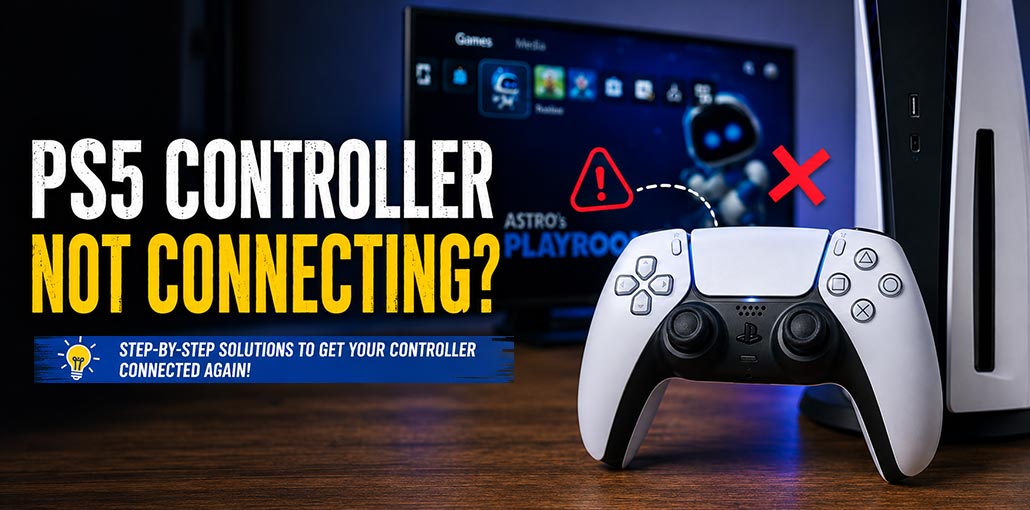
A PS5 controller not connecting issue can quickly become aggravating when trying to play, only for it not to pair properly. Sometimes this issue is due to weak batteries or faulty cables, while Bluetooth pairing issues, software bugs, and connection limits can be responsible.
If your controller is flashing white, charging without connecting, or suddenly disconnecting during gameplay, there are several solutions to try at home. Use the methods below to identify and fix the issue without spending money or replacing unnecessary parts.
Why Is My PS5 Controller Not Connecting?
There are several reasons why a controller may fail to connect to a PS5. A temporary console glitch, low battery, damaged USB-C cable, wireless interference, outdated software, or an existing connection with another device can prevent successful pairing.
Sometimes the PS5 controller not connecting to PS5 issue is caused by needing to pair again. A charging-only USB cable might confuse things by charging normally but failing to establish a data connection.
Before trying complicated solutions, start with the basic connection and pairing checks below.
Also read: Best PS5 Controllers in 2026 – Which One Is Worth Buying?
How to Fix PS5 Controller Not Connecting
If your PS5 controller not connecting issue continues after initial pairing, follow these fixes one by one to troubleshoot and resolve the issue. Begin with simple solutions, such as checking the battery level, before moving on to more complex fixes like resets and software adjustments.
1. Connect the Controller With a Data-Capable USB-C Cable
A faulty or charge-only USB-C cable can cause a PS5 controller not connecting with USB. The controller may charge normally but still fail to communicate with the console.
Steps:
- Connect the controller directly to the PS5.
- Use the original USB-C cable if available.
- Try another data-capable USB-C cable.
- Press the PS button and check if the controller connects.
2. Pair the Controller Again
If your PS5 controller not pairing issue started suddenly, reconnecting it through USB can restore the connection. This is also useful when the controller was previously connected to another device.
Steps:
- Turn on your PS5.
- Connect the DualSense using USB-C.
- Press the PS button.
- Wait for the controller light to turn on.
- Disconnect the cable after successful pairing.
3. Restart Your PS5
A temporary system glitch can cause a PS5 controller won’t connect problem even when the controller is working properly. Restarting the console refreshes its connection services.
Steps:
- Turn off the PS5 completely.
- Wait for a few seconds.
- Turn the console back on.
- Connect the controller with USB.
- Press the PS button.
4. Reset the DualSense Controller
If your PS5 controller won’t pair after restarting the console, resetting the DualSense can clear temporary pairing problems.
Steps:
- Turn off the PS5.
- Find the small reset button on the back of the controller.
- Press it with a pin for about 5 seconds.
- Connect the controller to the PS5 using USB-C.
- Press the PS button to pair it again.
5. Disconnect the Controller From Other Devices
A DualSense used with a PC, phone, tablet, or another console may cause a PS5 controller not connecting wirelessly issue. Disconnecting it from other devices can make pairing with your PS5 easier.
Steps:
- Turn off Bluetooth on nearby devices.
- Disconnect the controller from your PC or phone.
- Bring the controller close to the PS5.
- Connect it using USB-C.
- Press the PS button to pair it again.
Also read: PS5 Not Connecting to Internet? 9 Easy Fixes You Can Try Today
6. Check the Four-Controller Limit
If several controllers are already connected, your new controller may not pair properly. Checking the connected devices can help if your PS5 controller not connecting to PS5 when using multiple controllers.
Steps:
- Open PS5 Settings.
- Go to Accessories.
- Open Bluetooth Accessories.
- Check the connected controllers.
- Remove an unused controller and try pairing again.
7. Try Another USB Port and Reduce Interference
Wireless interference or a problematic USB port can make a PS5 controller not connecting issue worse. Testing another port and moving the controller closer can help identify the cause.
Steps:
- Try another USB port on the PS5.
- Avoid USB hubs while testing.
- Keep the controller close to the console.
- Move unnecessary wireless devices away.
- Try connecting again.
8. Update the PS5 and Controller Software
Outdated software can sometimes cause a DualSense controller not connecting issue. Keeping the PS5 and controller updated can fix compatibility bugs and connection problems.
Steps:
- Open Settings on your PS5.
- Check for a PS5 system software update.
- Go to the controller/accessory settings.
- Check for a DualSense software update.
- Restart the console after updating.
If you notice a PS5 controller flashing blue but not connecting, updating the software is worth trying after checking the cable and pairing.
9. Check the Battery and USB-C Port
A weak battery or damaged USB-C port can make your PS5 controller not connecting problem look like a pairing issue. Check both before assuming the controller has failed.
Steps:
- Charge the controller for some time.
- Try a different USB-C cable.
- Check the USB-C port for visible debris.
- Try another PS5 USB port.
- Attempt to pair the controller again.
Also read: PS5 Controller Not Charging: Top Fixes & Solutions 2025
10. Test Another Controller
If your PS5 controller not detected message still appears, testing another DualSense can tell you whether the problem is with the controller or the PS5.
Steps:
- Connect another working controller.
- Press the PS button.
- Check whether the second controller connects.
- If it works, the original controller may have a hardware issue.
- If neither controller works, troubleshoot the PS5 itself.
What If Your PS5 Controller Keeps Disconnecting?
If your PS5 controller keeps disconnecting during gameplay, start by checking the battery and USB-C cable. You should also reduce wireless interference and test another USB port. If the issue continues after resetting and updating the controller, it may indicate a hardware problem.
Final Thoughts
A PS5 controller not connecting doesn’t necessarily mean it’s damaged. Sometimes simply reconnecting it with the correct data cable, restarting the console, or resetting or updating the software is enough to restore connectivity. If these simple measures don’t do the trick, however, testing another controller quickly tells you whether its DualSense is broken.
FAQs: PS5 Controller Not Connecting
Why is my PS5 controller not pairing?
Your controller may have lost its pairing with the PS5. Connect it using a USB-C data cable and press the PS button to pair it again.
How do I reconnect my PS5 controller wirelessly?
Turn on the PS5, press the PS button on the controller, and allow it to pair. If it doesn't connect, reset the controller and pair it using USB first.
Why won't my PS5 controller connect to my PS5 but works on PC?
The controller may have a pairing or Bluetooth issue with the PS5. Reset it, then connect it directly to the PS5 with a data-capable USB-C cable and press the PS button.
How do I fix PS5 controller connection after using it on PC?
Turn off Bluetooth on the PC or disconnect the controller, then connect the DualSense to the PS5 with USB-C and press the PS button.






Leave a comment