

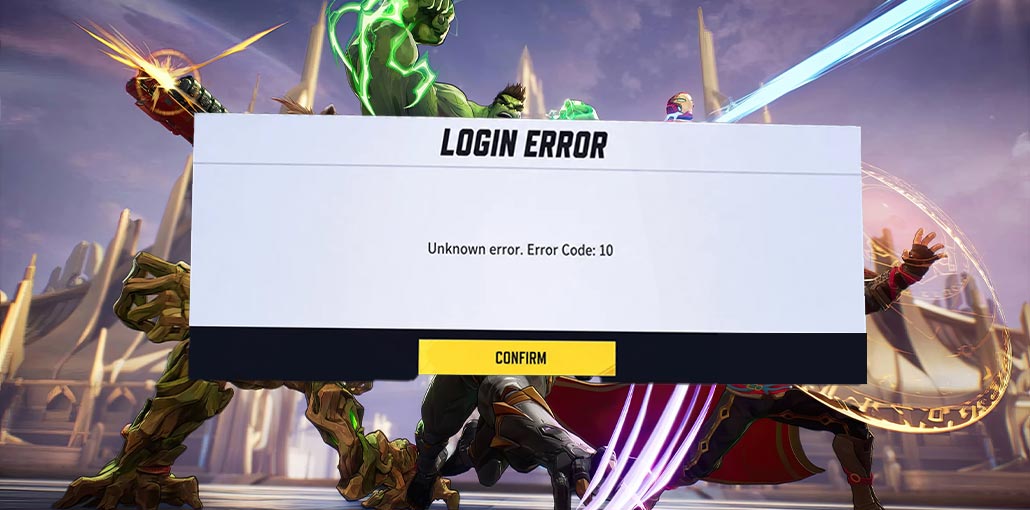
Marvel Rivals is an action-packed team game where heroes and villains from the Marvel universe compete. Teams of players engage in exciting battles. But sometimes errors can stop the excitement. For instance, the Marvel Rivals error code 10 is just one issue.
Many players encounter “Marvel Rivals Unknown Error Code 10,” which may prevent their game from starting or connecting to its servers. In this guide, we’ll explain what Marvel Rivals error code 10 means, common causes, and solutions.
What Is Marvel Rivals Error Code 10?
Understand what the issue is before you solve it. What exactly is error code 10 in Marvel Rivals? It is a common error that happens when the game can’t connect. It could also indicate something is wrong with your account or local data.
Most gamers use the term Marvel Rivals unknown error 10 due to explain the cause of the issue. This Marvel Rivals error code 10 means an unsuccessful attempt to connect or load.
Why Does Marvel Rivals Error Code 10 Happen?
There are several possible reasons you may encounter error code 10 in Marvel Rivals, including:
- An unstable or interrupted internet connection
- Temporary problems with Marvel Rivals’ online services
- An outdated version of the game
- Outdated system software or drivers
- Corrupted or damaged game files
- Problems with Steam or Epic Games Launcher
- Local cache or configuration issues
- An incomplete or unaccepted user agreement
Identifying the source can make troubleshooting much simpler. Start with basic solutions before trying more complex fixes.
Also read: How To Join Marvel Rivals Discord Server? (2025 Guide)
How to Fix Marvel Rivals Error Code 10
If you’re looking to learn what to do about error code 10 in Marvel Rivals, please try these tried-and-tested methods.
1. Restart the Game and the Console
Sometimes a simple restart can fix temporary issues on your console. Here’s how you can do an easy reset to resolve minor problems:
- Turn off the console’s power: For PlayStation players, press the “PS” button on the controller to access the menu. Navigate to “Power” and select “Turn off PS5”.
- Unplug all wires, including power cables, HDMI cables, and any other connected accessories. console unplugged for a few minutes.
- Power on the console again after a couple of minutes, then plug everything back in and switch off the console. After that, launch your game to determine whether the issue is fixed.
This can eliminate any temporary glitches and give your console a fresh start, which could improve its operation.
2. Accept the User Agreement
Skipping the EULA could restrict your access online. The only way to resolve this is to agree to the terms.
- Start the game and wait for the User Agreement to show up after the loading screen.
- Go to the agreement and click the ” Accept” option in the menu.
- Then, close your game using “Options” and, after that, “Close Game”. Once it closes, you can restart the game to see whether the fix worked.
3. Check Your Internet Connection
A poor internet connection is the main cause of this issue, and fixing it can help.
- Click the “Settings” option in the top right corner, then click “Network”. You may follow the same steps on your PC or console.
- Click “Test Internet Connection” to check if you’re signed in and what your connection speed is.
If you see a failed network test, you might need to restart the router or switch your Internet connection. To test wired LAN connectivity, try a new cable to ensure you have the correct connectivity.
4. Check for Game and System Updates
Updates address known bugs and boost the game’s performance.
- Check your console’s settings. PlayStation players can click “System” in Settings and select “System Software”.
- Then, select “System Software Update” and search for updates. If you can install updates, click the “Install” button. Then wait until the PlayStation restarts after installing the update.
- Go to the Marvel Rivals icon on the home screen. Click “Options,” then click “Check for Updates,” and follow the on-screen instructions if there are updates available.
5. Verify Marvel Rivals Game Files
Damaged files could cause the error. Every platform supports file verification, specifically for PC users.
- Open Steam and Epic Games on your computer, and then go to “Library”.
- Right-click “Marvel Rivals” or click the “Options” button next to the game.
- Select “Properties/Manage” and then choose “Installed” if available. Select the “Verify Integrity” option and just wait for the software to verify your files.
6. Clear Temporary Game Data
The system-reserved data stored on your computer may prevent your game from achieving smooth performance.
- Open File Explorer and go to the drive: “C:\Users[Your Username]\AppData\Local\Marvel\Saved”.
- Find your “Saved” folder. It is where you will find the cache and temporary files. Delete this folder and then restart the game.
Also read: Steam Error Code E87: How to Fix Steam Login Error
Marvel Rivals Error Code 10 on PS5
If you’re specifically experiencing the error on PS5, start with these fixes:
- Restart the PS5.
- Restart your router.
- Test the PS5 internet connection.
- Check for Marvel Rivals updates.
- Install the latest PS5 system software.
- Accept any pending user agreement.
- Try a wired connection if Wi-Fi is unstable.
- Check whether Marvel Rivals is experiencing a server outage.
If the problem started immediately after an update, server-side or game-version issues may be more likely than a problem with your console.
Marvel Rivals Error Code 10 on PC
PC players should first determine whether the problem is related to the game, launcher, or network.
Try the following:
- Restart your computer.
- Restart Steam or Epic Games Launcher.
- Check for Marvel Rivals updates.
- Verify the game files.
- Check your internet connection.
- Update your graphics drivers and Windows.
- Temporarily troubleshoot background applications that may interfere with the game.
- Reinstall the game if the issue persists.
Verifying installation for Steam and Epic Games users can be especially valuable when corrupted files are suspected.
Preventive Tips to Avoid Marvel Rivals Error Code 10
While you cannot prevent every instance of Marvel Rivals error code 10, a few simple habits can reduce the chances of encountering it again:
- Keep Marvel Rivals updated.
- Use a stable internet connection.
- Update your system regularly.
- Verify game files when needed.
- Keep enough storage space free.
- Check server status during outages.
Conclusion
This Marvel Rivals Error Code 10 is a common issue but can be fixed easily. The cause is typically connection issues, broken agreements, or damaged files. You can restart, update, or review the files to fix the game easily.
FAQs: Marvel Rivals Error Code 10
Is Marvel Rivals error code 10 a server problem?
It can be. If many players experience the same error simultaneously, the issue may be related to Marvel Rivals servers.
Can verifying game files fix error code 10?
Yes. If corrupted or missing files are causing the problem, verifying Marvel Rivals files through Steam or Epic Games Launcher may fix the error.
Can a weak internet connection cause error code 10?
Yes. An unstable or slow connection can prevent Marvel Rivals from connecting properly and may trigger error code 10.
Should I reinstall Marvel Rivals to fix error code 10?
Reinstalling can help if the game files are seriously damaged, but try restarting, updating, and verifying the files first.




Leave a comment