

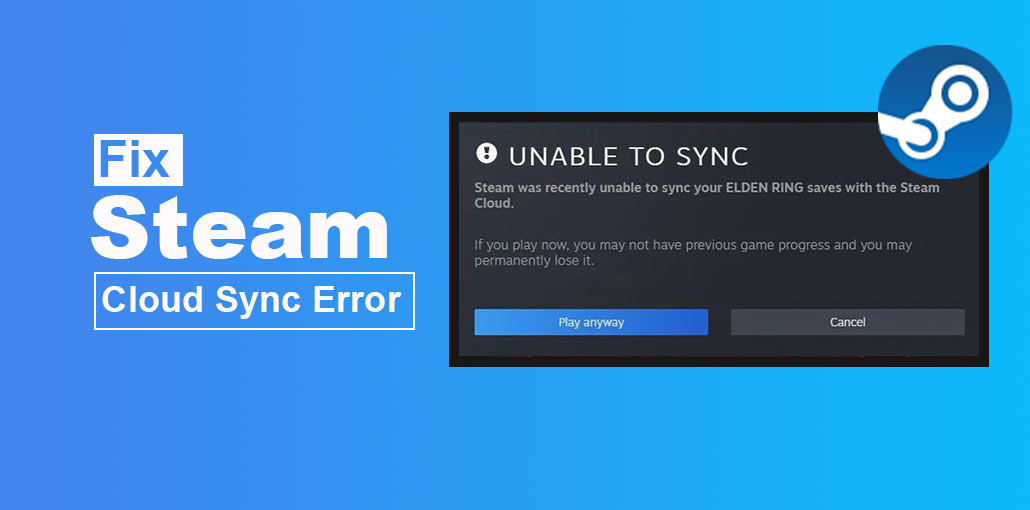
While it can be frustrating when Steam save game files are missing or not syncing, there are effective solutions to fix the Steam Cloud unable to sync error. In this blog, we’ll offer you the most reliable solutions to solve the Steam Cloud sync error.
What Is Steam Cloud?
Steam is a cloud-based platform that is a major player in the gaming world, with a collection of more than 100,000 games. The ability to access and install games in such a huge library is possible only thanks to Steam Cloud. It’s a built-in feature that automatically and silently saves your game data to cloud storage. The saved files include items like:
- Game save files
- Your game settings and preferences.
- Keybindings and control configurations
- Profile data and certain in-game progress
These saves are particularly useful when you have several computers with one Steam account, or you plan for a system upgrade. Steam Cloud ensures you don’t have to transfer data manually since the cloud does that for you.
Common Reason For Steam Cloud Not Syncing?
The Steam Cloud sync error in every game could end your gaming experience. There are several reasons for the Steam cloud sync error. Below are common causes of synchronization issues:
- Network Issues: If your internet is not working properly, it can be a reason for the Steam unable to sync issue.
- Corrupted Local Files: Steam Cloud cannot synchronize with corrupted save games.
- Server Issues: Sometimes, Valve’s final Steam is experiencing high latency. This may slow dwon synchronization process or temporarily stop it.
- Utilizing the Same Steam Account on Different devices: Simultaneous login of the same account may cause the Steam Cloud save to fail.
- Unintentional Steam Shutdown: Steam Cloud takes a couple of seconds to save the game’s data after you have closed the application. If you shut down your computer before saving the game’s files or during synchronization.
Also read: Steam Content File Locked: 7 Easy Solutions That Actually Work
How To Fix Steam Cloud Sync Error?
Follow the steps below to fix your Steam Cloud sync error.
1. Check Steam Server Status
Before you log into and exit Steam settings, ensure that you can fix the issue in the program itself. To determine this, visit Steamstat’s website to see whether your region has the issue of high latency. A high latency may temporarily trigger a Steam Cloud sync error. If that is the issue you’re experiencing, unfortunately, there’s no solution. In reality, Steam fixes these issues in a few hours.
2. Make Sure The Game Supports Steam Cloud
While Steam offers a huge selection of games in its library that, by default, don’t utilize Steam Cloud. Dark Souls 2 and Sleeping Dogs are among the games that save saved files to your computer, not Steam Cloud. To test and fix this issue, try:
- Open the application, then go into the library section.
- Right-click on the game, and start the Properties panel.
- Click on the “General” tab and change the location of your game’s save files in the Steam Cloud.
3. Verify Steam Cloud Enabled
If the issue isn’t your game, its mean Steam Sync Cloud can be disabled. Following the steps, you’ll be able to fix the issue quickly.
- Open the Steam app.
- Go to cloud settings.
- Make sure to check the box right next to “Enable Steam Cloud Synchronization.”
If you’re experiencing the issue with Steam Cloud sync error in one or multiple games, checking “Enable Steam Cloud Synchronization” can help you resolve.
Also read: How to Fix Steam Disk Write Error in 2025
4. Resolve Steam Cloud Sync Conflict
However, Steam will alert you when there are differences between your local save files and the cloud. This type of problem often occurs when players use multiple computers under the same account. You can fix the issue by looking up the notification. If you didn’t see it, but you have missed it, follow the steps listed below to bring your games back in sync
- Open Steam.
- Visit the cloud settings panel.
- Check “Enable Steam Cloud.”
When you enable Steam Cloud, you grant the servers permission to connect to your games. Once you have done this, you’ll be capable of playing your games across different platforms with no issues between your save files locally and the cloud version.
5. Restart Steam – The Right Way
The Steam cloud error can also be due to the application running for a long time on your device. Like other issues, this is a simple fix.
- Close the application (don’t reduce your application).
- Use the taskbar to see whether or not the program has shut down or not.
- If Steam is running, click it and select “end task”.
- Take a few seconds and then run the application.
This will ensure the program isn’t running in the background and has been closed. Additionally, that will refresh the Steam Cloud sync and ensure that your game saves are up to date.
6. Force Steam Cloud To Re-Sync
If you’re having a Steam cloud error or are unable to sync, fret not, because there are a variety of solutions that can solve them. Re-synchronization with Steam Cloud can help you upgrade your game save files to be compatible with the latest version of your device, or vice versa. This can help Steam Cloud detect any conflict between local save files and the cloud. To make Steam Cloud re-sync, all you have to do is:
- Start the application.
- The game can be opened by right-clicking on Properties. Disable cloud Sync.
- Play a game, and launch it for a few minutes, or create a new save file for your game.
- Close the game and enable cloud sync using the same settings.
In this way, it will allow you to force Steam to restart. This will allow Steam to detect any changes in the game and also re-upload the game saves to the cloud.
7. Disable Antivirus or Backup Software
If you’re using third-party software for backup (like Dropbox, Google Drive, or antivirus software) They could be the reason for your Steam Cloud sync error. If you think this is the issue you’re having, then you’ll need to follow these steps:
- Stop your syncing program.
- Include the application and those game directories you save in your “exclude” list of your antivirus software.
- Check Steam to see whether the Cloud is synchronizing or not.
Also read: Steam No License Error? Here’s How to Solve It Fast
8. Reinstall The Steam Application
This is the final option to resolve Steam Cloud not syncing. If none of the previous methods have helped, this could mean that your save file has been corrupted. Be aware that if you delete the entire application, all your Steam games and applications are deleted unless you back them up. To safely install Steam, you must follow these steps:
Create a backup copy of your save folders from steamapps/common.
- Uninstall the application.
- Get the most recent version of Steam on their website.
- Log in with your username and password or restore your games folder.
After reinstalling the entire program, allow just a few minutes for Steam Cloud to synchronize. You will now have all your games synchronized to Steam Cloud. If you reinstall the app, all your settings revert to the default version, and you’ll need to change them manually.
Conclusion
The blog concludes that the Steam Cloud’s ease of use is incredible until it stops working. If you’re losing save game files or switching between computers, it can be very stressful if your application is having Steam Cloud sync errors. Additionally, frustration could increase to a new level if you have to lose progress in your favorite games. In addition, you will find a solution on how to fix Steam Cloud error, which will not only solve the synchronization issue but also improve it.
By following the steps we provided above, you can fix the Steam Cloud sync error. The Cloud sync ensures that all saved game files for your most loved games are safe without taking up space on your SSD.
FAQs: Steam Cloud Sync Error
What is the Steam Cloud Sync Error?
The Steam Cloud Sync Error occurs when Steam cannot synchronize your game save files between your computer and Steam Cloud servers.
Why does Steam Cloud say “Unable to Sync”?
Steam usually shows this message when there is a network problem, corrupted game files, or a conflict between local and cloud save files.
Can corrupted game files cause Steam Cloud Sync Error?
Yes. If game files are corrupted, Steam may fail to upload or download save data correctly.
How do I fix Steam Cloud Sync Error?
You can fix it by restarting Steam, checking your internet connection, verifying game files, or enabling Steam Cloud settings.
How do I prevent Steam Cloud Sync Errors?
Maintain a stable internet connection, close games properly, and avoid switching devices while syncing.






Leave a comment