

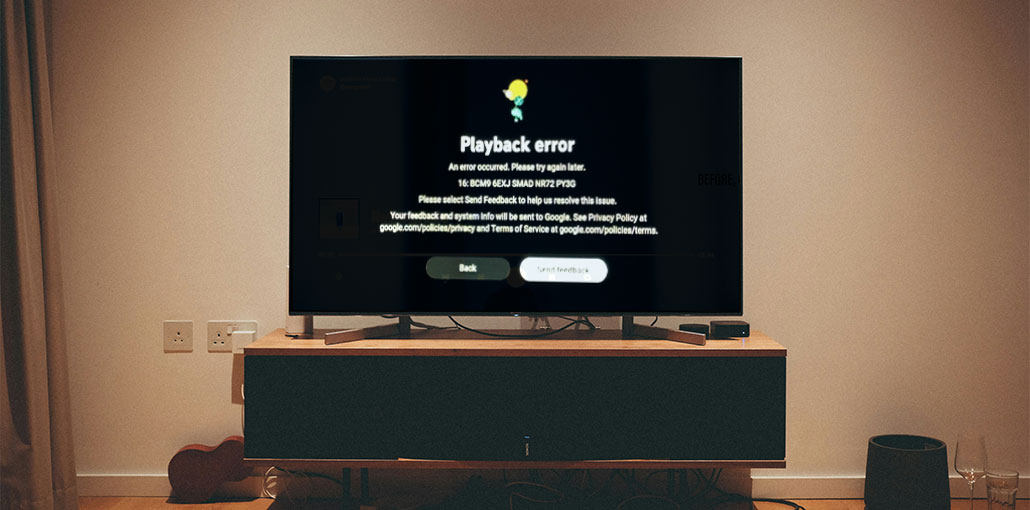
If you’d rather remain at home and watch TV shows, YouTube TV might be an ideal choice. It allows you to stream live TV channels for entertainment, sports news, and more. But have you experienced a YouTube TV playback error? It could be that you are experiencing an error in licensing with this video. It could be due to connectivity or device issues; it can be very annoying.
We’ll assist you in fixing the YouTube TV playback error and provide possible explanations for this issue.
Common Causes of YouTube TV Playback Errors
- An outdated application: It is a frequent cause of YouTube not working on TV. In general, apps release updates to correct bugs or glitches. If you don’t download updates, the issues could always be a source of concern.
- Compatibility issues: Sometimes, your device may not be compatible with the latest version of YouTube TV. This could cause various problems, such as YouTube TV playback errors.
- Unstable connection: Another reason YouTube TV won’t play. If your internet connection is unstable, it could result in buffering during streaming or a slow download speed.
- Account Restrictions: YouTube TV Playback error may occur when YouTube TV detects unusual location changes or account verification issues.
Also read: yt.be/activate – How to Sign in YouTube on Smart TV, Roku, Xbox [2025 Guide]
How to Fix YouTube TV Playback Error?
Check Internet Connection
When compared to other online activities, such as shopping online or sending emails, smooth streaming videos require a high internet speed. To ensure your internet is meeting the minimum requirements for YouTube TV, you can test your internet speed.
If you’re connected to the internet, then you can browse for speed tests via Google or an internet speed tester. If you’re not happy about the outcome of this test, you may need to upgrade your plan. For users of wireless networks, Ethernet might also be the best option for internet connectivity.
Restart Your Network
Rebooting is always an easy way to fix simple problems. If you suspect the YouTube TV playback error might be due to a weak internet connection, you can try restarting your wireless network. Simply unplug your router for 30 minutes. After that, plug it back in to test if it’s working.
Restart the YouTube TV App
However, refreshing your application is an effective way to troubleshoot issues. It is possible to close the application and then open it again. Log in to your account and select the content to check if it can play normally.
Disable Browser Extensions Temporarily
Browsing is more convenient and customizable. It allows users to install different extensions. Sometimes, however, they could cause problems with loading web pages or cause crashes. To determine if they are related to playback errors, you can disable the extensions right now.
Check Your Connected Devices
You can sign in to a YouTube TV account on three devices at the same time. If you log into a non-used device and you forget remove it, it may cause a playback error when you attempt to play videos on a different device.
To manage your account, make sure you’ve signed in to your device first.
- Go to your profile, then click on “Settings”.
- Click “Manage Devices”. Then you can manage all connected devices to your YouTube TV account.
- Select the devices you want to remove and select “log out”. The devices have been removed successfully. devices.
Clear Your Cache and Cookies
A lot of caches and cookies could result in slow loading or playback errors on YouTube TV. Clear them in your mobile devices, browsers, or even your smart TV. We’ll use Chrome as an illustration.
Take a look at the top right edge on Chrome, then click the three dots icon. Select “Delete browsing data,” and you will be able to view all of the data, which includes browsing history and cookies, cached images, and other files. Choose the information you want to remove and then tap “Delete data”.
Also read: How to Record on YouTube TV: Step-by-Step Guide (2025)
Change Your Location
YouTube TV is now only available in the US. It requires the home ZIP code when signing up.
If it isn’t tracking your location accurately, it may not be able to view YouTube TV’s content. To easily change your location by using a VPN. Select a server in the US and, with a single click, you can watch videos.
Update the Application or Browser
If you’re using the old YouTube TV App, go to Google Play or the Apple Store to download the latest version. Additionally, you should also keep an eye on the latest updates for smart TVs and browsers. They can help you solve performance or technical issues.
When to Contact YouTube TV Support
If none of the fixes work, contact YouTube TV support when:
- You see recurring error codes
- Playback fails on all devices
- Account or location errors appear repeatedly
You can reach support through the YouTube TV app or the help center.
Wrap Up
Whether you’re using a smart TV to access YouTube TV content, you are likely to encounter YouTube TV playback errors. In this article, we will discuss multiple troubleshooting methods. Hope it helps you resolve the YouTube TV playback error and continue watching your favorite shows on YouTube TV.
FAQs: YouTube TV Playback Error
Why am I getting a playback error on YouTube TV?
YouTube TV playback errors usually happen due to slow internet, app bugs, corrupted cache, VPN usage, or temporary server issues.
Why does YouTube TV keep buffering or not playing?
This usually happens because of unstable internet, network congestion, or background apps using bandwidth.
Does reinstalling YouTube TV fix playback errors?
Yes. Reinstalling the app often fixes corrupted files and resolves persistent playback issues.
Why does YouTube TV keep crashing?
Crashes are commonly caused by outdated apps, low device memory, or software conflicts.
Why does YouTube TV say “Playback unavailable in your area”?
This message appears when YouTube TV detects a location mismatch or VPN use.



Leave a comment