

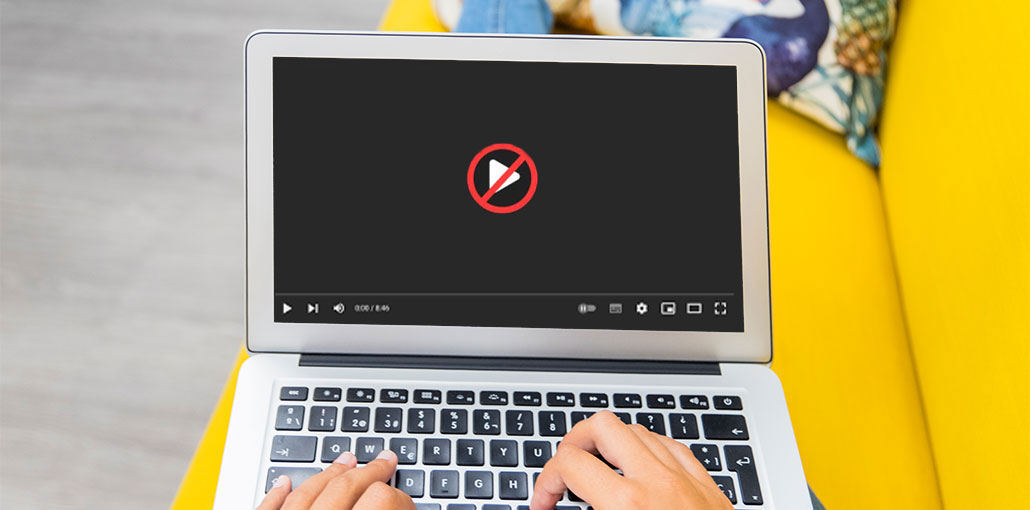
Due to an issue, your YouTube videos are not playing as they used to. It is possible that you don’t understand what is causing this issue and how to fix it. YouTube works normally again. In this article, we discuss the best solutions to solve the issue of YouTube videos not playing.
Are Your YouTube Videos Playing Normally?
When you access YouTube to watch videos, you may encounter multiple issues, such as a YouTube black screen or YouTube not playing videos. All these issues will stop you from using YouTube.
To make your YouTube back to normal, you need to take some measures. We have introduced some solutions to the issues of the YouTube black screen. And now, in this article, we will focus on the topic of YouTube videos not playing.
Top Reasons for YouTube Videos Not Playing
The problem with YouTube videos not playing or loading may occur on both computers and mobile phones. The problem can be caused by multiple reasons, including:
- Web browser Problems: YouTube videos are not playing properly due to issues with the web browser. Reloading the YouTube video page could help solve this issue. If not, you need to update your browser or clear the cache. Utilizing a different browser is a great alternative.
- Problems with computers: YouTube videos not playing or not loading if issues with your computer or laptop. If this happens, you can restart your device or run a Windows update, if it is available.
- Internet issues: if your internet connection isn’t working properly, YouTube won’t load videos, obviously. If your internet connection is slow, the YouTube video loading process could be impacted. If this happens, you can reduce the YouTube video quality.
- YouTube bugs: if YouTube videos do not load or do not play on your Android mobile or iPhone, it is advisable to look into YouTube bugs or glitches. Reinstall the app or wait for YouTube to solve the issue.
- Phone issues: if there is something wrong with your Android or iOS device, and it appears that the device is outdated,d it is possible to experience this problem. It is possible to update either Android or iOS to try.
Also read: yt.be/activate – How to Sign in to YouTube on Smart TV, Roku, Xbox & Fire TV
10 Ways to Fix YouTube Videos Not Playing
In situations, we offer different solutions. But, most of the time, there is no way to determine the reason why YouTube videos not playing or failing to load. If this is the case, test the following solutions in order until you find the best solution.
1. Reload the YouTube Video Page
If you notice that you can’t play this video on YouTube, even if you’ve been watching YouTube videos for quite a long time, it could be due to an issue. Try refreshing the YouTube video’s page and test it.
However, you could also close your web browser and then open it again to the YouTube site, determine whether the video plays and loads smoothly.
If this method isn’t working, try the next solution.
2. Adjust the YouTube Video Quality
If YouTube video quality has been set to high, it can take some time for the YouTube video if the internet connection is slow. To speed up YouTube video playback, set the YouTube quality to a lower level.
Follow these steps to improve the quality of your video on YouTube:
- Click on the gear icon at the bottom of the video.
- Simply click Quality from the pop-up menu.
- Select the smallest value from the available quality numbers.
After that, you’ll have to test whether the YouTube video is loaded successfully. If it does, it is possible to increase the video quality at a time until you have the best quality that your connection can stream.
If YouTube videos not loading, this method could be beneficial.
3. Try Another Web Browser
Many users have reported that the issue disappears after using a second web browser. You could also give it a test.
There are many popular web browsers that you could select to use instead of Google Chrome. If YouTube videos aren’t playing in Google Chrome, you can switch to Firefox, Microsoft Edge, or Opera.
4. Clear Cache and Cookies for the Web Browser
If YouTube will not play your videos regardless of the web browser you’re using, then you should clear the cookies and cache in your web browser and check if YouTube is working.
5. Update/Reinstall Your Web Browser
If the issue continues, you can determine if you’re using the latest version of the browser. If not, make the necessary changes to give it a try. You can uninstall the browser and reinstall it to check if YouTube videos play normally.
6. Check Your Internet Connection
If your YouTube videos not playing on PC, it is time to determine if your Network connection is functioning properly.
You can try another page to check if it is open in normal mode. You may try multiple pages that do not have to be on the YouTube videos website. If the result is not positive, there is something wrong with the connection to the network.
Also read: YouTube TV Playback Error: Fix It Fast (7 Working Solutions)
7. Reboot Your Computer
There may be problems that are temporary, and you need to restart your PC to allow Windows resolve the issues automatically.
8. Download the YouTube Video
If you’ve come across this page, then your problem is not solved. If that is the case, why not simply download YouTube videos on your computer? So you can view offline YouTube videos anytime, anywhere?
For this, use a YouTube video downloader. You can check out these tools.
1. Y2Mate
2. SnapDownloader
3. SaveFrom.net
4. VidMate
9. Update Windows
Some users claim that YouTube begins to play videos after updating their Windows. Yes, a Windows upgrade could indeed fix certain issues in the latest version. Try it out to aid you.
Go to Settings, and then Updates & Security > Check for updates if updates are available. If there are, follow the steps to complete the Windows update.
10. Check YouTube Server
If you’ve tried all the methods above, but YouTube videos not playing, you need to consider the possibility of a problem with the YouTube server.
These operations can be performed to rule out the problem:
Option 1. If you’re using a computer to view YouTube videos, you can use a smartphone to go to the YouTube video page and check whether YouTube plays videos like it normally. If YouTube videos not playing on your mobile, change to the next method.
Option 2. You can try the online detector to see if there are any problems with YouTube. Here are some options you can test:
- Down Detector
- Outage Report
- Is It Down Right Now
- Down For Everyone Or Just Me
If the test results indicate that YouTube is experiencing a problem, you should wait until YouTube resolves the problem.
Summing Up
If your YouTube videos not playing, do not hesitate to try the methods mentioned here to fix the problem. If you’re using either a smartphone or a computer, there is always the right solution in this article.
FAQs: YouTube Videos Not Playing
Why are my YouTube videos not playing?
YouTube videos may not play due to slow internet, browser issues, corrupted cache, outdated apps, or YouTube server problems.
Why does YouTube load but videos won’t play?
This usually happens because of browser extensions, ad blockers, outdated browsers, or JavaScript issues.
Why are YouTube videos not playing on my phone?
This may be caused by an outdated YouTube app, low storage, app cache issues, or phone system problems.
Can antivirus or firewall block YouTube videos?
Yes, some security software can interfere with YouTube playback. Temporarily disabling them can help diagnose the issue.







Leave a comment