

It’s frustrating if Steam game won’t launch. Several reasons can include software issues, corrupted game files, and more. This article will offer you the top five methods to solve the issue of Steam games not launching on your system.
Why Are My Steam Games Not Launching?
A Steam Game not launching on your system can occur due to a variety of reasons. One of the possible causes is:
- System requirements mismatch: Each PC has a set of requirements for the games to be compatible. This might not always be the case. There are times when you download games on Steam that aren’t appropriate for the system you are using. This is because your system’s configuration isn’t compatible with the minimum requirements for your game.
- Software conflict: Background software is extremely crucial for the system. But background software, especially antivirus software, can stop Steam games from running. This means that Steam games not launching.
- Game files corrupted: It could also be because Steam games have been corrupted or are incomplete downloads.
- Older drivers: The graphics driver and software version on your system. If your drivers aren’t current, then you’ll encounter Steam games not launching. So you’ll update the drivers.
- Steam client issues: If you’re frustrated by the Steam game not opening, the issue may be in the software. It is possible that the program is old or has a glitch that prevents the games from loading.
Also read: Steam No License Error? Here’s How to Solve It Fast
How to Fix Steam Games Not Launching Issue
Are you tired of constantly getting Steam not launching games? Here are several options to fix the Steam games not launching.
1. Check the Game’s System Requirements
If your system doesn’t meet the game’s requirements, it will continually be unable to load. To fix this, you’ll be required to determine your system’s minimum requirements for games. These details are available on the Steam games page. You need to upgrade your system if it’s not in line with the game or is outdated.
Below are a few ways by which you can verify the game’s requirements for system components:
- Visit the game store page on Steam.
- Browse the entire page of games to review for system prerequisites.
- Compare the compatibility between your current system’s specifications and the minimum specifications of the game.
2. Run Steam and the Game as Administrator
Permission issues are another major cause of why Steam games not launching on your computer. This is why you must grant administrative rights on Steam along with the game. This should resolve any permission-related issues. Follow the steps below to play this game with the administrator role
- Open Steam. Right-click on the gaming icon in Steam.
- From the options, select Properties. After that, select the Compatibility tab.
- In the next window, select Browse Local files.
- Find the game’s .exe file and then right-click it. Select the Run as administrator.
3. Disable Unnecessary Background Programs
The system you are using may be cluttered with an array of unneeded software, which could prevent the system from running effectively when it is running in the background. Background software, particularly antivirus software, could block Steam from starting games. You disable unnecessary programs that conflicts between software and the system. This can help you understand how to resolve Steam games not launching.
Follow the steps listed below to shut off the software that is not needed in your system:
- Launch the program similar to the antivirus software you suspect is causing problems with Steam. Then, temporarily turn off the software.
- Utilizing the Task Manager on your system, uninstall or stop any unneeded background applications running on your PC.
4. Verify the Integrity of Game Files
If the game is not missing or damaged, many users might encounter an error. This means that the system will not function properly, and you can’t play the games. To solve the issue of the Steam game not launching, it is necessary to verify the game’s authenticity. You’ll need to utilize the built-in function of Steam to check the authenticity of game files.
- Start the Steam library on your system.
- Right-click on the game not launching on your PC and select Properties.
- Browse the Installed Files menu to the left, and then click”Verify Integrity in Game Files tab.
- Wait for several minutes. The process should be completed.
Also read: Steam Content File Locked: 7 Easy Solutions That Actually Work
5. Scan and Repair System Files
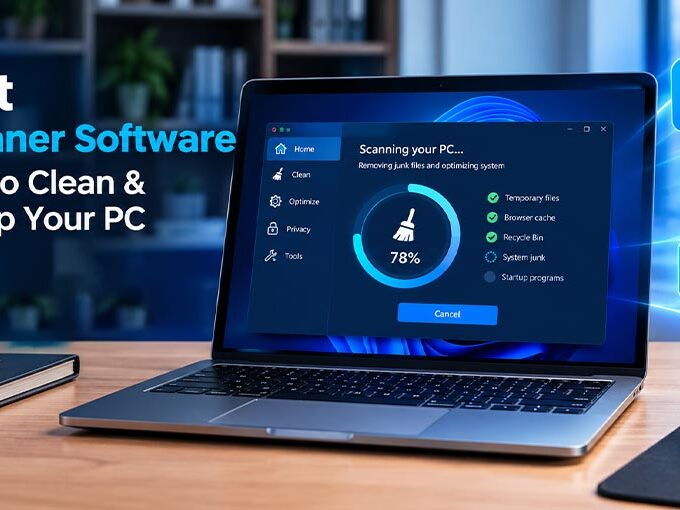
There may be corrupted or damaged files on your system. The corrupted files are one of the major causes of Steam games not launching properly on your system. In this instance, you have to clean and repair the corrupt files. Third-party software to repair and scan the damaged files.
It is recommended to choose a reliable program to scan the corrupted files. The correct software will begin to scan the files and will eventually play a significant role in repairing Steam. Thus, it will prevent the Steam game not launcing and will allow you to play the game without issue.
6. Update the Graphic Driver
Incorrect or outdated graphics drivers can lead to game crashes. Therefore, gamers must update their graphics drivers with the most recent version available on the manufacturer’s website:
- Visit your GPU manufacturer’s website (NVIDIA, AMD, or Intel)
- Download the latest driver for your graphics card model
- Follow the on-screen instructions
- Restart your PC after installation
Conclusion
In conclusion, having problems with Steam games not launching is a frustrating experience. Utilizing the six methods for troubleshooting that are described in this guide will increase the chances of successfully opening your games on Steam
FAQs – Steam games not launching
Why does Steam say “Running” but the game doesn’t open?
This usually happens because of background software conflicts, missing game files, or outdated drivers. Verifying the game files and updating your graphics drivers often fixes this issue.
What should I do if only one Steam game won’t launch?
If only one game has the issue, the problem is likely game-specific. Try verifying its files, reinstalling it, or checking the Steam Community discussions for that game.
Will reinstalling Steam fix game launch issues?
Reinstalling Steam can fix client-related problems, but make sure to back up your game files to avoid data loss.
Why is only one Steam game not launching?
If only one game has the issue, the problem is likely specific to that game. Try verifying files, updating it, or reinstalling the game.




Leave a comment