

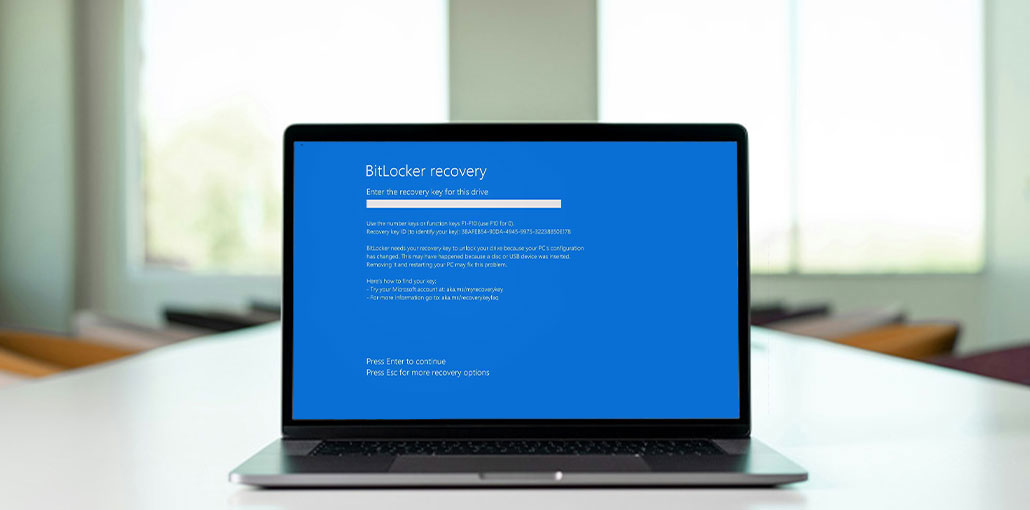
BitLocker is a great tool to keep your private data secure on Windows computers. If you do not have a Microsoft login, how do you obtain access to the BitLocker recovery key? Don’t worry, we’ve got you! Here we’ll teach you how to find the BitLocker Recovery Key.
What is the BitLocker Recovery Key?
A BitLocker Recovery Key (also called a Microsoft recovery key) is a unique 48-digit code generated automatically when you enable BitLocker Drive Encryption on a USB drive, external hard disk, or internal storage device.
This recovery key is essential for accessing your encrypted drive if:
- You forgot your BitLocker password
- Your password isn’t working
- Windows detects a potential security risk
By default, the BitLocker recovery key may be saved as a . BEK file (e.g., BitLocker Recovery Key 444C8E16-45E7-4F23-96CE-3B3FA04D2189.BEK).
Also read: What is the Network Security Key: How to Find for WiFi, Windows and Android
Where to Find Your BitLocker Recovery Key
Microsoft’s BitLocker drive encryption requires users to save a BitLocker recovery key when they create it. You have saved it online using a Microsoft account, saved it on a USB drive, saved it to an image, or printed the recovery key. Thus, you can locate this recovery code in different ways.
1. Microsoft Account (Online)
To retrieve the recovery key stored online with a Microsoft account, visit the site:https://account.microsoft.com/devices/recoverykey (The previous page is http://windows.microsoft.com/recoverykey).
Log in to your Microsoft account, and then you can see the recovery key.
2. Text File on Your Computer
BitLocker recovery key could be stored in a .txt file on your personal computer. If you haven’t deleted it, you can search for BitLocker Recovery Key.txt on your personal computer.
You’ve deleted the BitLocker recovery Key.BEK file, you can download data recovery software to check your computer file.
3. USB Flash Drive
The BitLocker recovery key might be stored on an external device. Place the USB flash drive(s) in the second computer, and then look for a PDF or TXT file containing the recovery key.
If you locate your recovery code, plug it into the USB drive in your PC and follow the on-screen instructions. You can also type in the recovery key in the BitLocker recovery screen.
Also read: USB Device Not Recognized? 8 Quick Fixes
4. Printed or PDF Document
If you have printed your BitLocker recovery key using “Microsoft Print to PDF,” Search for a PDF document on the computer.
5. Active Directory (AD)
If you’re a domain user, your BitLocker recovery key can be saved to Active Directory (AD); contact your administrator to obtain it.
BitLocker Recovery Password Viewer can find and display the BitLocker recovery key saved in Active Directory (AD). This is also the method to get the BitLocker recovery key without Microsoft login.
Instructions on how to see BitLocker recovery key within Active Directory:
- To access Active Directory Users and Computers Locate and select the container in which the computer is. For instance, you can select the Computers container.
- Right-click on the computer object and then click Properties.
- In the ComputerName Properties dialogue box, click the BitLocker Recovery tab to display the BitLocker recovery keys for the particular computer.
6. Azure Active Directory
On work-related PCs, where you are logged in to Azure Active Directory, check the device info for your Microsoft Azure account and get the recovery key.
Are these solutions helpful? Let’s share!
How to verify a BitLocker Recovery Key is Correct?
To confirm whether the BitLocker Recovery Key is valid, check the beginning of the BitLocker recovery key identifier against the value of the recovery key ID.
To confirm you have the correct recovery key:
- Compare the Recovery Key ID shown on your device
- Match it with the ID in your saved key
- If the IDs match → the key will unlock the drive
If not → you need to find the correct recovery key
How to Find BitLocker Recovery Key ID Value?
To access this BitLocker-encrypted operating system volume, the BitLocker identification number for the recovery key appears at the BitLocker recovery screen.
You can find the Recovery Key ID:
- On the BitLocker recovery screen
- When clicking “More options” during unlock
- Inside the BitLocker recovery wizard
Also read: Avast Activation Code & Latest Avast Premier License Key 2025
How to Use a BitLocker Recovery Key to Unlock an Encrypted Drive?
To unlock your encrypted drive:
- Enter the 48-digit recovery key on the BitLocker screen
- Follow on-screen instructions
- Access your drive securely
Important: The Recovery Key ID alone cannot unlock the drive—you must use the full recovery key.
Can You Recover a BitLocker Key Using the Key ID?
If you can find your BitLocker recovery keys .txt file, or you have kept your BitLocker recovery key in your Microsoft accounts, AD, and Azure AD, you can discover the right BitLocker Recovery key by key ID. In other cases, there is no way to get a BitLocker Recovery key.
Conclusion
Microsoft BitLocker recovery key is the most effective fix to prevent data loss forever in case of an encryption problem. Knowing how to locate it, using the decryption drives, and recover inaccessible data is essential to protecting your data.
FAQs: BitLocker Recovery Key
Can I unlock BitLocker without a recovery key?
No, you cannot unlock a BitLocker-encrypted drive without the recovery key or password. If both are lost, the data on the drive cannot be accessed.
What happens if I lose my BitLocker Recovery Key?
If you lose your BitLocker Recovery Key and don’t have access to any backup, you will not be able to unlock the encrypted drive, and the data may be permanently lost.
How many digits is a BitLocker Recovery Key?
A BitLocker Recovery Key is a 48-digit numerical code, usually displayed in groups separated by hyphens.
What is a BitLocker Recovery Key ID?
The BitLocker Recovery Key ID is a unique identifier that helps you match the correct recovery key to your encrypted drive.
Why is BitLocker asking for a recovery key?
BitLocker may request the recovery key due to: Hardware changes Security checks Incorrect password attempts System updates or BIOS changes







Leave a comment