

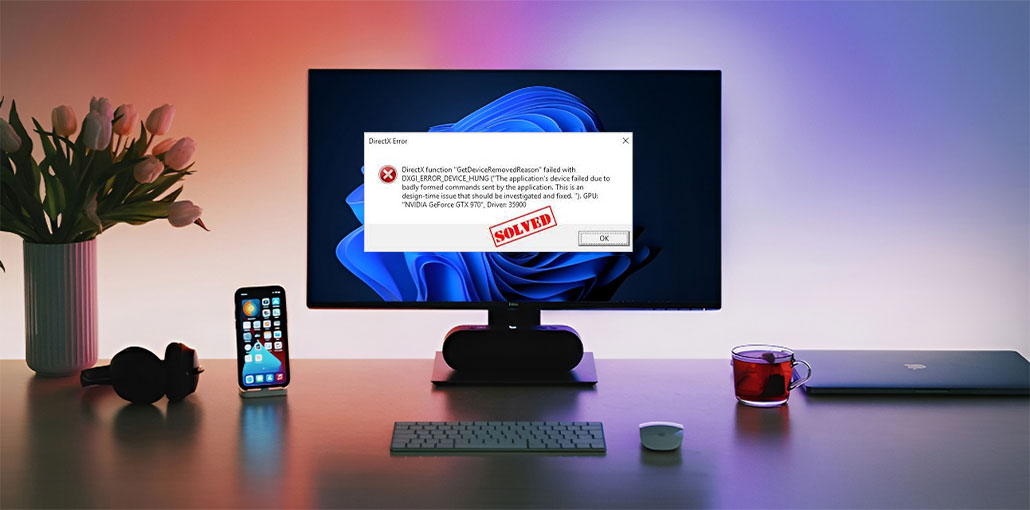
Many Windows gaming enthusiasts have reported encountering a DXGI Error Device Hung error. The error often causes crashes to gamers’ games within a few minutes or while they’re playing. The error message appears in a window with the code 0x887A0006 and states, “A problem has occurred with your display driver.”
Microsoft has described the DXGI_ERROR_DEVICE_HUNG error as a command communication issue between system hardware and games. This is a huge problem when it constantly crashes and affects Windows games. But, gamers have been fixing the DXGI Error Device Hung by using these possible solutions.
What Causes DXGI Error Device Hung Error?
The DXGI Error Device Hung Error usually occurs due to:
- Corrupted graphics drivers
- GPU overclocking instability
- DirectX 12 compatibility problems
- Corrupted game files
- Power management issues
- Faulty GPU settings
- Hardware communication failures
This issue commonly affects games running on:
- NVIDIA GeForce GPUs
- AMD Radeon graphics cards
- DirectX 12-enabled games
- Unreal Engine titles
How to Fix DXGI Error Device Hung Error
1. Run the Game as Administrator
Check that games that fail to run with the DXGI Error Device Hung error have full access to your system with administrator rights. You can choose to temporarily run the game using administrator rights or configure it to be run with elevated rights. This is the way to set up a game that is designed to run as an administrator
- Press Windows + E to open File Explorer
- Go to the game installation folder
- Locate the game’s .exe file
- Right-click the file and select Properties
- Open the Compatibility tab
- Check Run this program as an administrator
- Click Apply and then OK
- Launch the game again
You can then play your affected game to determine whether this solution can make an impact.
2. Enable Debug Mode in NVIDIA Control Panel
Some users have solved the error code 0x887A0006 by selecting “Debug Mode” in the NVIDIA Control Panel. The option is disabled GPU (graphical processing unit) overclocking. If your PC is equipped with an NVIDIA graphics card, you can choose to select the Debugging Mode option like this:
- Right-click on the desktop
- Select NVIDIA Control Panel
- Click the Help menu at the top
- Select Debug Mode
- Restart the game and check the issue
Also read: NVIDIA App Not Working on Windows 11/10? Try These Proven Fixes
3. Repair the Files for Any Affected Games
The DXGI Error Device Hung may occur due to a corrupted game file. Therefore, it is recommended that players test affected games using their gaming client. Epic Games, Steam, Origin, and Battle.net all offer options to verify (repair) the games. This is the way to check the games affected in your Epic Game and Steam launchers.
How to Repair Games on Epic Games
- Run Epic Games to view its windows.
- Click the Epic Games Launcher’s Library tab.
- Then, click on the menu with ellipses for the game you want to check.
- Select Manage to present some options.
- Click the Verify button, then just wait for confirmation to complete.
How to Repair Games on Steam
- Open up Steam’s window.
- To play your games, go to the Steam library tab.
- Right-click on a game you have to verify files and select Properties.
- Click the Local Files Tab to see additional options.
- Choose Steam’s Verify the integrity of game file option.
4. Check If Your PC Uses the Right GPU for Affected Games
If you own a PC with two GPUs, make sure your affected games are configured to run with the high-performance graphics card. The integrated graphics card on your PC (usually that of the Intel version) might not meet the minimum system specifications. You can test and alter the game’s GPU settings in the NVIDIA Control Panel as follows:
- Right-click the desktop
- Open NVIDIA Control Panel
- Click Manage 3D Settings
- Open the Program Settings tab
- Select your game
- Under Preferred graphics processor, choose:
- High-performance NVIDIA processor
- Click Apply
- Restart the game
5. Roll Back Graphics Drivers
A few users have reported that they can fix the DXGI Error Device Hung by rolling back the graphics drivers. By applying this resolution, you will restore the previous graphic driver on your PC. If the file you used for the previous driver is saved, you can select to roll back the driver using Device Manager.
- Open Device Manager
- Expand Display adapters
- Right-click your graphics card
- Select Properties
- Open the Driver tab
- Click Roll Back Driver
- Follow the on-screen instructions
- Restart your PC
6. Update Your GPU’s Driver
The GPU failed with error code 0x887a0006 in your computer’s display (graphics) adapter. This could indicate that you have the wrong graphics driver installed on your PC, which is not compatible with the affected games. The most likely solution in such a situation is to upgrade the drivers on your computer’s GPU.
It is possible to update NVIDIA and AMD drivers in different ways. Some users use driver updater software; however, some do not update their graphics drivers to the latest versions available. To ensure you’re installing the most recent driver for your graphics card, download it from the manufacturer’s website.
7. Disable DirectX 12 in Any Affected Games
DirectX 12 is the more advanced version of DX11, which has been known to cause problems with certain games. Therefore, it’s suggested to disable DX12 by setting it to DX11 in games where the DXGI Error Device Hung (0x887A0006) occurs.
If you get affected game’s settings screen before it crashes, you can disable the DirectX 12 graphics option there. Alternatively, you can make games start with DX11 within Epic Games like this:
- First, open the Epic Games Launcher.
- Click on the circle button for your user’s initials.
- Select the Settings option from the menu that opens.
- Click the game’s title, where 0x887A0006 arises.
- Select the Additional Command Line Arguments box.
- Include the D3D11 in the Text box.
8. Switch to the High-Performance Power Plan
Error 0x887A0006 is more likely to occur when the Power Saver or Balanced power settings are selected. The power settings will reduce PC performance and energy. Try selecting the most powerful setting to guarantee the best gaming experience:
- Press Windows + S
- Type: powercfg.cpl
- Open Power Options
- Select High Performance
- Close the Control Panel
- Restart your PC
9. Stop Overclocking Your GPU or CPU
Overclocking CPUs or GPUs (central processors) is among the most common causes of error code 0x887A0006. Have you overclocked your computer by using an overclocking program such as CPU Tweaker, AMD Ryzen Master, or MSI Afterburner? If yes, it’s recommended that you turn off (undo) all overclocking by restoring your default settings with the overclock software you use.
- Open your overclocking software:
- MSI Afterburner
- AMD Ryzen Master
- EVGA Precision X1
- Reset CPU and GPU clocks to default
- Disable custom voltage settings
- Save the changes
- Restart your PC
- Test the game again
Also read: How to Easily Fix Clock Watchdog Timeout Error in Windows 10 & 11
10. Edit the GraphicsDrivers Registry Key
Disabling Timeout Detection and Recovery is another potential DXGI Error Device Hung fix that some users have confirmed is effective. Time Detection and Recovery is a Windows feature that resets an unresponsive graphics driver. You can disable this feature by changing your graphics driver registry key using the following steps:
- Launch Windows’ Registry Editor app
- Go to this GraphicsDrivers registry Key location by entering the URL within the address bar
HKEY_LOCAL_MACHINE\SYSTEM\CurrentControlSet\Control\GraphicsDrivers
- Right-click GraphicsDrivers to select the key’s New > DWORD (32-bit) Value options.
- Enter “TdrLevelinside the text box for DWORD.
- Double-click TdrLevel to see the Value data box for the DWORD.
- Enter 0 in the TdrLevel’s value box, then select “OK” to save.
- Shut down the Regedit application, and then restart your computer.
11. Reinstall the Game That’s Crashing
Reinstalling the game affected is not the only thing you should try if all other options fail. Implementing this solution can likely repair missing or corrupted game files that may cause the DXGI Error Device Hung error. Some gamers may be worried about losing games they saved after reinstalling. However, you can back up saved games.
It is possible to remove a game by going to Programs and Features or Settings. If you are unable to find any game listed, you’ll have to uninstall it from the game client software. Select to install the game on the gaming software.
Final Thoughts
One of these Windows 11/10 solutions will fix the DXGI Error Device Hung error that affects games on your computer. There are other possible resolutions to this issue, as the cause is variable. The removal of game overlays, switching off Steam Cloud sync, and upgrading Windows or DirectX are other possible solutions for error 0x887A0006 that could be worth a shot.
FAQs: DXGI Error Device Hung Error
1. What is DXGI_ERROR_DEVICE_HUNG error?
The DXGI_ERROR_DEVICE_HUNG error is a DirectX-related issue where the GPU stops responding to game or application commands due to driver, hardware, or stability problems.
Is DXGI Error Device Hung a hardware problem?
Not always. In most cases, it is caused by software issues like drivers or DirectX settings. However, persistent errors may indicate GPU overheating or hardware instability.
Can overheating cause DXGI Error Device Hung?
Yes, high GPU temperatures can cause the graphics driver to stop responding, leading to this error during gameplay.
Does reinstalling the game fix DXGI error?
Yes, if the issue is caused by corrupted game files, reinstalling or verifying files can fix the problem.
Which games are commonly affected by DXGI Error Device Hung?
Games like Call of Duty, Fortnite, Apex Legends, Battlefield, Cyberpunk 2077, PUBG, and Unreal Engine games are commonly affected due to high GPU usage.






Leave a comment