

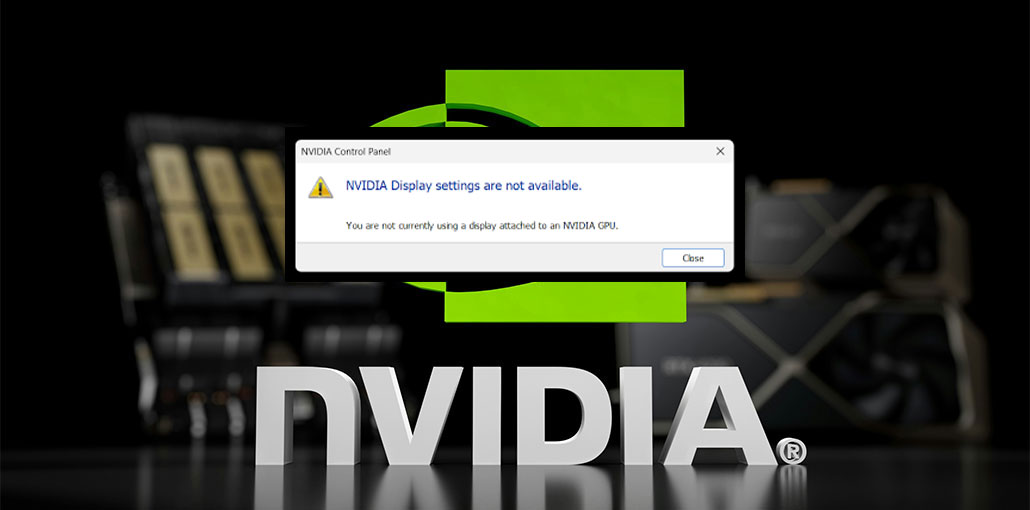
The NVIDIA Control Panel lets you adjust all graphics card features, including color settings, refresh rate, resolution, G-Sync, and other NVIDIA-specific features. In the beginning, they were part of the Windows driver. However, that is no longer the case.
In this article, we’ll explore effective solutions to fix the NVIDIA Control Panel not opening issue.
Why Is NVIDIA Control Panel Not Opening?
Before jumping into solutions, it’s important to understand why the NVIDIA Control Panel not opening. Here are some common reasons:
- Outdated or corrupted graphics drivers
- Missing or disabled NVIDIA services
- Windows updates are causing compatibility issues
- Corrupted system files
- Fast startup conflicts
- NVIDIA Control Panel app missing from system
Understanding the root cause helps you apply the right fix faster.
How to Fix the NVIDIA Control Panel Not Opening issue
1. Update Your Drivers
There may be a different reason you cannot open NVIDIA. It could be that the NVIDIA drivers are out of date. In this case, go to NVIDIA’s website to download the most recent drivers.
How to update drivers:
- Open Device Manager
- Expand Display Adapters
- Right-click your NVIDIA GPU
- Select Update Driver
Alternatively, you can download the latest drivers directly from the NVIDIA website.
Also read: NVIDIA App Not Working on Windows 11/10? Try These Proven Fixes
2. Update Your System
There are times when it’s the driver, but the system needs to be updated. Here’s how to do:
Steps:
- Press Windows + I to open Settings
- Go to Update & Security
- Click Check for Updates
- Install any available updates
The system will take a while to complete the update. You can try opening the NVIDIA Control Panel right now.
3. Restart NVIDIA Control Panel
In Windows, each program has a background process. The associated process begins when you click an application. The graphics process begins with Windows each time, since they are crucial to the graphics card’s function.
Sometimes, due to issues with your system, your program won’t perform as it should, even if the background service is running. In these instances, it is necessary to restart the service.
Steps:
- Press Ctrl + Shift + Esc to open Task Manager
- Find NVIDIA Control Panel
- Right-click and select End Task
- Close Task Manager
- Relaunch the app.
4. Restart NVIDIA Services
For the NVIDIA Control Panel to function properly, you must ensure that certain services are running. The reason the NVIDIA Control Panel not opening the necessary services aren’t working properly.
To determine if all needed services and functions are operating correctly, try these steps:
- Press Win + R and type services.msc
- Locate the following services:
- NVIDIA Display Container LS
- NVIDIA LocalSystem Container
- Right-click each service and select Restart
- If the service is not running, click Start instead.
This method often resolves temporary glitches preventing the Control Panel from opening.
5. Fix The Registry
Sometimes, a problem in the registry could be the reason why your NVIDIA Control Panel not opening.
Steps:
- Press Windows + R
- Type regedit and hit Enter
- Navigate to:
- HKEY_CLASSES_ROOT > Directory > Background > ContextMenuHandler
- Delete NvCplDesktopContext
- Recreate the NVIDIA Control Panel key manually
Restart your PC after making changes.
6. Check Your Antivirus Program
Sometimes your antivirus software could be the reason why the NVIDIA Control Panel won’t open. Certain antiviruses can block the program, preventing it from opening. To solve this problem, check your antivirus and ensure that it’s not blocking the program.
If not, disable all your antivirus software before trying to open the NVIDIA Control Panel again. If you’re still not able to access the program, turn it off as well. In the worst-case scenario, uninstall your antivirus, and then see if you can access the NVIDIA Control Panel now.
7. Perform a Clean Driver Installation
If none of the methods work, you can uninstall the NVIDIA Graphics Card and reinstall it again. There are several ways to uninstall the NVIDIA Graphics Card Driver.
Steps:
- Uninstall NVIDIA drivers using Apps & Features
- Restart your PC
- Download the latest driver from NVIDIA
- During installation, select:
- Custom Installation
- Check. Perform a clean install
- This removes all leftover files and resets settings.
8. Disable Fast Startup
Speed Boot on Windows 10 allows your system to boot faster than previous versions. It doesn’t shut down your system completely until the boosting reboot process. However, this can cause the NVIDIA Control Panel not opening in Windows 10. This feature can be disabled to help solve your issue.
Steps:
- Press Windows + S and search Power Settings
- Click Power & Sleep Settings
- Go to Additional Power Settings
- Click Choose what the power buttons do
- Uncheck Turn on fast startup
- Save changes and restart
Also read: GeForce Experience Error Code 0x0003: Here Are Easy Fixes
9. Enable NVIDIA Control Panel in Desktop Context Menu
If your NVIDIA Control Panel not opening because you can’t find it within your system’s context menu, you can try this option.
- Press Windows+S to launch the Search Bar.
- Type Control Panel.
- Go to NVIDIA Control Panel.
- Click on the Desktop Tab.
- Choose the Add Desktop Context menu.
- Click on Show Notification Tray Icon.
10. Set Highest Display Resolution
Sometimes, display resolution can also affect the NVIDIA Control Panel.
- Right-click the empty area on your desktop.
- Click on Display Settings.
- Choose the highest resolution.
- Click Apply, then click OK.
How to Prevent NVIDIA Control Panel Issues
To avoid facing this issue again:
- Keep drivers updated regularly
- Avoid interrupting driver installations
- Perform system updates consistently
- Use reliable antivirus software
- Avoid installing unofficial GPU tweaks
Prevention is always better than troubleshooting.
Conclusion
These methods can fix the NVIDIA Control Panel not opening issue. If nothing is working or you are unable to install the program, make sure your system meets the installation requirements and functions properly. If everything is well, then you shouldn’t have to deal with this issue for long.
FAQs: NVIDIA Control Panel Not Opening
Why is NVIDIA Control Panel missing from the right-click menu?
If it’s missing, it may be disabled. You can enable it from the Desktop menu inside the NVIDIA Control Panel settings or reinstall the app from the Microsoft Store.
How do I open NVIDIA Control Panel manually?
You can open it by searching for it in the Windows search bar or navigating to C:WindowsSystem32 vcplui.exe.
Can Fast Startup cause NVIDIA Control Panel not opening?
Yes, Fast Startup can interfere with system processes and prevent the Control Panel from launching correctly.
How do I fix NVIDIA Control Panel not opening on Windows 10 or 11?
You can fix it by updating your NVIDIA drivers, restarting NVIDIA services, reinstalling the Control Panel, or performing a clean driver installation.









Leave a comment