

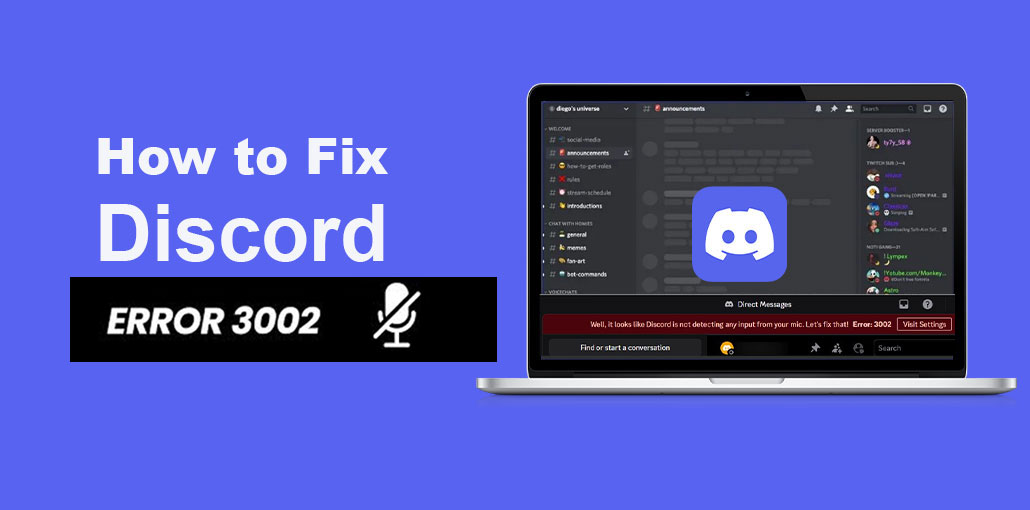
Your microphone was working yesterday; however, it is not now. Discord is unable to pick it up, resulting in the troubling Discord error 3002. Many users have reported that the problem occurs suddenly and without any modifications made on their systems. Be assured, this article exposes the most common causes of Discord 3002 error and takes you through solutions that have been proven to fix your voice chat quickly and efficiently.
The short answer to what error 3002 means on Discord is unable to record the microphone input. This error can appear in desktop applications or when you use Discord in a browser.
Common Causes of Discord Error 3002
Many software-related and system-level issues could trigger Discord error 3002. Knowing these causes can help narrow down the correct solution, rather than relying on guesswork.
- Microphone access is disabled in Windows privacy or security settings
- System input volume is too low or the microphone is muted
- Discord’s internal input device settings are incorrect or muted
- Faulty audio port or unstable USB connection causing interruptions
- Corrupted browser cache when using Discord on the web version
- Temporary conflicts in system audio services or drivers
This is why many users are suddenly seeing error 3002 in Discord without changing anything.
Also read: Discord No Route Error? 8 Easy Fixes to Connect Instantly
How to Fix Discord Error 3002 (Step-by-Step Solutions)
Here are some easy methods to fix Discord Error 3002 quickly and efficiently.
1. Enable Microphone Access in Windows
The most frequent cause of error 3002 Discord is that Windows privacy settings are blocking microphone access. Before attempting to fix Discord itself, ensure that Windows allows microphone access worldwide and for desktop apps.
- Click “Windows + I” to open Settings. Next, go to Security and privacy and select “microphone”.
- Check that ” Allow apps to access your microphone” is turned on. Ensure the toggle button for the “Discord” app in the list is enabled. In the Discord web version, the toggle switch should be enabled in your browser.
- Once microphone permissions are enabled, Discord regains the ability to recognize the input device. After that, you can restart Discord and check to see if the issue is resolved.
2. Increase Microphone Input Volume
Even if permissions are enabled, the microphone could be technically active, but unusable due to its very low input volume. The higher volume input ensures Discord receives an audible signal instead of silence.
- Open the Settings menu on your computer and then go to System. Then go to Sound.
- Check for your way to the ” Input” section, and make sure that your microphone is properly selected.
- The Volume slider should be checked and increased in the Mic section. Then restart Discord and verify that your voice is working.
- Correct input volume can prevent Discord voice chat error 3002 caused by quiet or nearly silent microphones.
3. Check Discord Input Settings
Discord lets you independently mute audio devices. It can be used to override Windows audio settings. Many people accidentally turn off their microphones inside Discord without even realizing it. If your microphone works everywhere and not just in Discord, this solution is crucial.
- Open Discord and then click the gear icon beside your username. Click ” Voice and Video” and make sure the correct input device is selected.
- Make sure that the volume slider isn’t muted. After that, turn off “Push to Talk” temporarily and test it.
- Muting the input device in Discord usually resolves Error 3002 without any system changes.
4. Change USB Port or Audio Jack
Faulty USB ports or unreliable audio jacks could disrupt microphone communications intermittently. This problem is typical of USB headsets and external microphones. Switching to a different port requires Windows to reinitiate your audio player.
- Connect your headset or microphone. Plug it into a different USB port or audio jack.
- Wait for Windows to automatically install drivers, then open Discord to select the device to input.
- Switching ports can help eliminate problems with hardware communication that cause Discord error 3002 and mic failure.
5. Run Windows Audio Troubleshooter
Windows comes with an integrated troubleshooter that instantly detects and fixes issues with the recording device. Although it’s basic, it’s extremely effective for unexpected Discord audio problems. It checks driver permissions, settings, and default device conflicts.
- Find Troubleshooting settings in Windows search, then open it. Then, click ” Additional Troubleshooters”.
- Find”Recording” Audio.” Click on the “Recording Audio” option and choose “Run,” then follow the on-screen instructions using the right microphone to diagnose the issue.
- The troubleshooter can resolve hidden conflicts that can trigger Discord error 3002 after system changes.
6. Clear Browser Cache (For Web Discord)
If you’re using Discord on a browser, corrupted files can block access to the microphone even if permissions are enabled. Clearing the cache refreshes permissions for browsers and audio handling.
- Open your browser’s settings and then go to ” Privacy and security”.
- Choose ” Delete browsing data” and change the timer to ” All Time”. Select the ” Cached images and files” option, and select ” Delete Data,” then restart the web.
- Clearing the cache can be essential in resolving error 3002 browser-based Discord sessions.
Also read: Discord Messages Failed to Load? 6 Easy Fixes to Solve It Fast
Prevention Tips for Discord Error 3002
- Keep microphone access enabled in Windows privacy settings
- Ensure input volume is not too low or muted
- Select the correct microphone inside Discord settings
- Avoid loose or faulty USB/audio jack connections
- Regularly clear browser cache if using Discord web version
- Keep Discord app updated to the latest version
- Restart your system occasionally to refresh audio services
- Avoid using unstable or conflicting audio software
Conclusion
Discord error 3002 could be frustrating; however, it isn’t always permanent or serious. Most of the time, the problem is due to muted devices, permissions, or system-level audio conflicts, which can be easily fixed after being identified. If you follow the steps above and ensure your system is running smoothly, you can avoid recurring voice problems.
FAQs – Discord Error 3002
Is Error 3002 caused by Discord servers?
Rarely. It is usually a local device or permission issue, but sometimes server instability can also contribute.
Why does Discord suddenly stop detecting my mic?
This can happen due to updates, driver changes, permission resets, or USB/audio connection issues.
Can outdated drivers cause Discord Error 3002?
Yes, outdated or corrupted audio drivers can prevent Discord from accessing your microphone properly.
Is Discord Error 3002 a hardware problem?
It can be. Faulty USB ports, damaged headsets, or loose connections may also trigger this error.
How do I fix Discord voice issues permanently?
Keep drivers updated, maintain correct input settings, allow microphone permissions, and regularly update Discord.









Leave a comment