

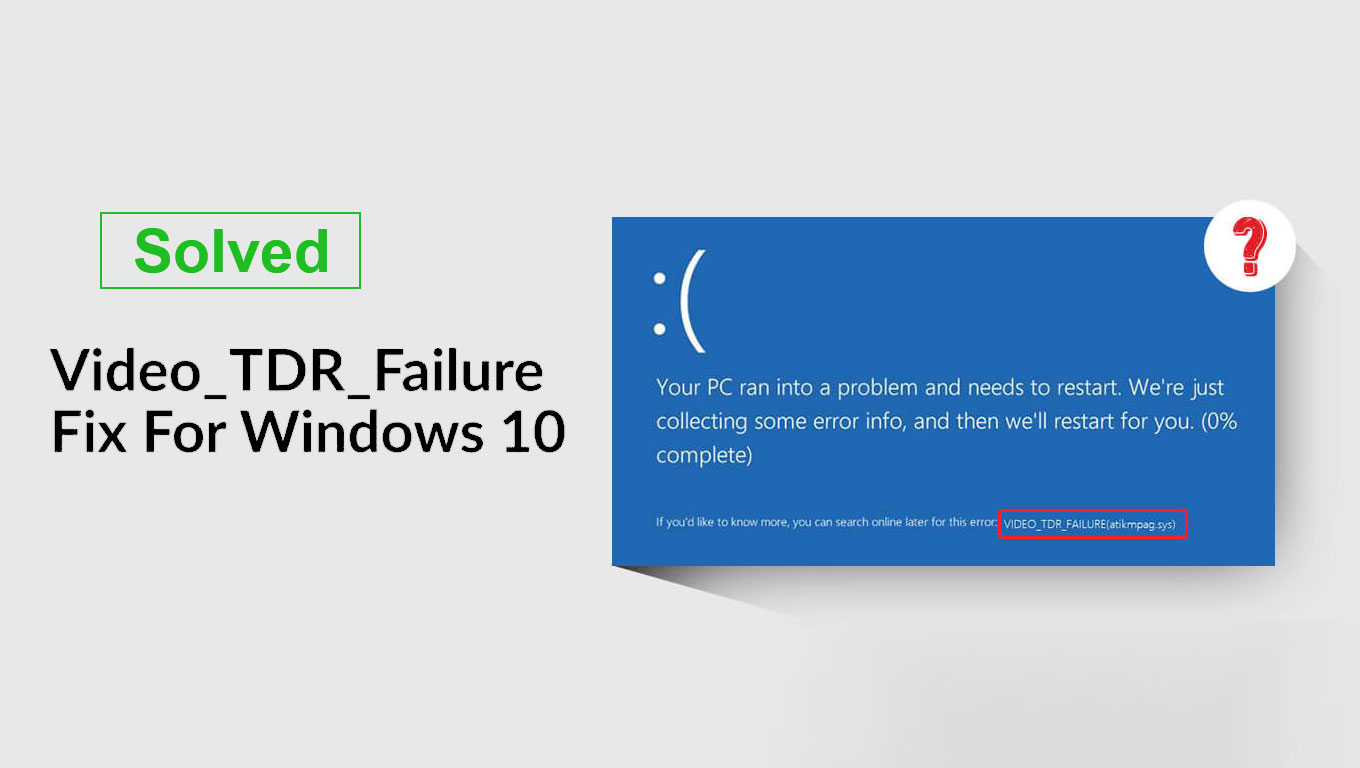
Have you ever had a Windows 10 or 11 blue screen error? A video TDR failure is among the error codes that are associated with BSOD. This error is usually encountered when you attempt to watch a video or play a video game or perform any operation that is connected to video output, and the error’s name is different in accordance with the brand of the monitor used:
- For NVIDIA graphics cards, nvlddmkm.sys
- For Intel Graphics cards, igdkmd64.sys
- For AMD or ATI GPUs: atikmpag.sys
While the displayed may be distinct, the reasons and solutions are identical. This article will examine the reasons and solutions to video TDR failure.
Common Causes of Video_TDR_Failure
As mentioned, the Video TDR Failure issue is a result of system issues that can’t be corrected. The cause of these errors is Hardware or Software issues, for example:
- Outdated Drivers
- Overclocked Components
- Outdated System Updates
- System Power Deficiencies
- System Cooling Deficiencies
- Defective components (memory chips, memory)
- Too many programs running (Potential to overload System Resources)
Now that you know the problem may be a little clearer. If not, it is now time to troubleshoot the issue!
Also read: Kernel Security Check Failure Error: Easy Fixes for Windows 10
How to Fix Video TDR Failure (Step-by-Step Guide)
You might want to boot your computer into Safe Mode while troubleshooting. Although it isn’t necessary, it can be beneficial if the issue persists during troubleshooting. Safe Mode is a way to load minimal drivers into the computer.
1: Adjust Power Settings
As stated in the TDR_Failure_Error causes section, low power can lead to Video-TDR-Failures (especially in cases where the demands on your graphics card are very high). The good news is that your computer’s power level is easily adjusted in the PCI Express Power Management Settings. PCI Express Power Management Settings. Follow these steps:
- Go to the Start menu and type in Control Panel, Left-click on System and Security.
- Click Power Options.
- At the top, you can click Change plan settings.
- Click on Change Advanced Power Settings.
- Click on the PCI Express drop-down and switch the Maximum power savings setting to off.
The new power settings will solve any power issues that could cause the Video TDR Failure error. If the error is still present, then proceed to the next section.
2: Install Windows Updates
Critical updates are designed to be quickly installed and help resolve hardware and software issues, including the Video TDR Failure. Most of the time, Windows updates are automatically installed, but occasionally, they may need extra help. Make sure to update Windows to ensure that crucial updates aren’t missing, including updates that could affect the graphics card. Verify Windows updates by following these steps:
- Open the Start menu, and look for Settings. Click Update & Security.
- Click Check for Updates and upgrade if available.
NOTE: Windows Updates may help, but they are not always able to resolve the problem. Follow the following section in case your computer continues to crash.
3: Update or Reinstall Drivers
Try updating the drivers for your display to see if it fixes the Video TDR Failure. Driver updates can include critical patches that can impact the Video_TDR.
- Go to the Start menu and type in Device Manager. Select the dropdown for Display adapters. down and choose Update driver.
- Click Search automatically to find the latest driver software that will allow Windows to search for driver updates.
If you’d like to do the additional work, check the video card’s manufacturer for the latest driver updates. Download the driver and then browse your computer for driver software. You can then open and install the driver manually.
4: Repair Corrupted.SYS Driver Files
Incorrect atikmpag.sys and atikmdag.sys file (for AMD cards), and corrupted nvlddmkm.sys and igdkmd64.sys files (for Intel cards) may cause repeated VIDEO_TDR_Error Failures. If the problem recurs in the future, it is advised to repair the files by taking these steps:
- Go to your Windows Start menu and search for File Explorer.
- Go to your Drivers directory, which is usually at C:WindowsSystem32Drivers and search for atikmpag.sys or the atikmdag.sys file
- Rename it as atikmpag.sys.old or atikmdag.sys.old respectively.
- Your C: drive should contain an additional folder titled atikmpag.sy_. copy the atikmpag.sy_ file onto your desktop.
Notice: On Nvidia cards, it will be listed either as the nvlddmkm.sys or the igdkmd64.sys file. Change the file names to nvmlddmkm.sys.old or igdkmd64.sys.old or. The nvlddmkm.sy_ file to your desktop. If you’re having issues, the initial “blue screen of death” should show the issue with the file.
- Click on Windows Start and type CMD. Type chdir to change the directory to the desktop.
- Type expand.exe atikmdag.sy_atikmdag.sys or expand -r atikmdag.sy_atikmdag.sys. On Nvidia cards type expand.exe nvlddmkm.sy_nvlddmkm.sys or expand -r nvlddmkm.sy_nvlddmkm.sys.
- Once the process is completed, then copy the newly created atikmdag.sys and nvlddmkm.sys file into the driver folder where they were originally located (back in step 2).
- Make sure to restart your system.
5: Run System File Checker (SFC Scan)
System files may become corrupted or replaced by corrupt files after updates. Luckily, Windows provides a system file checker. It can identify necessary files and correct errors. Here are the key steps:
- Press and hold Windows+R simultaneously until you open the Command Prompt.
- Run the Command Prompt window as an administrator.
- Type ” sfc /scannow” and hit Enter.
- Wait for the scan to finish. It will locate and repair the damaged files.
Also read: How to Fix Driver Power State Failure in Windows 11/10
How to Prevent Video TDR Failure
- Keep drivers updated
- Avoid unstable overclocking
- Maintain good cooling
- Use quality PSU
- Regular system maintenance
Conclusion
This article offers seven practical methods to repair the video TDR failure. The primary cause of the issue could be a driver failure; it is recommended to update the driver before beginning any method.
FAQs: Video TDR Failure
What is Video TDR Failure in Windows 10/11?
Video TDR Failure is a Blue Screen of Death (BSOD) error in Microsoft Windows that occurs when the graphics card (GPU) stops responding within a set time and Windows fails to recover it.
Does Video TDR Failure damage my PC?
No, the error itself does not damage your PC. However, it may indicate an underlying GPU or hardware issue that should be fixed to avoid further crashes.
Why does Video TDR Failure happen while gaming?
Gaming puts high stress on the GPU. If the graphics driver is unstable, the GPU overheats, or power delivery is weak, the system may crash with a TDR error.
Do I need to replace my GPU for Video TDR Failure?
You only need to replace your GPU for Video TDR Failure if all software fixes fail and you still experience crashes, artifacts, or repeated driver failures, indicating possible hardware damage.








Leave a comment