

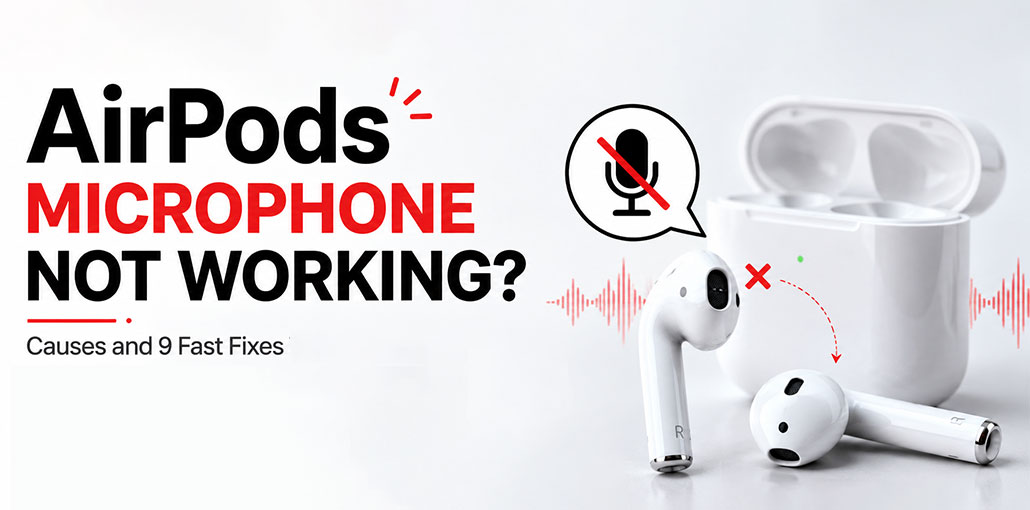
This article will help you troubleshoot the issue effectively. If you’re reading this, there’s a good chance that one or more microphones on your AirPods are not working properly. Before visiting the Apple Store, there may be simpler solutions you can try at home to fix the AirPods microphone not working issue.
Why Is My AirPods Microphone Not Working?
There are several possible reasons your AirPods microphone may stop working:
- Bluetooth connection problems
- Incorrect microphone settings
- Low battery levels
- Outdated device software
- Dirty microphone openings
- AirPods not selected as the audio input device
- Temporary software glitches
If your AirPods microphone not working issue continues, follow the troubleshooting methods below
Also read: AirPods Flashing Orange Light: Causes and Easy Fix Guide in 2026
How to Fix AirPods Microphone Not Working Issue
Except for the last two alternatives that are more extreme, the steps listed below can be attempted in any order that you want. Although some may seem simple, you should try simple solutions before contacting Apple support or purchasing new earbuds.
1. Charge Your AirPods
Be assured that it occurs to all of us. We’re thinking that our AirPods are ready to go, but then remember you didn’t charge them for a few working days or during workouts. Be aware that lithium batteries will continue to drain even when they’re not used; they drain extremely slowly.
You can check AirPods’ battery life by placing them near an Apple smartphone and opening the case. Go to the battery widget on your device to see if the headphones are already in your ears. If, however, the headphones are exhausted, you won’t be able to see any device information.
2. Put Your AirPods Back in the Charging Case
This won’t do anything, but putting your AirPods back into their cases for 30 seconds may trigger an update in their state to “wakes up” their microphones.
3. Turn Bluetooth Off and Back On
The audio streams available in iOS and iPadOS could be…eccentric. If you force the Bluetooth audio device to reconnect, it could work correctly. You can go to Settings> Bluetooth and switch the toggle between off and on. You can do this procedure on a Mac by accessing your Apple Menu > System Settings >Bluetooth.
4. Toggle Automatic Ear Detection
In general, ear recognition is an excellent feature on AirPods and other modern headphones, avoiding the hassle of pausing and restarting playback when you have to speak with somebody. It could also happen that the AirPods aren’t switching into action when you’d expect them to. If that’s the case, check Settings > [insert your AirPods name and turn Automatic Ear Detection off and back on. Your AirPods may be turned on and connected for these menu options to be displayed.
5. Check AirPods Microphone Settings
One lesser-known feature of AirPods that many don’t recognize: you can select which microphone should be used for audio input. On AirPods models (excluding AirPods earbuds ), you can manually set which left or right microphone is active for input using the default Automatic Switching setting. If one AirPods microphone not working, selecting an individual microphone could help determine whether one earbud is the root of the issue.
To ensure you’ve got the configuration you want, go to Settings, then [your AirPods name here]> Microphone, and select Automatically Switch AirPods, Always Left AirPods, as well as Always Right AirPods.
6. Update AirPods Firmware and Device Software
While unlikely, a firmware glitch can cause the AirPods microphone not working on calls. There are a few ways to verify your firmware version and then force an AirPods update if available. The first step is to insert the AirPods into their case, then close the lid, and wait a few minutes. Unlock the lid and allow the AirPods in, and let AirPods pair with an iOS phone or Mac, then leave them to connect for a few minutes.
It’s also worth updating iOS, iPadOS, watchOS, or macOS. Despite Apple’s traditional “it just works” mantra, it is constantly tackling bugs and changes compatibility. Certain bugs are hard to anticipate in the increasingly complicated tech environment.
7. Clean Your AirPods
One or more microphone inputs might be blocked if the AirPods are dirty. There’s a specific method for safely cleaning AirPods, and it’s crucial to follow this procedure to prevent damage to the microphones or creating blockage where there was none before. Avoid soap; instead, use lint-free cloths, sticky putty, paper towels, and cotton swabs. Make sure not to push dirt into the crevices.
8. Restart Your Connected Device
Sometimes rebooting the iPhone, iPad, or Mac could reset settings behind-the-scenes to fix audio issues. Have you noticed that your iPhone performs a little more smoothly after rebooting? Similar idea.
Also read: Why Do My AirPods Keep Disconnecting? (2025 Fix Guide)
9. Reset Your AirPods
This is our first “drastic” option, but resetting your AirPods will not cause any harm. It’s incredibly simple to pair them again, and all you have to do afterwards is to ensure that settings like the volume or noise cancellation are set to what you’d like them to be. When you’ve got your AirPods linked to your Apple ID, you can change audio between Apple devices with zero effort.
10. Contact Apple Support
If you’ve tried each of the above steps, but your AirPods microphone not working, this could indicate a software or hardware issue, and only Apple or a certified repair shop can resolve it. Go to Apple’s support site or schedule an appointment with an Apple Store or a third-party service shop.
Ending Notes
In the end, this is the complete answer to the question “Why is my AirPods microphone not working?’. It is always possible to rely on the solutions provided in this article. But the best and recommended method for fixing the AirPods microphone not working issue.
FAQs: AirPods Microphone Not Working
Why is only one AirPod microphone working?
This usually happens because microphone settings are set to one AirPod, one earbud has a connection issue, or that AirPod’s microphone is blocked or damaged.
Why is my AirPods microphone not working but the speaker works?
If your AirPods speaker works but the microphone does not, the issue may be related to microphone permissions, Bluetooth settings, incorrect input selection, or a temporary software glitch.
How do I fix AirPods microphone delay during calls?
To fix AirPods mic delay, disconnect and reconnect your AirPods, restart your device, disable Bluetooth interference, and update your operating system.
How do I fix my AirPods microphone not working issue?
To fix AirPods microphone problems, reconnect your AirPods, check microphone permissions, select AirPods as the input device, update your device software, clean the microphone openings, and reset your AirPods if needed.






Leave a comment