

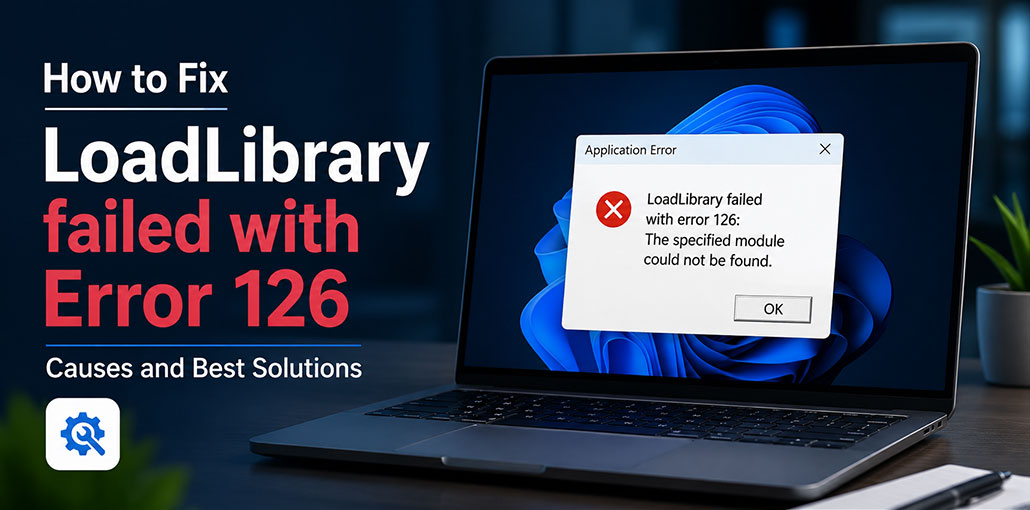
LoadLibrary failed with Error 126 is a Windows DLL loading error that users have reported on support forums for several years. That Error occurs when users launch games or other software using OpenGL graphics drivers. The error says: LoadLibrary failed with error 126: The specified module could not be found.
If you click OK, close games and programs that cause error 126; users cannot use or play affected software because of error 126. It means users cannot use or play games as expected. Are you also experiencing this issue where every program crashes upon launch on Windows 11 and 10 PCs? Below is how to fix error 126 on your PC.
Common Causes of LoadLibrary Failed with Error 126
Several issues can trigger Error 126, including:
- Missing or corrupted DLL files
- Outdated or damaged graphics drivers
- Incomplete software installation
- Missing Microsoft Visual C++ Redistributables
- Corrupted DirectX components
- Windows system file corruption
- Incorrect environment variables
- Malware deleting or modifying DLL files
Also read: Steam Error Code E87: How to Fix Steam Login Error
How to Fix LoadLibrary Failed with Error 126
1. Set the Program to Run as Administrator
Error 126 may be caused by ungranted system access rights for affected software installed on your PC, specifically programs without administrator privileges that cannot access system resources due to being denied permission. You can resolve this by setting affected programs to run as administrators.
2. Run the System File Checker Tool
A corrupted system file can cause software crashes, and error 126 isn’t an exception. This could be because certain programs can’t access a resource due to corruption of system files. You can fix this problem using the SFC tool.
- Press Windows + S, type Command Prompt, then select Run as administrator.
- Run the following command and press Enter:
sfc /scannow - Wait for the scan to complete.
- Restart your computer.
- Check if LoadLibrary failed with error 126 has been resolved.
3. Disable a Secondary Graphics Adapter Device
Have two graphics cards installed on your PC? If that is the case, disabling one embedded graphics processor might help rectify error 126. Driver conflicts might be responsible; many users have reported success when disabling secondary GPUs to resolve such an issue. Here’s how you can disable one on Windows 11/10:
- Right-click the Start button and select Device Manager.
- Expand the Display adapters category.
- Right-click the integrated graphics adapter (usually Intel).
- Select Disable device.
- Click Yes to confirm.
- Restart your computer.
- Launch the affected application.
Note: Only try this if your PC has multiple graphics adapters
4. Reinstall the Affected Application
Sometimes Error 126 occurs because the application’s installation is incomplete or one of its required DLL files is missing or corrupted.
5. Install Microsoft Visual C++ Redistributables
Many Windows applications and games rely on Microsoft Visual C++ runtime libraries; when these components are missing or corrupted, you may experience LoadLibrary failed with error 126.
- Download the latest Microsoft Visual C++ Redistributable packages (both x64 and x86) from Microsoft’s official website.
- Install all required versions.
- Restart your computer.
- Launch the application again.
6. Update the GPU Driver
An outdated graphics driver may lead to compatibility issues in games and apps, including LoadLibrary failed with error 126. You can update the GPU driver via Windows Device Manager.
- Press Windows + X and select Device Manager.
- Expand Display adapters.
- Right-click your graphics card.
- Select Update driver.
- Click Search automatically for drivers.
- Install any available updates.
- Restart your computer.
For the latest drivers, you can also download them directly from your GPU manufacturer’s website.
7. Reinstall the GPU’s Driver
If the driver for your GPU doesn’t need to be updated (it is already running the latest version), reinstalling the driver is a different option for troubleshooting error 126, which is worth giving a shot. It can solve issues caused by defective GPU drivers. Among them, error 126 could be one.
8. Clean Boot Your Windows PC
Clean booting disables the startup of any third-party program. By doing this, you can stop background processes and remove apps that automatically start. This process may be causing error 126 to your computer due to infringing (conflicting) by causing conflicts with affected programs.
- Press Windows + R, type msconfig, and press Enter.
- Open the Services tab.
- Check Hide all Microsoft services.
- Click Disable all.
- Open the Startup tab and click Open Task Manager.
- Disable all startup applications.
- Close Task Manager and click OK in System Configuration.
- Restart your computer.
- Launch the affected application.
Also read: How to Clean Up Junk Files and Speed Up Your PC
9. Repair or Install DirectX Runtime
Games and graphics-intensive applications depend on DirectX. Missing or damaged DirectX components can prevent DLLs from loading properly.
- Download the latest DirectX End-User Runtime from Microsoft.
- Run the installer and complete the setup.
- Restart your PC.
Check whether the application launches without Error 126.
How to Prevent LoadLibrary Error 126
To reduce the chances of encountering this error in the future:
- Keep Windows updated.
- Install software only from trusted sources.
- Update graphics drivers regularly.
- Avoid deleting DLL files manually.
- Use antivirus software to protect system files.
- Create restore points before major system changes.
Wrap up: Solve LoadLibrary failed with error 126
LoadLibrary failed with error 126 isn’t easy to fix because there are a variety of possible causes that occur in Windows PCs. These troubleshooting methods cover some of the more common causes of Error 126 and have successfully helped many users solve it. Most solutions focus on Windows 11/10 fixes, but some could provide fixes for older versions such as Win 8/7 and Vista.
FAQs: LoadLibrary Failed With Error 126
What is LoadLibrary Failed With Error 126?
LoadLibrary Failed With Error 126 is a Windows DLL loading error that occurs when a program cannot find or load a required DLL file or one of its dependencies. It commonly appears when launching games or applications that use graphics components such as OpenGL.
Is Error 126 caused by a missing DLL?
Often, yes. However, the missing file may be a dependency of another DLL rather than the DLL referenced by the application.
Does reinstalling the application fix LoadLibrary Failed With Error 126?
Reinstalling the affected application can fix the error if the installation is incomplete or required DLL files were damaged or missing.
What is the fastest way to fix LoadLibrary Failed With Error 126?
The quickest fixes are running the program as administrator, updating graphics drivers, installing Visual C++ Redistributables, and running the System File Checker (sfc /scannow) command.





Leave a comment