

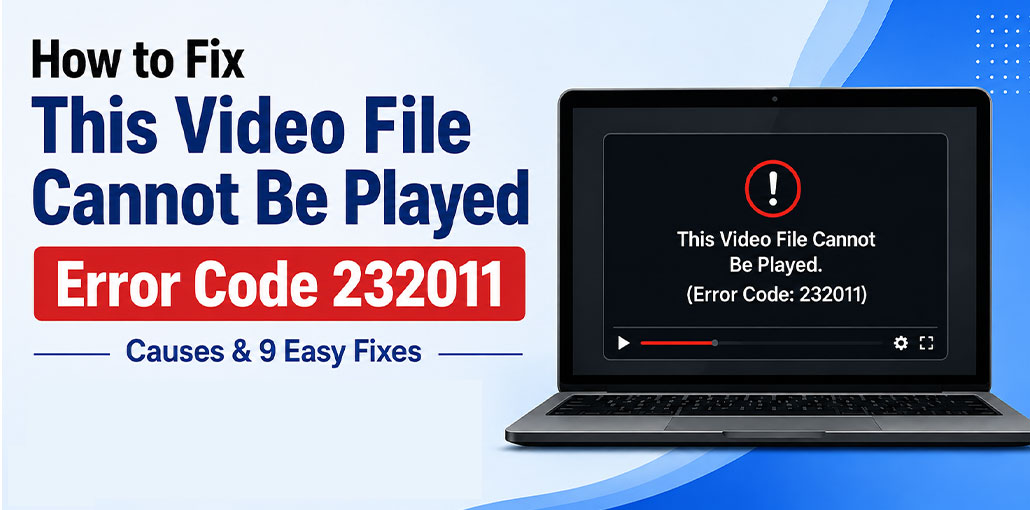
Watching videos online has become an easy way to be entertained, yet errors such as “This Video File Cannot Be Played Error Code 232011” may interfere with your experience. While these browser-related problems are quite frequent, most are easily resolved. Try switching browsers first and play the video again. If the problem continues, follow the troubleshooting methods below.
What Causes This Video File Cannot Be Played Error Code 232011?
Find out the reasons why the This Video File Cannot Be Played Error Code 232011 appears in Chrome and other browsers on the internet:
- Outdated web browser
- Corrupted browser cache and cookies
- Conflicting browser extensions or add-ons
- Hardware acceleration problems
- Slow or unstable internet connection
- VPN or proxy settings interference
- Damaged or unavailable video file
- Browser compatibility issues
Also read: YouTube Video Unavailable? 9 Easy Fixes You Need to Try
How to Fix This Video File Cannot Be Played Error Code 232011
Organized from the easiest to the most advanced solutions for fixing video playback error 232011. You can choose to read them and try them according to your requirements.
1. Open the Video in Incognito Mode
In Incognito mode, your browser will not keep your browsing history or save cookies, but will protect you from online tracking to give you a better browsing experience. Follow these steps:
Steps:
- Open Google Chrome.
- Click the three-dot menu in the top-right corner.
- Select New Incognito Window.
- Open the video link again.
- Check whether the error message still appears.
2. Clear Browser Cache and Cookies
Cookies and cache are two distinct concepts. Cache is the accumulation of resources on the site, and cookies are the place where users’ settings and preferences are stored. They are both used to make Chrome perform better and be more personal. If they are corrupted, issues such as error 232404 can also appear.
Steps in Google Chrome:
- Open Chrome and click the three-dot menu.
- Go to More Tools > Clear Browsing Data.
Select the Time Range: All Time. - Check:
Cookies and other site data
Cached images and files - Click Clear Data.
- Restart your browser and try playing the video again.
3. Disable Browser Extensions
A few newly installed third-party extensions could be incompatible with Chrome and could constitute one of the main reasons for video play error 153. You can temporarily disable them to determine whether it can help you solve the This Video File Cannot Be Played Error Code 232011.
Steps:
- Open Chrome settings.
- Go to Extensions > Manage Extensions.
- Disable recently installed extensions.
- Reload the video page.
4. Disable Hardware Acceleration
Hardware acceleration is enabled by default and allows users to use their PC’s hardware capabilities for improved performance. It could also cause problems with your video. Try turning hardware acceleration on or off as follows:
Steps:
- Open Google Chrome.
- Go to Settings.
- Select System.
- Turn off Use hardware acceleration when available.
- Restart Chrome.
5. Update Your Browser
The most popular but often ignored fix is to upgrade your browser. If none of the fixes above work, try upgrading your browser and playing the video again
Steps:
- Click the three-dot menu in Chrome.
- Select Help.
- Click About Google Chrome.
- Allow Chrome to check for updates.
- Click Relaunch after the update finishes.
6. Reset Browser Settings to Default
Another option is to reset your browser settings to determine whether Chrome is too slow and causing the video file not to be played. You can change your browser settings using just three simple steps:
Steps:
- Open Chrome Settings.
- Click Reset settings.
- Select Restore settings to their original defaults.
- Click Reset settings.
7. Disable Proxy or VPN Settings
A Proxy server or VPN works as an intermediary between your device and the internet. Though these services provide enhanced privacy and security, they may block video content and interfere with the connection from the video server and browser. Disabling your proxy or VPN temporarily can help fix the Error This Video File Cannot Be Played Error Code 232011 caused by network restrictions.
- Open browser settings.
- Go to network or proxy settings.
- Disable proxy configuration.
- Turn off VPN temporarily.
- Restart your browser.
Also read: HTML5 Video Not Found Error? Here’s the Easy Way to Fix It
8. Try Another Browser
Sometimes the problem is limited to a specific browser. Try opening the video in another browser such as:
- Google Chrome
- Mozilla Firefox
- Microsoft Edge
- Safari
If the video works in another browser, your original browser settings may be causing the issue.
9. Download or Repair the Video File (For Local Videos)
If you see the ” This Video File Cannot Be Played Error Code 232011 while opening a downloaded video file, the file itself may be damaged.
Try:
- Downloading the video again.
- Opening it with another media player.
- Repairing the corrupted video file.
- Checking whether the file format is supported.
A damaged or incomplete video file may prevent proper playback.
How to Prevent Error Code 232011 in the Future
To avoid seeing This Video File Cannot Be Played Error Code 232011 again, follow these tips:
- Keep your browser updated.
- Clear cache and cookies regularly.
- Avoid installing unnecessary browser extensions.
- Use a stable internet connection.
- Update graphics drivers.
- Disable problematic VPN or proxy settings.
Final Words
We hope this guide has provided the solutions to help resolve “This Video File Cannot Be Played Error Code 232011. The above methods, including clearing the cache, disabling extensions, updating Chrome, and changing browser settings, quickly resolve video playback problems.
FAQs: This Video File Cannot Be Played Error Code 232011
What is This Video File Cannot Be Played Error Code 232011?
This Video File Cannot Be Played Error Code 232011 is a video playback error that occurs when a browser cannot load or process an online video properly. It commonly happens because of browser cache issues, outdated software, blocked extensions, network restrictions, or problems with the video player.
Why does my video say 'This Video File Cannot Be Played'?
This message appears when the video player fails to load the video properly. Common causes include corrupted cache, browser extensions, outdated browsers, or server issues.
Can VPN cause This Video File Cannot Be Played Error Code 232011?
Yes. A VPN or proxy server may restrict access to the video source and prevent the video from loading. Disable your VPN temporarily to check if it fixes the problem.
Does Error Code 232011 happen on Firefox and Edge?
Yes. Although it is commonly reported in Chrome, Error Code 232011 can also occur on browsers like Firefox, Microsoft Edge, and Safari.






Leave a comment