

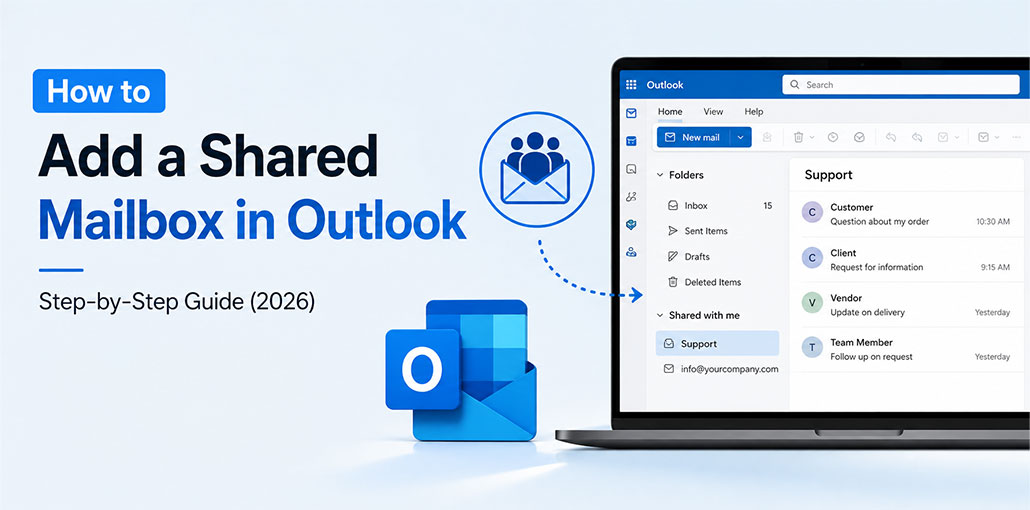
A Shared mailbox, such as support@ or info@, allows multiple people to respond to emails from one email address. Adding one to Outlook usually takes just minutes once you know which version you’re working with, as each version’s steps differ.
In this guide, you’ll learn how to add a shared mailbox in Outlook for New Outlook, Classic Outlook, and/or web versions.
What Is a Shared Mailbox in Outlook?
A shared mailbox is a Microsoft 365 mailbox that does not belong directly to any one individual and therefore has no direct sign-in. Instead, an administrator grants individual users access to the mailbox. its contents appear alongside personal folders in each user’s Outlook.
Every user can see all messages, folders, and sent items (if configured as such). Microsoft provides team addresses such as billing@, info@ or support@.
What You Need Before You Add a Shared Mailbox in Outlook
Before you try to add a Shared Mailbox in Outlook, your Microsoft 365 administrator must grant you access.
You also need:
- A Microsoft 365 account connected to Outlook
- The shared mailbox name or email address
- Send As or Send on Behalf permission if you need to send emails from the shared address
If Full Access was directly granted to your account, Outlook may automatically add the shared mailbox. If it still doesn’t show, restart Outlook and try the appropriate manual method for your Outlook version.
Also read: Outlook Not Receiving Emails? 8 Quick Fixes to Solve Email Problems
How to Add a Shared Mailbox to Outlook Automatically
Once a Microsoft 365 administrator adds you as a member to a shared mailbox with Full Access permission, Outlook automatically maps the shared mailbox to your account.
You usually don’t need to add the mailbox manually.
- Ask your Microsoft 365 administrator to add you as a member of the shared mailbox.
- Make sure your account has Full Access permission.
- Close Outlook completely.
- Wait a few minutes for the permission change to take effect.
- Open Outlook again.
- Check the folder pane for the shared mailbox.
If automatic mapping is working, the shared mailbox should appear in Outlook alongside your regular mailbox folders. Microsoft notes that newly assigned permissions can take some time to appear.
How to Add a Shared Mailbox in New Outlook for Windows
New Outlook has a simple way to add a shared mailbox in outlook with you.
- Open Outlook.
- Find Shared with me in the folder pane.
- Right-click Shared with me.
- Select Add shared folder or mailbox.
- Enter the shared mailbox name or email address.
- Select the mailbox from the results.
- Select Add.
These are the steps provided by Microsoft for manually adding a shared mailbox in New Outlook.
How to Add a Shared Mailbox in Classic Outlook for Windows
Depending on which Classic Outlook for Windows version you use, your mailbox may appear immediately once your administrator grants access.
If it doesn’t, you can add mailbox to outlook manually.
- Open Outlook.
- Select File → Account Settings → Account Settings.
- Open the Email tab.
- Select your Microsoft 365 or Exchange account.
- Select Change.
- Select More Settings.
- Open the Advanced tab.
- Under Open these additional mailboxes, select Add.
- Enter the shared mailbox name.
- Select OK.
- Select Next → Finish → Close.
Restart Outlook if the shared mailbox doesn’t appear immediately.
How to Add a Shared Mailbox in Outlook on the Web
Outlook allows users to add a shared mailbox in Outlook web without installing desktop software.
- Sign in to Outlook on the web.
- Find Folders in the left navigation pane.
- Right-click Folders.
- Select Add shared folder or mailbox.
- Enter the shared mailbox name or email address.
- Select Add.
Your shared mailbox will appear in your folder list, where you can expand and access its folders.
How to Add a Shared Mailbox in Outlook for Mac
If you’re using Outlook for Mac, you can add a shared mailbox in Outlook after your Microsoft 365 administrator gives you access to it.
- Add a Shared Mailbox in Outlook for Mac
- Open Outlook on your Mac.
- Select Tools from the top menu.
- Select Accounts.
- Choose your Microsoft 365 account.
- Select Delegation and Sharing.
- Open the Shared With Me tab.
- Select the + button.
- Search for the shared mailbox by name or email address.
- Select the shared mailbox and add it.
You can then access the shared mailbox from your Outlook folder list.
How to Open a Shared Mailbox in a Separate Outlook Window
Sometimes you may want to work with the shared mailbox separately from your primary inbox.
In Outlook on the web:
- Sign in to Outlook.
- Select your name or profile icon.
- Choose Open another mailbox.
- Enter the shared mailbox email address.
- Select Open.
Outlook will open shared mailbox as its own web browser window. Microsoft notes that this method enables users to receive notifications of new messages entering a shared mailbox.
Also read: How to Recall an Email in Outlook: A Step-by-Step Guide
How to Send an Email From a Shared Mailbox
After you add a shared mailbox in Outlook, you may also want to send messages from its email address.
- In New or Classic Outlook
- Select New Mail or New Email.
- If the From field isn’t visible, open the message options and select Show From.
- Select the From field.
- Choose the shared mailbox address.
- Write your email.
- Select Send.
If the shared mailbox address isn’t displayed in this list, select Other email address and enter your shared mailbox address manually.
Once sent successfully, recipients will see your shared mailbox address instead of individual addresses.
Final Thoughts
In the end, you now know how to add a shared mailbox in Outlook, which will simplify team email management considerably. Once granted access by a Microsoft 365 administrator, this mailbox can be added in New or Classic Outlook and on the web.
FAQs: Add a Shared Mailbox in Outlook
Why can't I see the shared mailbox in Outlook?
The mailbox may not appear if your Microsoft 365 administrator has not granted you access yet. Permission changes can also take some time to appear. Restart Outlook and check again, or try adding the mailbox manually.
How do I add a shared mailbox in New Outlook?
In New Outlook, go to Shared with me, right-click it, select Add shared folder or mailbox, and enter the shared mailbox name or email address.
Can I add a shared mailbox without admin permission?
No. Your Microsoft 365 administrator must give your account access to the shared mailbox before you can open and use it.
What is the difference between Send As and Send on Behalf?
With Send As, the email appears to come directly from the shared mailbox. With Send on Behalf, recipients can see that you sent the message on behalf of the shared mailbox.
Can multiple people use the same shared mailbox at the same time?
Yes. Multiple authorized users can access the shared mailbox and work with its messages and folders at the same time.






Leave a comment