

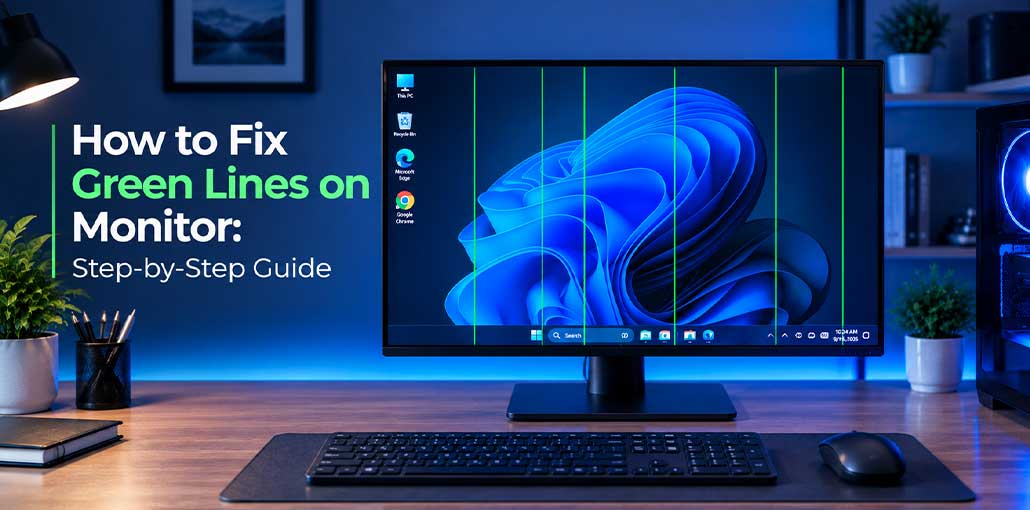
Seeing Green lines on monitor screens can be frustrating, especially when you’re working, gaming, or watching videos. The problem can come from something simple like a loose cable, but it may also indicate an issue with display settings, graphics drivers, the GPU, or the monitor panel. Before replacing your monitor, try these seven practical troubleshooting methods to fix green lines on monitor.
What Causes Green Lines on Monitor Screens?
There are several possible reasons for Green lines on monitor displays. A damaged HDMI or DisplayPort cable can interrupt the video signal, while a faulty port may create display artifacts. Incorrect refresh-rate settings and outdated graphics drivers can also cause visual problems.
Hardware issues are another possibility. A failing graphics card, overheating, physical impact, moisture, or a damaged display panel can produce permanent lines.
Also read: Monitor Flickering Problem? Try These Simple Fixes
7 Fixes for Green Lines on Monitor
1. Check and Replace the Display Cable
A damaged, loose, or poorly connected display cable is one of the easiest causes to eliminate. HDMI and DisplayPort cables can develop connection problems over time, particularly when they are frequently moved or bent. Checking the cable first is useful because it requires no software changes and can quickly identify a signal-related problem.
Steps:
- Turn off your computer and monitor.
- Disconnect the HDMI or DisplayPort cable.
- Inspect both connectors for damage or dust.
- Reconnect the cable firmly.
- Turn on the computer and monitor.
- Check the display.
- If the problem remains, test another working cable.
2. Try a Different Display Port
A faulty HDMI or DisplayPort can create green vertical line on monitor screens even when the cable is working properly. Many computers and graphics cards have multiple display outputs, so testing another port is a simple diagnostic step. If changing the port fixes the issue, the original connection may be damaged or malfunctioning.
Steps:
- Turn off your computer.
- Disconnect the current display cable.
- Connect the cable to another compatible port.
- Turn the computer back on.
- Check the screen.
- Compare the result with the original port.
3. Restart the Monitor and Computer
Temporary graphics or signal glitches can sometimes cause Green lines on monitor displays. Restarting both devices forces the computer and monitor to establish a fresh connection. This method is particularly useful when the lines appeared suddenly without any physical damage or recent hardware changes.
Steps:
- Save your work.
- Shut down your computer.
- Turn off the monitor.
- Unplug the monitor’s power cable.
- Wait about 30 seconds.
- Plug the power cable back in.
- Turn on the monitor and computer.
- Check the screen again.
4. Change the Refresh Rate
An incorrect or unsupported refresh rate can cause flickering, artifacts, or Green lines on monitor screens. This is especially important if the issue started after changing display settings for gaming. Selecting a refresh rate officially supported by the monitor can help establish a stable connection between the computer and display.
Steps:
- Open Settings in Windows.
- Select System > Display.
- Click Advanced display.
- Locate the refresh-rate setting.
- Select a supported refresh rate.
- Apply the setting.
- Check the monitor again.
If the problem started after changing the refresh rate, return to the manufacturer’s recommended setting.
5. Update or Reinstall the Graphics Driver
Outdated or corrupted graphics drivers can produce Green lines on monitor screens and other visual artifacts. The graphics driver controls communication between the operating system, GPU, and display. Installing the latest compatible driver can resolve software-related display problems and is worth trying before assuming that the monitor has suffered physical damage.
Steps:
- Identify your graphics hardware.
- Determine whether it uses NVIDIA, AMD, or Intel graphics.
- Visit the manufacturer’s official website.
- Download the correct driver.
- Install the driver.
- Restart your computer.
- Check the monitor again.
If the problem began immediately after a driver update, rolling back to the previous version may help.
6. Test the Monitor With Another Device
Testing another computer can help determine whether Green lines on monitor problems are caused by the display or the original computer. This method separates monitor-related issues from GPU, driver, operating-system, and port problems. Use a known-working cable during the test so that the cable doesn’t create misleading results.
Steps:
- Disconnect the monitor from your current computer.
- Connect it to another laptop or desktop.
- Use a known-working display cable.
- Turn on the second device.
- Check whether the lines appear.
- Compare the result with your original computer.
If the lines appear on both devices, the monitor or cable may be responsible.
Also read: Second Monitor Not Detected? 8 Easy Fixes for Windows & Mac
7. Check for Monitor or Panel Damage
If the previous methods don’t solve Green lines on monitor problems, the display may have an internal hardware issue. A damaged LCD or OLED panel, internal connection, or display controller can produce permanent lines. Physical impact, overheating, and moisture can also contribute to display hardware failure.
Steps:
- Open the monitor’s built-in menu.
- Check whether the lines appear over the menu.
- Inspect the screen for cracks or physical damage.
- Look for signs of overheating or moisture exposure.
- Check the manufacturer’s warranty.
- Contact an authorized service center if necessary.
- Avoid opening the monitor yourself unless you have proper technical experience.
How to Identify the Cause Quickly
When Green lines on monitor screens appear, don’t immediately assume that the panel is damaged. Start with the cable and display port, then restart both devices. After that, check the refresh rate and graphics driver. Finally, connect the monitor to another computer to determine whether the problem follows the display.
A useful troubleshooting order is:
Cable → Port → Restart → Refresh Rate → Graphics Driver → Another Device → Hardware Inspection
Are Green Lines a Sign of a Damaged Monitor?
Not always. Green lines on monitor displays can result from connection or software problems that are relatively easy to fix. However, if the lines remain after testing different cables, ports, and computers, the monitor hardware becomes a more likely cause.
One particularly useful test is the monitor’s built-in menu. If the lines are visible over the monitor menu, the problem is less likely to be caused by Windows or your computer’s software.
Can a Graphics Card Cause Green Lines?
Yes. A faulty, overheating, or incorrectly configured graphics card can create visual artifacts, including green lines on computer screen displays. Driver problems can produce similar symptoms.
If possible, connect your computer to another monitor. If the same artifacts appear on multiple displays, investigate the graphics card, driver, temperatures, and connections.
Also read: Black Line on Monitor? Here’s How to Fix It
When Should You Replace the Monitor?
If Green lines on monitor screens remain after you’ve tested the cable, port, refresh rate, driver, and another computer, professional diagnosis may be necessary.
Check whether the monitor is still covered by its warranty before paying for repairs. If the panel is physically damaged or repair costs are close to the price of a comparable new monitor, replacement may be worth considering.
Conclusion
Green lines on monitor screens don’t always mean that you need a new display. Start by checking the cable and port, then restart your devices and verify the refresh rate. Updating the graphics driver and testing the monitor with another computer can further narrow down the cause.
If the lines remain after all these checks, especially when they appear on the monitor’s built-in menu, the problem may be related to internal hardware or panel damage. In that situation, check the warranty and consider professional service.
FAQs: Green Lines on Monitor
Can a monitor's built-in menu help diagnose the problem?
Yes. Open the monitor's on-screen menu without a computer signal. If the line is visible over the monitor's own menu, the issue is more likely to be within the monitor rather than Windows or an application.
Can changing the refresh rate remove green lines?
It can help if the problem is related to an unsupported or incompatible display setting. Try a refresh rate recommended by your monitor manufacturer. If the line remains at every supported refresh rate, the issue may have another cause.
How can I tell if the monitor or GPU is causing the problem?
Connect the monitor to another computer using a known-working cable. If the lines disappear, the original computer, GPU, driver, or port may be involved. If the lines remain, the monitor or cable becomes more likely to be responsible.
Is it safe to continue using a monitor with green lines?
Usually, a display line itself does not prevent normal computer use. However, if the monitor has signs of physical damage, overheating, moisture, burning smell, or electrical problems, stop using it and seek professional service.






Leave a comment