

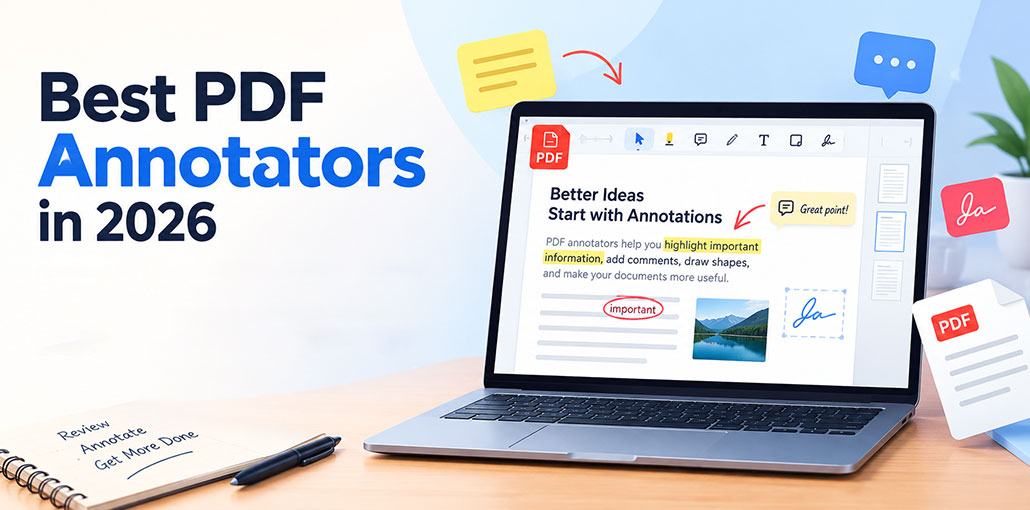
A PDF annotator makes it easier to highlight text, add comments, draw shapes, insert notes, and mark important information directly inside PDF documents. Whether you are a student, teacher, researcher, or professional, the right PDF annotator can simplify document review and improve productivity.
With so many PDF annotation tools available today, choosing the right option can be challenging. This guide covers 10 popular solutions, including free and paid options, to help you find the right tool for your workflow.
Top 10 PDF Annotators
1. Adobe Acrobat
Adobe Acrobat is one of the most widely used PDF solutions for viewing, editing, and annotating documents. Its annotation features allow users to highlight text, add comments, draw freehand marks, underline content, and add sticky notes. It is a comprehensive PDF annotator for users who need annotation alongside advanced PDF management features.
Pros
- Extensive annotation and commenting features
- Supports highlighting, drawing, notes, and text comments
- Available across multiple platforms
- Strong document management capabilities
- Suitable for professional workflows
Cons
- Many advanced features require a paid subscription
- Can be more feature-rich than necessary for basic annotation
- Some users may find the interface overwhelming
Also read: How to Convert Photos to PDF on iPhone in 4 Easy Steps
2. Foxit PDF Editor
Foxit PDF Editor is a versatile PDF annotation software for individuals and businesses. Users can highlight, underline, strike through, comment, draw, and add shapes to PDF files. It also provides tools for editing and managing PDF documents, making it useful for professional document workflows.
Pros
- Wide range of annotation options
- Fast and responsive interface
- Supports comments and collaborative review
- Available for desktop and mobile platforms
- Includes additional PDF editing features
Cons
- Advanced features require a paid plan
- Some features may take time to learn
- Free functionality is more limited than paid versions
3. Xodo PDF
Xodo is a popular online PDF annotator and PDF management solution that allows users to read, annotate, edit, and work with PDF documents. Its annotation features include highlighting, underlining, freehand drawing, text boxes, and comments. Xodo is particularly useful for users who want flexible PDF tools across different devices.
Pros
- Easy-to-use annotation interface
- Supports multiple annotation types
- Available online and across several platforms
- Useful for students and professionals
- Offers document management features
Cons
- Some advanced tools require payment
- Feature availability can vary by platform
- Internet access may be needed for some online features
4. PDF-XChange Editor
PDF-XChange Editor is a feature-rich PDF markup tool for Windows users. It provides extensive options for highlighting, commenting, drawing, stamps, shapes, and other document markup tasks. Its large selection of tools makes it suitable for users who regularly review technical, academic, or business PDFs.
Pros
- Extensive annotation and markup tools
- Fast performance
- Many customization options
- Includes a useful free version
- Suitable for detailed document review
Cons
- Primarily focused on Windows
- The interface can appear complex to new users
- Some advanced functions require a paid license
5. Drawboard PDF
Drawboard PDF is designed around digital writing and document markup, making it a useful PDF annotator for users who prefer handwriting and stylus-based workflows. It supports highlighting, drawing, shapes, notes, and other markup features. It can be particularly useful for students, designers, engineers, and tablet users.
Pros
- Excellent handwriting and drawing experience
- Good support for stylus input
- Clean interface
- Useful for educational and professional documents
- Strong markup capabilities
Cons
- Best suited to users who need handwriting features
- Some advanced tools may require a subscription
- Platform availability can be more limited than some competitors
6. Kami
Kami is an education-focused PDF annotation platform that allows users to annotate PDF online and collaborate on digital documents. It includes highlighting, drawing, text boxes, comments, and other markup features. Its classroom-oriented functionality makes it especially useful for teachers and students working with digital assignments and learning materials.
Pros
- Designed with education in mind
- Easy PDF annotation
- Supports collaborative workflows
- Works well in browser-based environments
- Useful for teachers and students
Cons
- Some advanced features require a paid plan
- Education-focused tools may not be necessary for all business users
- Browser-based workflows may not suit everyone
7. UPDF
UPDF is a modern PDF editing and annotation app that combines document editing, conversion, organization, and markup features. As a PDF annotator, it allows users to highlight text, add notes, underline content, draw shapes, and add comments. Its interface is designed to keep common PDF tasks accessible.
Pros
- Modern and straightforward interface
- Supports multiple annotation features
- Includes PDF editing and conversion tools
- Available across major platforms
- Useful for personal and professional workflows
Cons
- Some advanced functionality requires a paid plan
- Certain features may be unnecessary for basic annotation
- Users may need time to explore its full feature set
8. Wondershare PDFelement
Wondershare PDFelement is an all-in-one PDF application that combines editing, annotation, conversion, forms, and document management. It works as a comprehensive PDF annotator for users who want more than basic markup. You can highlight, underline, add comments, draw on pages, and insert different types of annotations.
Pros
- Comprehensive PDF feature set
- Supports multiple annotation methods
- Includes editing and conversion tools
- Suitable for business and personal use
- Available on multiple platforms
Cons
- Full functionality requires a paid plan
- The number of features may feel excessive for simple annotation
- Some advanced tools have a learning curve
9. Preview
Preview is Apple’s built-in PDF and image application for macOS. It provides several tools to annotate PDF documents, including highlighting, shapes, text boxes, signatures, and drawings. Because it comes integrated with macOS, it is a convenient option for Mac users who need basic PDF annotation without installing additional software.
Pros
- Built into macOS
- Free for Mac users
- Simple and easy to use
- Supports common annotation features
- No separate installation required
Cons
- Available primarily within the Apple ecosystem
- Lacks some advanced PDF editing capabilities
- Not ideal for complex PDF workflows
Also read: How to Remove Watermark from PDF: 4 Easy or Best Methods
10. Smallpdf
Smallpdf is a browser-based PDF platform offering tools for editing, converting, compressing, signing, and annotating documents. Its free PDF annotator features make it convenient for users who need quick markup without installing desktop software. It is particularly useful for occasional PDF tasks and simple online workflows.
Pros
- Easy-to-use online interface
- Convenient for quick PDF tasks
- Supports several PDF management features
- Works directly in a web browser
- Useful for occasional users
Cons
- Advanced features may require a paid plan
- Online workflows depend on internet access
- Not as suitable for highly complex document annotation
Compare the Top 10 PDF Annotators
| PDF Annotator | Best For | Annotation Features | Online | Free Option | Platforms |
|---|---|---|---|---|---|
| Adobe Acrobat | Professionals & businesses | Highlights, comments, notes, drawing, stamps | Yes | Limited | Windows, Mac, Web, Mobile |
| Foxit PDF Editor | Business users | Highlights, comments, shapes, drawing, notes | Yes | Limited | Windows, Mac, Web, Mobile |
| Xodo PDF | Students & professionals | Highlights, notes, drawing, comments, underline | Yes | Yes | Windows, Mac, Web, Android, iOS |
| PDF-XChange Editor | Windows users | Markup, comments, shapes, stamps, drawing | No | Yes | Windows |
| Drawboard PDF | Handwriting & stylus users | Drawing, highlighting, notes, shapes | Yes | Limited | Windows, Web |
| Kami | Teachers & students | Highlights, comments, drawing, text boxes | Yes | Limited | Web, ChromeOS |
| UPDF | Personal & professional use | Highlights, notes, comments, shapes, drawing | Yes | Limited | Windows, Mac, iOS, Android |
| Wondershare PDFelement | All-in-one PDF editing | Highlights, comments, notes, drawing, stamps | Yes | Trial | Windows, Mac, iOS, Android |
| Preview | Mac users | Highlights, notes, shapes, signatures, drawing | No | Yes | macOS |
| Smallpdf | Quick online annotation | Highlights, drawing, comments, text, shapes | Yes | Yes | Web, Windows, Mac, Mobile |
Ending Notes
Choosing the right PDF annotator depends on how you work with PDF documents. Users who need advanced document management may prefer comprehensive solutions such as Adobe Acrobat, Foxit PDF Editor, or PDFelement, while those looking for simpler annotation may prefer Preview, Smallpdf, or Xodo.
For students and educators, tools such as Kami and Drawboard PDF can provide useful annotation and collaboration features. Before selecting PDF annotation software, consider your required features, platform, collaboration needs, pricing, and frequency of use. The best PDF annotation software is ultimately the one that fits your specific document workflow.
FAQs: PDF Annotator
What is a PDF annotator?
A PDF annotator is a tool that lets you highlight text, add comments, insert notes, draw shapes, underline content, and mark up PDF documents without changing the original content.
Can I annotate a PDF for free?
Yes. Several tools offer free PDF annotation features, including Preview for Mac users and free or limited versions of tools such as Xodo, PDF-XChange Editor, and Smallpdf.
What features should I look for in PDF annotation software?
Look for features such as highlighting, underlining, comments, sticky notes, drawing tools, text boxes, shapes, signatures, cloud storage, collaboration, and cross-platform support.
What is the difference between PDF annotation and PDF editing?
PDF annotation adds notes, highlights, comments, drawings, and other markups to a document. PDF editing can change the actual text, images, layout, pages, and other content within the PDF.







Leave a comment