

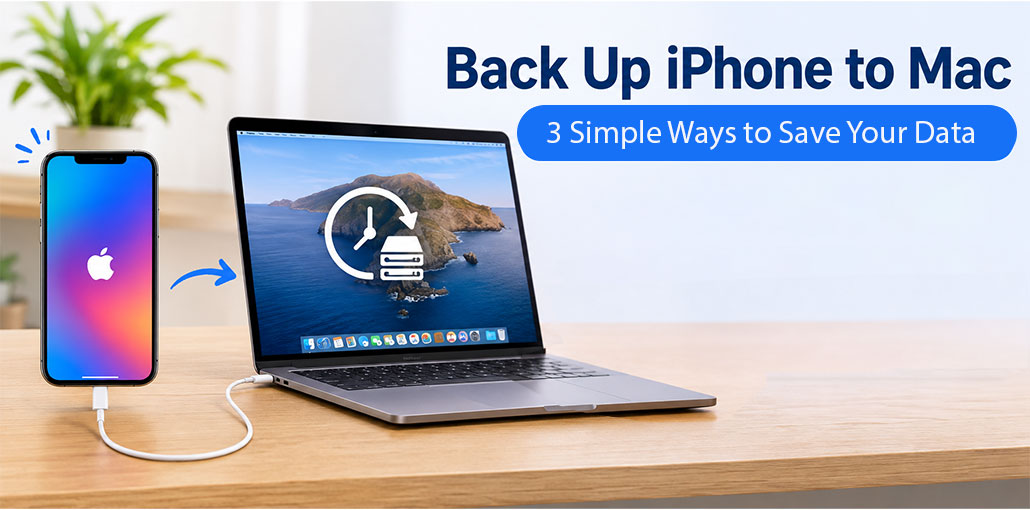
Apple products offer a wonderful experience and make it easier to stay connected. iPhone can communicate with friends, call them, or send them text messages/iMassages. You could capture photos of daily life or trips! With an iPhone, children’s tender moments may be saved. These valuable memories deserve to be protected, making it important to Backup iPhone to Mac regularly.
If you are an Apple user, you may want to transfer iPhone data to Mac. Before macOS Catalina launched, iTunes may have been your first option, as it could be easily found on Mac. Since iTunes is no longer available on macOS Catalina, you want to know how to backup iPhone to Mac without a computer? This blog is for you
Method 1. Backup iPhone to Mac using Finder on Mac OS Catalina
iTunes has been replaced by 3 apps: Podcasts, Music, and TV. All of them were not able to back up the iPhone. A new backup feature has been introduced to Finder. To backup your iPhone to Mac via Finder:
- Open Finder on Mac. Use a USB cable to connect your iPhone to Mac.
- Click your device on the left and select General.
- To backup iPhone to Mac, click on Back Up Now.
Also read: Top 6 Cloud File Storage And Backup Apps For iPhone
Method 2. Use iCloud to back up iPhone to Mac
iCloud can also back up your data from your iPhone without connecting your phone to your Mac. Once your iPhone is backed up, you can view supported data from iCloud on your Mac by logging in using the same Apple Account. However, you cannot browse or download your device backup from iCloud.
Simply go to iPhone Settings, tap [your name] > iCloud > Backup and turn iCloud Backup on.
Make sure you have enough space in iCloud. Apple offers 5GB of free data storage. If your iCloud storage is full, Free up data or change iCloud backup size.
To locate iCloud backup on Mac, simply click System Preference > choose iCloud in the list and sign into Apple ID > click Manage to check what’s been backed up on iCloud.
Also read: How to Clone an iPhone: Easy Methods to Transfer Data Safely
Method 3. Backup iPhone to Mac Using Third-Party Software
Finder and iCloud features have been limited. You might find they’re not friendly. You can back up nearly anything via iCloud or Finder, but restoring your iPhone from backup lets you lose everything on your iPhone right now. Previously, you may have needed to back up photos on your iPhone to your computer. Apple protects your privacy, but you can try a new method to decide everything when backing up your iPhone.
DearMob iPhone Manager, iMazing, AnyTrans, Tenorshare iCareFone, and CopyTrans Shelbee are five popular backup tools for backing up iPhone data to a Mac.
- Download and open any of the above tools on your computer.
- Use the USB cable to connect the iPhone to Mac.
- Click Backup & Restore on the home screen.
- Press Back Up Now to back up all data on the iPhone.
Conclusion
If you are using the latest Mac OS Catalina, you will no longer need iTunes. The iPhone backup feature has been added to Finder. You can backup iPhone to Mac, just like you normally would, using Finder. Aside from Finder, you can create an iCloud backup on iPhone and manage it via the iCloud app on Mac.
Apple’s two backup apps aren’t user-friendly. If you want more options for backing up and restoring your iPhone, consider using third-party software. If this solves your backup iPhone to Mac problem, you can share it with others and help them.
FAQs: Backup iPhone to Mac
Can I back up my iPhone to Mac wirelessly?
Yes. You can use iCloud Backup to back up your iPhone wirelessly over Wi-Fi. Finder also supports wireless syncing and backups after you enable Show this iPhone when on Wi-Fi while your device is connected.
How long does it take to back up an iPhone to Mac?
The backup time depends on the amount of data stored on your iPhone, your connection speed, and your Mac's performance. A small backup may take a few minutes, while a large backup can take longer.
What is the best software to backup iPhone to Mac?
Finder is a good free option for creating a complete local backup. Third-party tools such as DearMob iPhone Manager, iMazing, AnyTrans, and Tenorshare iCareFone may offer additional features, including selective backup and file management.
Do I need an Apple ID to backup iPhone to Mac?
No. You do not need to sign in with an Apple Account to create a local backup using Finder. However, you may need your Apple Account for certain iCloud features and services.





Leave a comment