

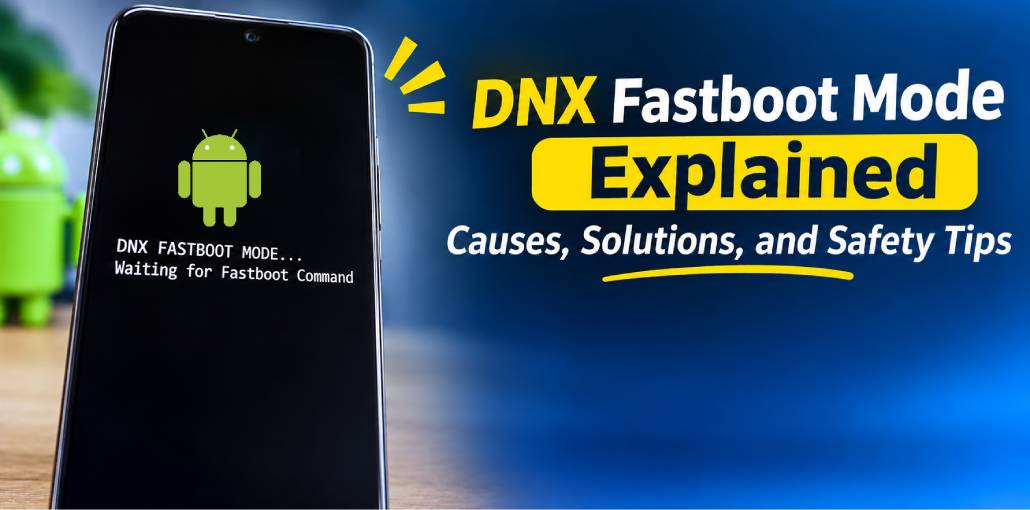
Have you encountered the message “DNX FASTBOOT MODE… Waiting for Fastboot Command” on your Android phone or tablet? This screen can appear unexpectedly and prevent your device from starting normally. Although it may look like a serious problem, DNX Fastboot Mode is generally related to low-level firmware operations on supported Intel-based devices.
Understanding why your device enters this mode and how to exit it can help you choose the right recovery method. In this guide, we’ll explain DNX Fastboot Mode, its common causes, troubleshooting methods, and important precautions to follow before attempting firmware recovery.
What Is DNX Fastboot Mode?
DNX Fastboot Mode stands for Download and Execute Fastboot Mode. It is a special boot state primarily associated with certain Intel-powered Android smartphones and tablets. In this mode, the device waits for instructions from a connected computer instead of continuing with the normal Android startup process.
Unlike conventional Android Fastboot Mode, DNX mode is associated with Intel platform-specific firmware operations. It may be used during device recovery, firmware installation, and other low-level maintenance procedures.
Some Intel-based devices from manufacturers such as Lenovo, Asus, Huawei, and Chuwi may support this mode, depending on their hardware and firmware configuration.
Bonus Info: Compared to Recovery Mode
Recovery Mode provides options for performing factory resets, installing updates, and troubleshooting Android software. DNX Fastboot Mode operates at a lower level and is associated with firmware communication and recovery operations on supported devices. Therefore, the methods used to access or repair these modes are not necessarily interchangeable.
Also read: System UI Isn’t Responding? 9 Easy Ways to Fix It on Android
How to Recognize DNX Fastboot Mode
You can identify DNX Fastboot Mode through several signs. Checking these symptoms can help determine whether your device is experiencing a boot-related problem.
Look for the DNX Screen Message
The most recognizable indication is a message displayed on the device screen, such as “DNX FASTBOOT MODE… Waiting for Fastboot Command.” This indicates that the device has entered its DNX boot state.
Check Android Boot Behavior
Your device may fail to load the Android operating system and remain on the DNX screen after restarting. In some cases, it may also fail to enter the standard Android Recovery Mode.
Inspect Windows Device Manager
Connect your device to a Windows computer using a working USB data cable.
- Open Windows Device Manager.
- Expand the Other Devices section.
- Check whether your connected device appears as an Unknown Device.
- Look for a yellow warning icon that may indicate missing or incompatible drivers.
The device identification depends on the installed drivers and hardware.
Force a Power Cycle
If your phone or tablet becomes unresponsive, press and hold the Power button for approximately 20–30 seconds. If the DNX screen returns after restarting, the underlying boot issue may still need attention.
Why Does DNX Fastboot Mode Appear?
DNX Fastboot Mode can appear because of different hardware, firmware, and connection-related problems. The following are some common reasons:
- Accidental Button Combinations: Pressing Volume Down and Power together during startup may activate a special boot mode on supported devices. A stuck or damaged volume button can also trigger it unintentionally.
- Interrupted Firmware Installation: An incomplete software update or interrupted firmware flashing process may damage important system files and prevent normal startup.
- Corrupted Bootloader or System Partitions: Missing or damaged boot-related components can stop Android from loading correctly.
- USB Connection Problems: A defective cable, incompatible USB port, or unstable computer connection may interfere with communication between the device and flashing software.
- Missing or Incorrect Drivers: Without the appropriate USB, Intel-specific, or platform drivers, a computer may fail to recognize the device correctly.
- Firmware Compatibility Issues: Installing an incorrect or corrupted firmware package can cause startup failures and recovery-related problems on certain devices.
Identifying the actual cause before attempting repairs can help prevent additional software or hardware damage.
How to Enter and Exit DNX Mode
The procedure for accessing DNX Fastboot Mode depends on the device manufacturer and hardware configuration.
To Enter DNX Fastboot Mode:
- Switch off your Android device completely.
- Press and hold the Volume Down and Power buttons simultaneously.
- Continue holding both buttons while the device starts.
- Release the buttons when the DNX Fastboot Mode message appears.
Note that this button combination is not supported by every Android device. Check your manufacturer’s instructions before trying it.
To Exit DNX Fastboot Mode:
- Press and hold the Power button for approximately 20–30 seconds.
- Wait until the screen turns completely black.
- Release the Power button and allow the device to restart.
If the Android operating system is functioning correctly, the device may boot normally. However, if it repeatedly returns to DNX mode, additional troubleshooting or firmware recovery may be necessary.
Also read: 6 Best Tools to Jailbreak iPad No Computer Needed
Fix Entering DNX Mode Waiting for Fastboot Command
If your device repeatedly displays “Entering DNX Mode… Waiting for Fastboot Command,” you may need to investigate its software and boot-related issues.
Start with a forced restart and check whether the device can boot normally. If the problem continues, inspect the USB connection, installed drivers, and firmware compatibility.
For advanced recovery, use manufacturer-supported tools and firmware specifically designed for your device. Do not assume that Android screen-unlocking software can repair DNX firmware problems. Screen-lock removal and firmware recovery are different operations.
Other Fixes for Being Stuck on DNX Fastboot Mode
If your Android device, including a supported tablet from brands such as Nextbook or Acer, remains stuck in DNX Fastboot Mode, consider these additional troubleshooting methods.
Force Restart
Press and hold the Power button for 20–30 seconds until the display turns off. Wait briefly and switch on the device again. This can resolve temporary startup problems without normally erasing personal data.
Check USB Connection and Drivers
Connect your device to a computer using a reliable USB data cable. Verify that the required device-specific and Intel platform drivers are installed. Try another USB port if the computer does not recognize the device. Avoid USB hubs and test a USB 2.0 port if compatibility issues occur.
Use Firmware Flashing Tools
For supported Intel-based devices, Intel Platform Flash Tool (XSTK) or manufacturer-provided flashing software may be required for firmware restoration.
Before flashing, confirm the exact device model, chipset, firmware version, and tool compatibility. Download the correct firmware package and follow the official recovery instructions carefully.
When to Seek Professional Help
If the device remains stuck after basic troubleshooting or the flashing software fails to detect it, contact an experienced technician or authorized service center. Professional assistance can help identify bootloader corruption, hardware faults, and other complicated recovery problems.
Safety, Precautions, Legal Considerations
DNX-related firmware operations involve important system components. Incorrect procedures can result in data loss, software corruption, or a permanently unusable device.
Keep the following precautions in mind:
- Avoid Incorrect Firmware: Never flash a package designed for a different device model or hardware variant.
- Back Up Important Data: Firmware restoration and factory resets may erase personal files and settings.
- Maintain a Stable Connection: Do not disconnect the USB cable or interrupt the flashing process.
- Use Trusted Tools: Download firmware and recovery utilities from official or reliable sources.
- Consider Warranty Conditions: Unauthorized firmware modifications may affect manufacturer warranty coverage.
- Follow Legal and Ethical Practices: Only perform recovery operations on devices you own or have permission to repair.
Always verify compatibility before performing advanced firmware operations.
Conclusion
DNX Fastboot Mode is a specialized boot state primarily associated with Intel-based Android devices. It may appear because of interrupted firmware installation, corrupted boot components, accidental button combinations, or USB driver and connection problems.
Fortunately, a forced restart may resolve temporary issues. If the device remains stuck, checking the drivers and USB connection or using compatible firmware recovery tools may help.
FAQs: DNX Fastboot Mode
What does DNX Fastboot Mode mean on an Android device?
DNX Fastboot Mode is a special boot mode mainly found on Intel-powered Android devices. It allows a device to communicate with a computer for low-level firmware operations and recovery when normal startup fails.
Which Devices Use DNX Mode?
DNX Mode is mainly associated with certain Intel-powered Android tablets and 2-in-1 devices. Supported models may include products from Lenovo, Asus, Huawei, Chuwi, and other manufacturers.
Why is my phone stuck on “DNX FASTBOOT MODE – Waiting for Fastboot Command”?
This can happen because of interrupted firmware updates, corrupted bootloader files, faulty volume buttons, missing USB drivers, or connection problems between the device and computer.
Can I fix DNX Fastboot Mode without losing my data?
A force restart and checking the USB connection or drivers generally do not erase personal data. However, firmware flashing and some repair procedures can erase stored data. Back up your files whenever possible before attempting advanced repairs.







Leave a comment