

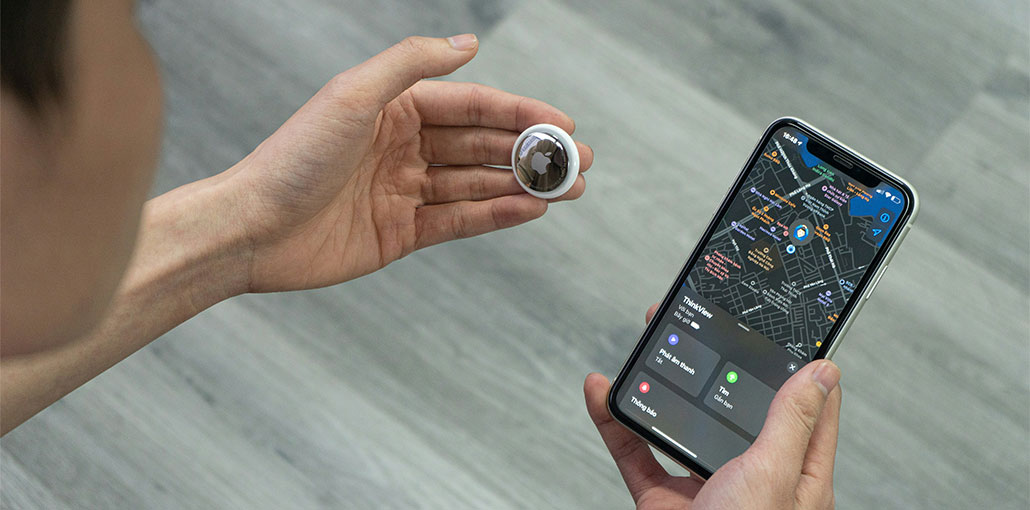
If you’re facing the annoying problem that AirTag not updating location, you’ve found the right spot. In this post, we’ll provide a complete guide to solving the issue. We will also discuss the reasons why AirTag not updating location. Let’s get started!
Why is My AirTag Not Updating Location?
But let’s discover the root cause of this problem. Here are the most important reasons that could cause the Apple AirTag not updating location problem:
- No nearby Apple devices to update location via Find My network
- Bluetooth is off or unstable on nearby devices
- Weak or dead battery in the AirTag
- Poor network coverage in the area
- Find My network disabled on iPhone or nearby Apple devices
- AirTag is far from any Apple device for long time
- iPhone settings issue (Find My or location services turned off)
- Outdated iOS version
Also read: Best iOS Location Changer Apps 2026: Top 10 Reviewed
How to Fix AirTag Not Updating Location
After you’ve identified the possible causes, we can now find solutions to fix the AirTag location not updating.
1. Check Your Internet Connection
As we’ve mentioned earlier, AirTag relies on nearby Apple devices with internet access to change its location within the Find My network. If you’re in an area with a poor internet connection, your AirTag devices may have difficulty updating their position. First, check your internet connection. If your internet connection is functioning well, move on to the next option.
2. Use “Find Nearby” in the Find My App
If your AirTag is within Bluetooth range, you can use the Find My App to track the exact location of your AirTag device. How to refresh AirTag location:
- Unlock your Apple device and then launch Find My App.
- Select the option to add items found at the bottom of your screen.
- Select the AirTag you want to refresh.
- Select the Find Nearby option.
- Then, follow the on-screen instructions to find your AirTag.
3. Enable Location Services
When Apple AirTag not updating location, one reason may be that your location services are turned off. To enable location services on your iPhone, follow the instructions below.
- Go to the iPhone Settings App.
- Select the Privacy option.
- Select the Location Services.
- Make sure your toggle switch in front of Location Service is enabled.
- Scroll down, and select the Find My option. Find My option.
- Ensure the “Allow Location Access” option is set to “Always” or “While Using the App”.
4. Turn Bluetooth Off and On
AirTags depend heavily on Bluetooth to communicate with your iPhone and other devices. Check that Bluetooth is enabled on the Apple device and is working. If AirTags are not connecting properly, then turn Bluetooth off and then on. Follow the steps below:
- You must unlock your Apple device and then open the Settings App.
- Select the Bluetooth option.
- Switch off the toggle in the middle of Bluetooth and then switch it back on.
5. Remove and Re-add the AirTag
Sometimes, software bugs can disrupt the connection to the AirTag and your iPhone. Re-adding your AirTag to the iPhone can reset this pairing method. This is a common method to fix AirTag not updating location without delay or errors.
- Open the Find My app
- Tap Items and select your AirTag
- Scroll down and tap Remove Item
- Confirm using your Apple ID password
- Bring the AirTag near your iPhone
- Tap Connect and set it up again
Also read: Top 6 AirTag Alternatives for Android & iPhone Users
6. Reset Network Settings
You may also reset the network settings to resolve the AirTag not updating location problem. Here is how you can accomplish this:
- Open the iPhone Settings App from your device and choose the General option.
- Then, scroll down and choose the Transfer or Reset iPhone option.
- Select Reset.
- Choose the option Reset Network Settings.
- You must enter your Passcode and then tap the reset button.
7. Update Your iOS
An Old iOS could hinder AirTags’ performance and their ability to update their location. To solve issues like this, we suggest updating iOS to the latest version. Here is how to upgrade iOS on your iPhone:
- Start your Settings App on your iOS device.
- Scroll down, and then select the General option.
- Choose Software Update.
- Whether an update is displayed on your screen. Click on the download and install button.
Conclusion
AirTag not updating location is usually caused by connectivity issues, range, incorrect settings, or a battery problem. A simple refresh or minor adjustments are often enough to fix AirTag location issue. Understanding how AirTags update via the Find My network and following these troubleshooting tips to return accurate location tracking. Your AirTag remains reliable wherever your possessions are.
FAQs: AirTag Not Updating Location
How do I refresh my AirTag location on iPhone?
Open the Find My app, select your AirTag under Items, and swipe down to refresh the location.
Can AirTag update location in real time?
No, AirTag does not provide real-time tracking. It updates location only when it connects to nearby Apple devices in the network.
What should I do if my AirTag is not connecting?
Check Bluetooth, enable Location Services, ensure internet is working, and try restarting your iPhone.
Why is Find Nearby not available for my AirTag?
This feature only works on supported iPhones with Ultra Wideband (U1 chip) and when Bluetooth is enabled.









Leave a comment