

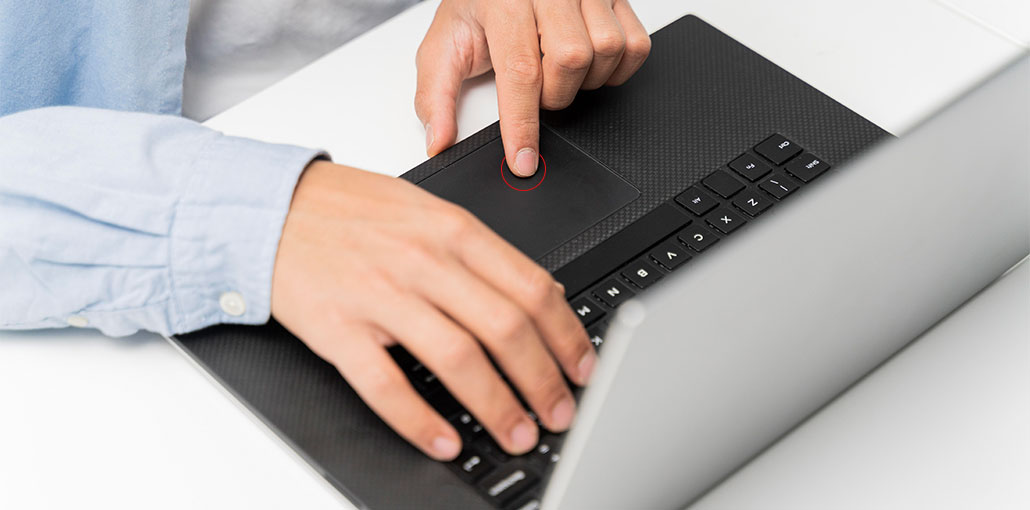
If your experiencing a Chromebook Touchpad not working when moving the cursor, clicking, or Scrolling? Touchpads may stop responding due to a temporary ChromeOS glitch, disabled settings, dirt buildup, outdated software, or hardware malfunction.
The good news is that you can usually fix your Chromebook Touchpad not working issue without visiting a repair shop. Try each solution, starting with the easiest fixes and moving to more advanced fixes.
Why Is My Chromebook Touchpad Not Working? Common Causes
Several things can cause a Chromebook touchpad not working, including:
- A temporary ChromeOS glitch
- The touchpad being accidentally disabled
- Dirt or moisture on the touchpad
- Incorrect touchpad settings
- Outdated ChromeOS
- A connected mouse or other peripheral
- A hardware or touchpad driver-related issue
Before trying advanced solutions, restart your Chromebook and check whether the touchpad starts working again.
Also read: Why Is My Chromebook So Slow? 9 Proven Fixes to Speed It Up
How to Fix a Chromebook Touchpad Issue
1. Restart Your Chromebook
A temporary ChromeOS glitch can cause the Chromebook touchpad not working but mouse works. Restarting your Chromebook refreshes system processes and can quickly resolve minor software problems. It’s the easiest fix to try before changing settings or performing more advanced troubleshooting.
Steps:
- Click the Quick Settings panel in the bottom-right corner.
- Select the Power icon.
- Click Restart.
- Wait for your Chromebook to boot.
- Test the touchpad.
2. Check if the Touchpad Is Disabled
Sometimes the touchpad can be accidentally disabled using a keyboard shortcut. If your Chromebook Touchpad not working, check whether your model has a dedicated touchpad shortcut. Enabling it again may immediately restore cursor movement and clicking.
Steps:
- Look at the top row of your keyboard.
- Find a key showing a touchpad icon, if available.
- Press the corresponding shortcut.
- Move your finger across the touchpad.
- Check whether the cursor responds.
3. Clean the Touchpad
Dust, dirt, grease, and moisture can interfere with touchpad responsiveness. Cleaning the surface is a simple solution that can help when the touchpad feels slow, inconsistent, or completely unresponsive. Make sure both the touchpad and your fingers are dry before testing it.
Steps:
- Turn off your Chromebook.
- Use a soft, lint-free cloth.
- Gently wipe the touchpad surface.
- Make sure the touchpad is completely dry.
- Turn on your Chromebook and test it.
4. Check Touchpad Settings
ChromeOS includes several touchpad options that control cursor speed, scrolling, and double-clicking. Incorrect settings may make the touchpad seem like it isn’t working properly. Reviewing these options can help restore normal behavior without resetting your Chromebook.
Steps:
- Open Settings.
- Select Device.
- Choose Touchpad.
- Check the available touchpad options.
- Adjust the touchpad speed if necessary.
- Enable Tap-to-click if you want to use tapping.
- Test the touchpad.
5. Disconnect External Mouse or Accessories
A connected USB or wireless mouse can sometimes make troubleshooting the built-in touchpad confusing. Disconnecting external pointing devices and unnecessary accessories helps determine whether another device is interfering with your Chromebook’s normal input.
Steps:
- Disconnect any USB mouse.
- Turn off your Bluetooth mouse.
- Remove unnecessary USB accessories.
- Restart your Chromebook.
- Try moving the cursor with the touchpad.
- Reconnect your devices one at a time if the touchpad works.
Also read: Why Is My Laptop Keyboard Not Working? 9 Fixes to Try Today
6. Update ChromeOS
Keeping ChromeOS updated can fix bugs and improve compatibility with built-in hardware. If basic troubleshooting hasn’t fixed the Chromebook touchpad not working issue, check for available system updates. A newer ChromeOS version may include fixes for touchpad or other device-related issues.
Steps:
- Open Settings.
- Select About ChromeOS.
- Click Check for updates.
- Install an available update.
- Restart your Chromebook.
- Check whether the touchpad is working.
7. Perform a Hardware Reset
If your Chromebook touchpad not working after a normal restart, try a hardware reset. It can resolve temporary hardware or system issues affecting the touchpad. A hardware reset is different from a Powerwash and normally doesn’t remove your personal files from the Chromebook.
Steps:
- Turn off your Chromebook.
- Press and hold the Refresh key.
- While holding Refresh, press the Power button.
- Release the Refresh key when the Chromebook starts.
- Allow ChromeOS to boot.
- Test the touchpad.
How to Prevent Chromebook Touchpad Problems
You can reduce the chances of touchpad problems by following a few simple habits:
- Keep the touchpad clean and dry.
- Keep ChromeOS updated.
- Avoid placing heavy objects on the Chromebook.
- Protect the device from drops and liquid.
- Disconnect faulty USB or Bluetooth accessories.
- Avoid installing unnecessary or suspicious extensions.
- Restart your Chromebook occasionally.
Conclusion
If your Chromebook Touchpad not working, don’t panic; here are solutions. In most cases, you can restore the touchpad by trying one or more troubleshooting methods, such as restarting your Chromebook, reviewing its settings, updating ChromeOS, or performing a hardware reset.
If the touchpad still doesn’t respond, connecting an external mouse may serve as a temporary workaround while you troubleshoot the issue or arrange repairs on your touchpad.
FAQs: Chromebook Touchpad Not Working
Why is my Chromebook touchpad not clicking?
If the cursor moves but clicking does not work, check your touchpad settings under Settings → Device → Touchpad and make sure the desired tapping options are enabled. You can also restart the Chromebook and try Google's touchpad troubleshooting steps.
How do I fix my Chromebook touchpad when it stops working?
First, clean and dry the touchpad, press Esc several times, and drumroll your fingers on the touchpad for 10 seconds. Then restart the Chromebook; if the problem continues, Google recommends a hardware reset and, when applicable, testing the affected user account.
What should I do if my Chromebook cursor is not moving?
Start by checking that the touchpad is clean and dry. Press Esc several times, drumroll your fingers across the touchpad for 10 seconds, and restart the Chromebook.
Will a Chromebook hardware reset delete my files?
A hardware reset is different from a factory reset, but Google warns that a hard reset might delete some files in the Downloads folder. Back up important local files before performing one.






Leave a comment