

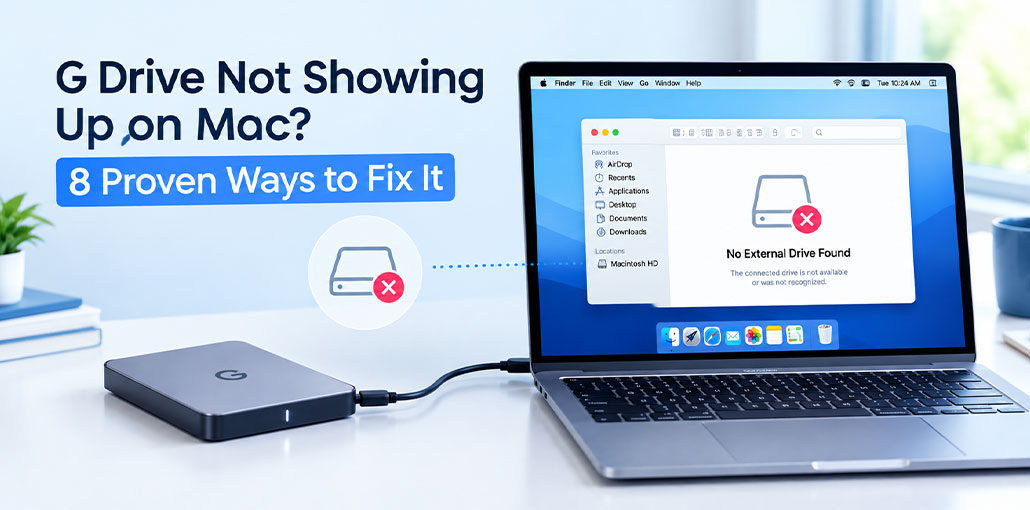
Is your G Drive Not Showing Up on your Mac after you connect it? This can happen because of a bad cable, a connection issue, Finder settings, an unmounted drive, or file-system errors.
Before formatting or erasing the drive, ensure macOS can recognize it. This step is especially crucial if your G Drive contains irreplaceable photos, videos, documents, or other files.
Here is a guide with simple techniques to fix a G Drive not showing up and get your drive working again.
Why Is My G Drive Not Showing Up on Mac?
A G Drive Not Showing Up problem can have several causes. The most common ones include:
- Loose or damaged USB cable
- Faulty Mac port or adapter
- Power problems
- External disks hidden in Finder
- Drive not mounted
- File-system errors
- Partition problems
- Possible hardware failure
The first thing to find out is whether your Mac detects the drive at all. If it appears in Disk Utility but not Finder, the issue may be easy to fix.
How to fix the G Drive Not Showing Up issue
1. Check the Cable and Port
Start with the physical connection if your G Drive not showing up after plugging it in.
Disconnect the drive and reconnect it firmly. Try a different USB or Thunderbolt cable and another port on your Mac.
If you’re using a hub or adapter, connect the G-Drive directly to the Mac. You should also check the power connection if your model requires a separate power supply.
If possible, test the drive on another computer. This can help you determine whether the problem is with the drive or your Mac.
Also read: SSD Not Showing Up? Solve the SSD Issue in 7 Quick Steps
2. Check Finder Settings
Your G-Drive may be connected but hidden from Finder.
To check:
- Open Finder.
- Go to Finder > Settings.
- Select General.
- Make sure External disks is enabled.
- Open Sidebar.
- Enable External disks under Locations.
Reconnect the drive and check Finder again.
If the G Drive not showing up issue was caused by Finder settings, it should now appear on the desktop or sidebar.
3. Check Disk Utility
If the G-Drive still doesn’t appear, check whether macOS can detect it through Disk Utility.
- Open:
- Applications > Utilities > Disk Utility
- Then select:
- View > Show All Devices
- Look for your G-Drive in the sidebar.
If the drive appears but the volume is greyed out, it may simply need to be mounted. If the G-Drive isn’t listed at all, check the cable, port, adapter, and power connection again.
4. Mount the G-Drive
A G-Drive not mounting issue can occur when macOS detects the physical drive but doesn’t open its volume.
If the drive appears in Disk Utility, select the volume and click Mount.
Once mounted, open Finder and look under Locations.
If the volume refuses to mount or shows an error, there could be a problem with its file system or partition.
Don’t choose Erase if the drive contains files you still need.
5. Run First Aid
If your G Drive Not Showing Up problem continues but the drive appears in Disk Utility, try First Aid.
Follow these steps:
- Open Disk Utility.
- Select View > Show All Devices.
- Select the G-Drive volume.
- Click First Aid.
- Select Run.
First Aid checks the drive for certain file-system problems and may repair some errors.
It isn’t a data-recovery tool, though. If the drive contains valuable files, consider recovering them before making major changes to the disk.
6. Check the File System
The G-Drive’s file system can also affect how your Mac reads the drive.
Common formats include:
- APFS
- Mac OS Extended
- exFAT
- NTFS
If the drive was previously used with Windows, it may use NTFS. macOS can read NTFS drives in many cases but has limitations when writing to them without additional software.
You can check the format in Disk Utility.
Don’t format the drive just because you’re having trouble writing files to it. First make sure your important data is backed up.
7. Recover Important Data
If your G Drive not showing up and you can’t access important files, consider data recovery before formatting.
A recovery tool may be able to scan a detected drive and find files that are no longer accessible through Finder.
The general process is:
- Connect the G-Drive.
- Open data-recovery software.
- Select the G-Drive.
- Start a scan.
- Preview recoverable files.
- Save the recovered files to another drive.
Don’t save recovered files back to the same G-Drive if you can avoid it. Using another storage device reduces the chance of overwriting recoverable data.
Also read: 10 Best Hard Drive Repair Software to Fix Errors and Recover Data
8. Reformat the G-Drive
If you’ve already backed up your files and the G Drive not showing up issue remains, you can consider reformatting the drive.
Open Disk Utility, select the G-Drive, and click Erase.
For Mac-only use, APFS may be suitable. If you regularly move the drive between Mac and Windows, exFAT may be a better choice.
Remember that erasing the drive removes its existing data. Make sure you have a backup before continuing.
What If the G Drive Isn’t Detected?
If your G Drive not showing up in Finder or Disk Utility, try swapping cables, Mac ports, adapters, or computers.
Remove USB hubs and connect the drive directly to your Mac. If the drive has an external power supply are properly connected.
If the drive still isn’t detected on other computers, its hardware can be the cause rather than macOS.
Final Thoughts
If your G Drive not showing up on Mac, start with the cable, port, Finder settings, and Disk Utility. If the drive appears, try mounting it or running First Aid. For important files, recover your data before formatting. If the drive isn’t detected anywhere, you may need professional help.
FAQ: G Drive Not Showing Up
Why is my G Drive showing in Disk Utility but not Finder?
The drive may not be mounted, or Finder may be configured to hide external disks. Try selecting the drive in Disk Utility and clicking Mount.
Can I recover data if my G Drive is not showing up?
Data recovery may be possible if macOS detects the drive or its storage hardware. Try data-recovery software before formatting if the files are important.
What if my G Drive works on another computer?
If the drive works on another computer, the problem may be related to your Mac's port, adapter, cable, Finder settings, or software rather than the drive itself.
How do I fix G Drive Not Showing Up on Mac?
Check the cable and USB port first. Then enable External disks in Finder, check Disk Utility, and try mounting the G-Drive. If it appears but has errors, run First Aid.







Leave a comment