

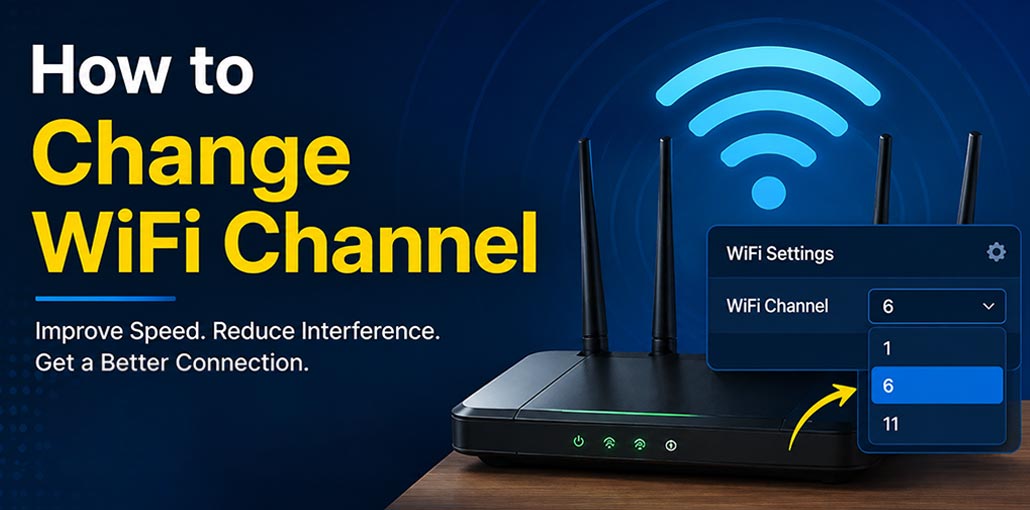
If your WiFi seems slow or unstable and frequently disconnects, channel congestion might be to blame. Apartment complexes, offices, and densely populated areas can all suffer from limited wireless performance due to channel congestion.
Changing the WiFi channel on your router can reduce interference and improve connection stability. In this guide, we cover how to change WiFi channel and find the best channel.
What Is WiFi Channel?
A WiFi channel is a portion of radio frequencies that allows your router to communicate wirelessly with devices like smartphones, laptops, smart TVs, and other connected devices.
WiFi networks typically operate within the 2.4 and 5GHz bands, and each band contains multiple channels. When multiple routers use identical or overlapping channels, they can compete for wireless spectrum.
Why Should You Change Your WiFi Channel?
Changing the WiFi channel can be useful when you experience:
- Slow wireless speeds
- Frequent WiFi disconnections
- High latency or ping
- Unstable connections
- Poor performance in crowded areas
Interference from neighboring networks
However, changing channels isn’t always necessary. Modern routers often include automatic channel selection to select an ideal channel for you.
Also read: WiFi Connected But No Internet? 7 Easy Fixes for All Devices
How to Find the Best WiFi Channel
To find the best WiFi channel, using a WiFi analyzer helps identify less congested channels in nearby networks.
For 2.4 GHz WiFi channels, select channels 1, 6, or 11 because they are the best and they don’t overlap. For 5 GHz and 6 GHz, choose an uncongested channel, or let your router select it automatically.
After changing the channel, test your WiFi speed and stability. If performance doesn’t improve, try another channel or switch back to Auto.
How to Change WiFi Channel
Once you’ve selected a channel, follow these instructions for changing WiFi channels. Specific steps may differ slightly based on your router model; nonetheless, the general process remains similar.
- Find your router’s IP address: Common addresses include 192.168.1.1 and 192.168.0.1.
- Open the login page: Enter the router’s IP address in your browser.
- Log in: Use your router’s administrator username and password.
- Open WiFi Settings: Look for Wireless, WiFi Settings, or Advanced Wireless.
- Select the WiFi band: Choose 2.4 GHz, 5 GHz, or 6 GHz.
- Change the channel: Find Channel or Wireless Channel and select your preferred option.
- Save the settings: Click Save or Apply. Your WiFi may briefly disconnect.
- Test your connection: Check whether your WiFi speed and stability have improved.
If the new channel doesn’t improve performance, try another channel or switch back to Auto.
How to Change WiFi Channel on Popular Routers
Routers usually share similar functionality, but channel settings may differ depending on the model and firmware version.
TP-Link
To change the WiFi channel on many TP-Link routers:
- Connect your device to the TP-Link router.
- Open the router’s administration page.
- Sign in with your administrator credentials.
- Open Wireless or WiFi Settings.
- Select the 2.4 GHz or 5 GHz band.
- Find the Channel setting.
- Select your preferred channel or leave it on Auto.
- Save the changes.
The exact menu names may differ depending on your TP-Link model and firmware.
Netgear
For many Netgear routers:
- Connect to your router.
- Open the Netgear router login page.
- Sign in as administrator.
- Open Wireless Settings.
- Select the appropriate WiFi band.
- Locate the Channel option.
- Choose a channel.
- Apply the settings.
Your wireless connection may temporarily disconnect while the router applies the new configuration.
Also read: Why Is My Spectrum Router Blinking Red? 5 Easy Troubleshooting Steps
ASUS
To change the WiFi channel on an ASUS router:
- Connect to the ASUS router.
- Open the router’s web interface.
- Sign in.
- Go to the wireless settings.
- Choose the 2.4 GHz, 5 GHz, or supported 6 GHz band.
- Find the channel setting.
- Select a channel or use Auto.
- Apply the changes.
ASUS routers can have different interfaces depending on the model and firmware version.
D-Link
For many D-Link routers:
- Connect to the D-Link network.
- Open the router’s administration interface.
- Log in.
- Go to Wireless Settings.
- Select the desired frequency band.
- Find the channel option.
- Choose the appropriate channel.
- Save or apply the changes.
If you don’t see the channel option, check the advanced wireless settings.
Linksys
To change the wireless channel on many Linksys routers:
- Connect your device to the Linksys network.
- Open the router’s configuration page.
- Sign in.
- Open Wireless Settings.
- Select the appropriate frequency band.
- Locate the channel setting.
- Select a channel or leave it on Auto.
- Save the configuration.
The available settings can vary by Linksys router model.
WiFi Channel Troubleshooting: Problems and Solutions
If changing the WiFi channel doesn’t solve the problem, try these common fixes:
| Problem | Solution |
|---|---|
| WiFi is still slow | Try a less crowded channel or switch to 5 GHz. |
| WiFi keeps disconnecting | Restart the router and try another channel. |
| High ping or lag | Use a less congested channel and move closer to the router. |
| Channel change made WiFi worse | Switch back to Auto or try another channel. |
| Weak WiFi signal | Move the router to a central, elevated location. |
| Some devices won’t connect | Restart the devices and check the router’s band settings. |
| No improvement after changing channels | Test your internet speed to determine whether the issue is with your ISP or WiFi. |
Final Word
A crowded WiFi channel is one of the problems that are hidden in the midst of things. It doesn’t reveal itself as a dead router or a downed network does. It simply slows the entire system down, one lost call or a buffering video at a moment. Understanding how to change WiFi channel settings and actually doing it is one of the most affordable improvements available to anyone struggling with a faulty internet connection in 2026.
FAQs About How to Change WiFi Channel
What is the best WiFi channel?
For 2.4 GHz WiFi, channels 1, 6, and 11 are generally the best choices because they don't overlap. For 5 GHz and 6 GHz, the best channel depends on local congestion and your router.
How do I know which WiFi channel is best?
Use a WiFi analyzer to check nearby networks and choose a suitable, less congested channel.
Why is my WiFi still slow after changing the channel?
The issue could be caused by weak signal strength, router placement, outdated hardware, too many connected devices, or your internet service.
Is channel 1, 6, or 11 always the fastest?
No. These are preferred 2.4 GHz choices because they don't overlap when using 20 MHz width. The best option depends on nearby network congestion and interference.







Leave a comment