

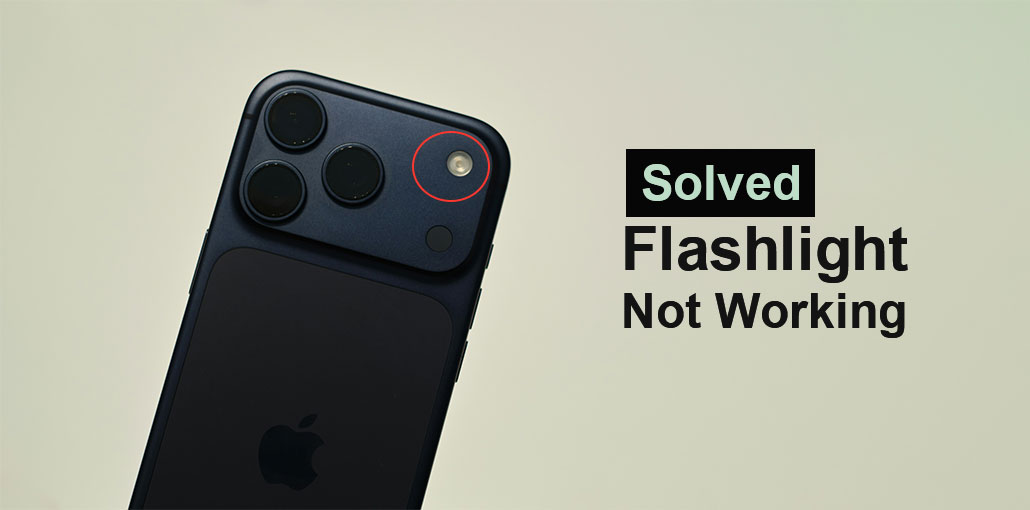
Many people are not using flashlights with batteries today. The iPhone is among the devices as an option since it has a built-in flashlight. However, some users have complained of an issue with the iPhone flashlight. How are they able to see in the darkness or find items that have fallen off, or send an emergency when they need to? That’s inconvenient. Fix the iPhone flashlight not working by following the 7 effective methods in this article. These iPhone Flashlight not working fixes are listed below.
Why Is My Flashlight Not Working on My iPhone?
You are likely asking why my iPhone flashlight not working? There are many software issues related to this specific issue. The most commonly cited reasons are activating low Power Mode, overheating, or opening up the Camera application. Additionally, it could be a minor software glitch in your iPhone. In addition, hardware issues could also be the reason.
Also read: iPhone Won’t Turn On? 6 Easy Fixes You Can Try at Home
How to Fix iPhone Flashlight Not Working
Whatever the cause is for the flashlight iPhone not working. This article is there to assist! In this section, you will find the seven most effective ways to resolve the issue. Keep scrolling down to find the solutions.
1. Check Overheating, Low Power Mode or Camera App
Perhaps you are wondering why iPhone flash not turning on? Even though the majority of apps are functioning perfectly. Certain apps or features affect the iPhone flashlight. Setting the Low Power mode or overheating, and then accessing camera apps, are among the most common problems.
Make sure that you don’t let the iPhone overheat, and make sure that the Camera application is shut down. Also, turn off low power mode. low power mode. To do this, simply swipe left to the Control Center and press the battery button.
2. Restart iPhone
There are instances where the iPhone flashlight and camera stop working simultaneously. Restarting the iPhone is the most effective solution. It will fix the bugs that cause the problems. Follow the instructions below to restart your iPhone.
Press and hold the Side or volume down button simultaneously on the iPhone using Face ID. However, you must hold and press the Side or Top button on the iPhone for other models. The power-off slider will be activated. Drag the slider until you turn off the iPhone within a couple of minutes. Restart it by pressing the Power button.
3. Reset iPhone Settings
Incorrect iPhone settings adjustments could cause a variety of problems, such as issues with the iPhone flashlight not working. The good news is that the iPhone lets you reset the settings without losing any data. Follow the steps below to reset your iPhone settings.
Open your settings app on your iPhone. After that, click the General button from the menu. After that, click the Reset or Transfer iPhone switch to display additional options. Select the Reset button, then choose the Reset All Settings button. Make sure to confirm the action by pressing the reset all settings button.
4. Update iOS
iPhone torch not working as intended if the iOS version is outdated. If this is the case, make sure you have the latest updates for your features or apps, such as the flashlight, to resolve the issue. Upgrade iPhone iOS Version following the instructions.
It is important to back up your iPhone data to prevent data loss. Next, tap to open the settings. Then press on the General button at the top of the interface’s main page. After that, tap the Update Software button. Wait for updates to be available and then tap the Update Now button.
5. Use iTunes/Finder to Update or Restore iPhone
Another frequently asked question is: Why is my iPhone flashlight not working after updating iOS? The main reason may not be the iPhone iOS version or system. If this is the case, you can update or restore it using iTunes and Finder. In this way, you can use it as a backup option. iTunes and Finder are similar in methods for upgrading and recovering your iPhone. You can count on the instructions below.
Connect the iPhone to your computer and launch iTunes or Finder. After that, press the iPhone icon or name to see additional options. Select the summary and General button. Select Restore iPhone after to restore it to its factory settings. To update it, simply select “Check for Update” and then press the download and update button.
6. Factory Reset iPhone
If the earlier methods failed to fix iPhone Flashlight not working, then it’s time to factory reset your iPhone. This method has a greater chance of repairing problems with the iPhone flashlight. Be sure to back up your iPhone first, as this can permanently erase the iPhone data. The steps are given below.
Open Settings and tap General. Next, open Transfer or Reset your iPhone. Tap Erase All Content and Settings. Then make sure you enter the iPhone Passcode and your Apple ID password. Select the data you want to erase and then tap Continue.
Also read: How to Fix iPhone Speaker Not Working: 10-Minute Guide
7. iOS System Recovery
The built-in methods are useful. But there are occasions when they don’t 100% work as expected. Use a third-party iOS System Repairer tool to fix the iPhone Flashlight not working and other iOS problems. It can fix screen issues, system issues, and much more. It is possible to use the Standard Mode to fix the iPhone without losing data. However, you can utilize Advanced Mode to fix the iPhone, but it will erase the iPhone data.
When It Might Be a Hardware Issue
If none of the above solutions work, there’s a chance the problem is hardware-related. Signs of hardware failure include:
- The flashlight never turns on under any condition
- The camera flash also doesn’t work
- The LED flickers inconsistently
- The issue started after a drop or water exposure
In such cases, it’s best to seek professional repair. Attempting to fix hardware issues yourself can worsen the problem if you’re not experienced.
iPhone Flashlight Not Working Issue – Final Thoughts
The flashlight not working on iPhone problem is annoying for a few people. They may need to search for objects in the darkness. This article has provided 7 simple ways to resolve it.
FAQs: iPhone Flashlight Not Working
Why is my iPhone flashlight greyed out?
The flashlight icon appears greyed out when your iPhone is too hot, battery is low, or the camera is currently in use.
Why does my iPhone flashlight turn off by itself?
This usually happens due to overheating, low battery, or background apps using the camera flash.
Can iOS bugs cause iPhone Flashlight not working issues?
Yes, software bugs in iOS can prevent the flashlight from working properly. Updating your iPhone usually fixes this.
How do I fix iPhone Flashlight not working after water damage?
If your iPhone was exposed to water, the LED flash may be damaged. You should dry the device and visit a repair center if the issue continues.





Leave a comment