

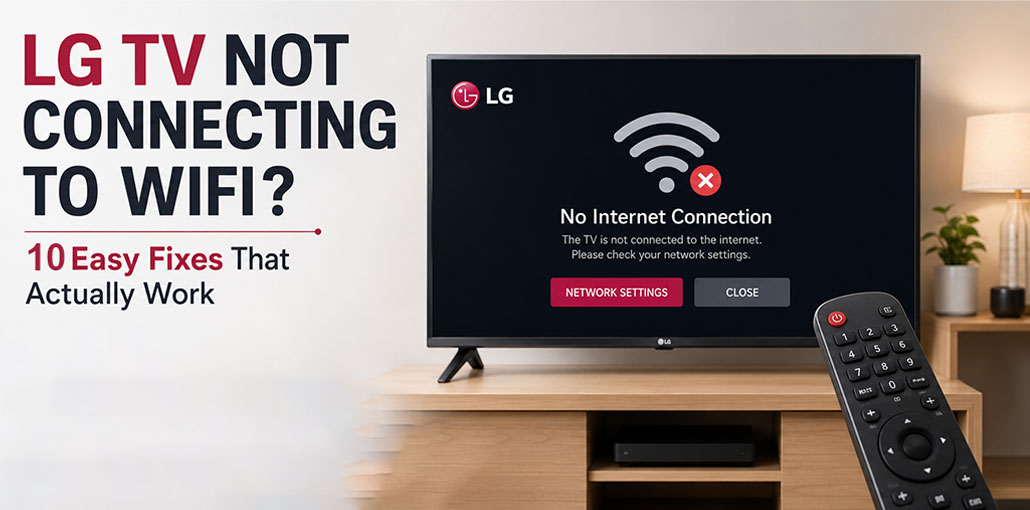
If you find that your LG TV not connecting to WiFi after a reset or restart, or even after an update, then you’re not the only one.
It could display the error message “Unable to join the internet. Reason: Password entered incorrectly.” Even if your password is valid.
In reality, other appliances in your house may be connected to the Wi-Fi connection, except for the LG Smart TV.
The good news is that there are proven methods for solving the LG smart TV not connecting to WiFi issue completely, all of which I will explain in my troubleshooting manual.
Why Is My LG TV Not Connecting to WiFi?
Before I explain how to solve your LG TV not connecting to WiFi, it is important to understand what may be causing your LG TV WiFi issue
- Weak WiFi signal
- Router issues
- Incorrect WiFi password
- Outdated TV software
- Network settings errors
- DNS configuration problems
- Hardware issues with the WiFi module
Understanding the cause makes troubleshooting much easier.
Also read: How to Fix Roku Not Connecting to WiFi: 7 Easy Solutions Try
How to Fix LG TV Not Connecting to WiFi
There are various solutions to fix the LG TV won’t connect to WiFi issue after being reset or restarted, so I suggest exploring each possibility until one stands out as especially effective for you.
Let’s begin.
1. Power Cycle TV
If your LG TV won’t connect to Wi-Fi after being reset or restarted, first turn off its power source and wait a few moments before trying again. It should take less than two minutes for this entire process to take place.
For most people reading this, this could be the only thing you require to fix this LG Television Wi-Fi connection issue. It resolves software bugs and also clears the TV’s cache.
But with a high chance of resolving the LG TV Not Connecting to WiFi issue, reboot the router on your network as described in the next step.
2. Restart Your WiFi Router
In addition to powering up your LG Smart TV, restarting the network router will allow you to connect your LG TV to the WiFi network.
No matter whether other devices can successfully connect with the router. Your LG TV may still have difficulty connecting with the router.
However, a simple restart of your Wi-Fi router will help fix the LG TV not connecting to internet problem.
Also read: Why Is My Spectrum Router Blinking Red? 5 Easy Troubleshooting Steps
3. Set the Date and Time Manually
Incorrect date and time settings can cause problems connecting to WiFi when the TV cannot automatically detect or set the correct time and date.
To resolve this problem, manually adjust your LG TV’s date and time settings before reconnecting to the WiFi network.
- Open Settings on your LG TV.
- Go to General.
- Select Time & Date.
- Disable automatic settings.
- Set the correct date and time manually.
4. Change LG Services Country Settings
This is one of the more commonly used strategies for fixing an LG TV not connecting to WiFi.
Allowing an LG Services Country to be set automatically (rather than manually selecting it) could potentially cause connectivity problems on LG Smart TVs.
To resolve this issue, turn off the automated location setting, then switch manually to a different location from where you are, and then switch back to the country.
- Open Settings.
- Go to General.
- Select Location.
- Turn off automatic country selection.
- Choose another country temporarily.
- Restart your TV.
- Change it back to your original country.
5. Change the DNS Server Settings
Changing the DNS server on your LG TV is another way to fix LG TV not connecting to WiFi after updating.
To resolve this issue, it is easy to switch to a DNS server for faster and more reliable service, like Google DNS Server.
- Go to Settings.
- Select Network.
- Choose your WiFi connection.
- Select Advanced WiFi Settings.
- Edit DNS settings.
- Enter:
Primary DNS: 8.8.8.8
Secondary DNS: 8.8.4.4
Once your TV has rebooted, you should have no trouble connecting to its Wi-Fi network.
If the LG TV still cannot connect to the Internet even after changing DNS servers, then continue with the troubleshooting steps.
6. Turn Off Quick Start+ and SIMPLINK
Quick Start+ is a feature that turns off your LG TV in sleep mode so that it can turn on more quickly.
But this feature draws a lot of power and can sometimes disrupt the wifi signal.
SIMPLINK (HDMI-CEC) is a feature that lets devices connected to your TV’s smart device control the TV. It’s also been proven to interfere with Wi-Fi connectivity of LG TVs.
So, you must disable both functions on the LG smart TV before testing to see if your WiFi connectivity issue has been solved.
Turn Off Quick Start: To disable the Quick Start feature, go to Settings > General > All Settings > Quick Start, then disable it as you can see below.
Once you’re done, you can proceed to the next section.
On some LG TV models, such as C1, C2, C9, CX, and G3, you will find this option when pressing the Settings button and navigating to General TV Management > Devices.
Turn Off SIMPLINK (HDMI-CEC): To disable the SIMPLINK (HDMI-CEC) feature, go to Settings > General > All Settings > SIMPLINK (HDMI-CEC). After that, switch it off.
Also read: PS5 Not Connecting to Internet? 9 Easy Fixes You Can Try Today
7. Disconnect External Devices
If there are devices connected to the HDMI and USB ports in the back of your LG TV, disconnecting some may help resolve issues.
People experiencing similar issues reported that their issues resolved after unplugging an external device connected to their television set.
8. Factory Reset Your LG TV
If you’re at this point, what you should do when your LG TV not connecting to WiFi is reset your TV to its initial (factory) settings.
- Open Settings.
- Select General.
- Choose Reset to Initial Settings.
- Confirm the reset.
- Complete the setup process again.
9. Use an Ethernet Cable
If you’ve tried all the above methods but the LG TV Not Connecting to WiFi problem persists, then you may have a faulty Wi-Fi module that needs to be replaced, as I said earlier.
If you do not want to upgrade it, an alternative is to just switch to a hardwired connection (i.e use an Ethernet cable).
In addition, Ethernet cables are generally faster than Wi-Fi connections. The only issue could stem from the position of your Wi-Fi router and your television.
But if you’ve got your television and router in the same space (which is the ideal way to keep wireless signal interference out of wireless connections), and you’ve got an Ethernet cable, then you’re likely to be fine.
10. Contact LG Customer Support
LG TV not connecting to WiFi or LG TV WiFi not working even after trying all the methods mentioned above. The last option is to contact customer support to seek assistance. They can help you understand the issue and attempt to correct whatever is causing the device or network issue. If there’s an issue with the hardware on the TV or router, they will send a professional technician.
How to Prevent LG TV WiFi Problems
To avoid future connection issues:
- Keep your TV updated.
- Restart your router monthly.
- Place the router in an open area.
- Avoid network congestion.
- Use high-speed internet.
- Keep your TV within WiFi range.
Final Thoughts
An LG TV not connecting to WiFi may be annoying, but in most cases, it can be resolved easily with some simple troubleshooting steps.
Start by restarting both your TV and router before trying different DNS settings, disabling Quick Start+, changing location settings or performing a factory reset.
If none of these solutions work, the issue could lie within either your TV’s hardware or WiFi module.
FAQs: LG TV Not Connecting to WiFi
Why does my LG TV say 'Unable to join the internet'?
The 'Unable to join the internet' error usually appears because of incorrect network settings, DNS issues, wrong date and time settings, or temporary router communication problems.
Can changing DNS fix LG TV not connecting to WiFi?
Yes, changing DNS settings can fix some LG TV WiFi connection issues. Using a reliable DNS server like Google DNS (8.8.8.8) may help your TV connect to the internet properly.
How do I fix LG TV not connecting to WiFi without a remote?
If you don't have a remote, you can try using the LG ThinQ mobile app, connect an Ethernet cable, or use a compatible USB mouse to navigate TV settings.
How do I fix LG TV not connecting to WiFi but showing full signal strength?
If your LG TV shows full WiFi signal but cannot connect, the problem may be caused by incorrect DNS settings, router configuration, or an IP address conflict. Try changing the DNS server to 8.8.8.8 and reconnect.






Leave a comment