

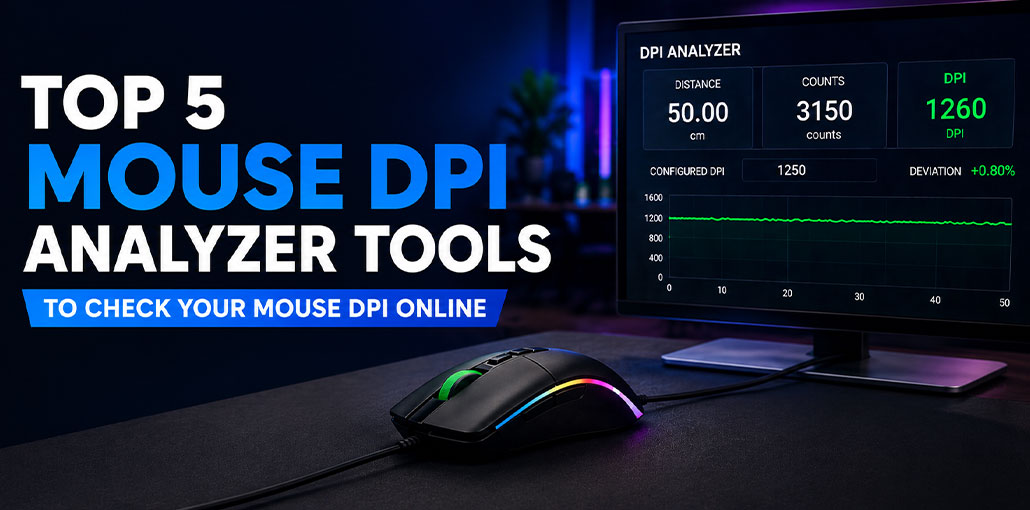
If your mouse feels too fast, too slow, or inconsistent, checking its DPI can help you understand what is happening. DPI affects how much your cursor moves when you physically move the mouse, making it an important setting for gamers, designers, and everyday computer users.
A Mouse DPI Analyzer can help estimate your mouse’s effective DPI by comparing a measured physical movement with the pointer movement recorded by your computer. This can be useful when you want to verify your settings instead of relying only on the DPI number shown in your mouse software.
In this guide, we’ll look at the top 5 Mouse DPI Analyzer tools you can use online and explain how to perform a more reliable DPI test.
What Is a Mouse DPI Analyzer?
A Mouse DPI Analyzer is an online tool that estimates mouse DPI by comparing how far you physically move your mouse with how much pointer movement the computer records.
For example, you can measure a specific distance with a ruler, move your mouse exactly that distance, and let the tool calculate an estimated DPI.
Also read: 10 Best MMO Mouse Options in 2026 for Faster Gameplay
Top 5 Mouse DPI Analyzer Tools
1. DPI Analyzer
DPI Analyzer is a straightforward browser-based option for users who want to check mouse DPI without installing additional software.
The tool uses a physical-distance measurement. You enter the distance you plan to move, place your mouse at the starting point, and move it across the measured distance. The result provides an estimated DPI based on the movement detected by the browser.
Best for: Quick and simple DPI testing.
Key features:
- Free online testing
- No software installation
- Physical-distance measurement
- Multiple measurement units
- Repeatable testing
If you want a basic mouse DPI checker without complicated settings, this is one of the easiest options to start with.
2. OnScreenTools Mouse DPI Checker
OnScreenTools offers a DPI analyzer tool that measures mouse movement directly in the browser. It supports measurements in inches and centimeters and allows you to enter your configured DPI if you want to compare the expected and measured results.
The tool recommends repeating the measurement several times because human hand movement can introduce errors. It also uses the browser’s Pointer Lock API and requests unadjusted movement when supported.
Best for: Users who want a simple analyzer with repeat testing.
Key features:
- Online mouse DPI measurement
- Inches and centimeters
- Configured DPI input
- Pointer Lock support
- Test history and average results
It is also useful if you want to perform a mouse DPI test without downloading a dedicated application.
3. Keymap Mouse DPI Analyzer
Keymap provides a more measurement-focused Mouse DPI Analyzer. Instead of relying on one movement, it lets you perform multiple runs and reports a median estimate, range, and variation.
This approach is useful because one test can be affected by an imperfect starting point, stopping point, or hand movement.
Keymap recommends marking a straight physical distance, performing at least three runs, and comparing the resulting measurements.
Best for: Gamers and users who want repeatability information.
Key features:
- Multiple measurement runs
- Median DPI estimate
- Variation reporting
- Pointer Lock workflow
- Browser-based testing
If consistency matters more than simply getting one number, this is a strong option.
4. MouseTester.io DPI Sensitivity Test
MouseTester.io provides an online mouse DPI tester that uses a physical ruler and controlled mouse movement.
The process involves placing a ruler on your mousepad, setting a starting position, moving the mouse horizontally to a selected distance, and completing the test. The tool then provides a DPI result.
The site also explains different DPI ranges and how they can relate to gaming and desktop use, although there is no universally perfect DPI for every player.
Best for: Gamers who want a simple DPI calibration process.
Key features:
- Free online DPI testing
- Physical ruler method
- Horizontal movement testing
- DPI calibration
- Gaming-oriented information
5. DPItester
DPItester provides an online mouse DPI test that lets users measure their mouse movement using a physical distance.
The process generally involves entering a target distance, moving the mouse that exact distance, and allowing the tool to calculate the DPI. The site recommends disabling mouse acceleration, including Windows’ “Enhance Pointer Precision,” for more consistent testing.
Best for: Users who want a simple browser-based DPI testing method.
Key features:
- Online DPI analyzer
- No dedicated software required
- Physical-distance measurement
- Mouse DPI testing
- Guidance for disabling acceleration
Also read: How to Fix Mouse Double Clicking: 7 Step-by-Step Solutions
How to Check Mouse DPI Online
If you want to know how to check mouse DPI, follow a few simple steps, no matter which tool you decide to use.
1. Get a Physical Ruler
Use a ruler to measure the exact distance your mouse will travel. A longer distance can reduce the effect of small measurement errors.
2. Disable Mouse Acceleration
On Windows, disable Enhance Pointer Precision before testing. Acceleration can change pointer movement depending on how quickly you move the mouse and make the result less consistent.
3. Start the Test
Open your chosen DPI analyzer and enter the physical distance you are going to measure.
4. Move the Mouse in a Straight Line
Place the mouse at the starting point and move it steadily across the exact distance marked by the ruler.
5. Repeat the Test
Run the test several times and compare the results. Multiple measurements can help reduce errors caused by inconsistent hand movement.
How Accurate Is a DPI Analyzer Tool?
An online DPI analyzer tool can provide a useful estimate, but it should not be treated as a laboratory measurement of the mouse sensor.
A browser generally cannot directly read the physical DPI value stored inside your mouse. Instead, these tools calculate an effective DPI estimate from the movement information available to the browser and the physical distance you provide.
For better results:
- Use a physical ruler.
- Use a reasonably long measurement distance.
- Disable mouse acceleration.
- Keep the mouse movement straight.
- Use the same surface.
- Repeat the measurement three or more times.
- Compare the results instead of relying on one run.
What Is the Best DPI for Gaming?
There is no single best DPI for everyone.
Some gamers prefer lower DPI with larger physical mouse movements, while others prefer higher DPI and smaller movements. Your ideal setting depends on your game, mousepad size, in-game sensitivity, monitor setup, and personal preference.
The goal should be consistent control, not simply choosing the highest DPI number.
DPI vs. Mouse Sensitivity
DPI and sensitivity are connected but aren’t the same thing.
DPI describes the mouse’s input resolution, while sensitivity is a software or game setting that changes how that input affects cursor or crosshair movement.
For example, two gamers can use different DPI settings but achieve a similar overall sensitivity by adjusting their in-game settings.
This is why copying another player’s DPI does not automatically give you the same aiming experience.
Conclusion
Finding the right mouse DPI can make a noticeable difference in gaming accuracy and everyday performance. The Mouse DPI Analyzer tools covered above make it easy to check mouse DPI, test sensitivity, and identify inconsistent settings. Try a mouse DPI test and choose the tool that best fits your setup for more precise, consistent control.
FAQs: Mouse DPI Analyzer
Is an online DPI Analyzer accurate?
An online DPI Analyzer can provide a useful DPI estimate, but it cannot directly read your mouse sensor. Disable pointer acceleration and repeat the test several times for more reliable results.
What is the difference between DPI and mouse sensitivity?
DPI determines how much the cursor moves for a given physical mouse movement, while sensitivity settings can further change how that movement is translated on your screen or in a game.
Can I use a Mouse DPI Tester without installing software?
Yes. Many browser-based Mouse DPI Tester tools work directly online, so you can test your mouse DPI without installing additional software.
Does a Mouse DPI Checker work on every mouse?
Most browser-based Mouse DPI Checker tools can be used with standard mice, but the results are estimates and may vary depending on your operating system, browser, and mouse settings.






Leave a comment