

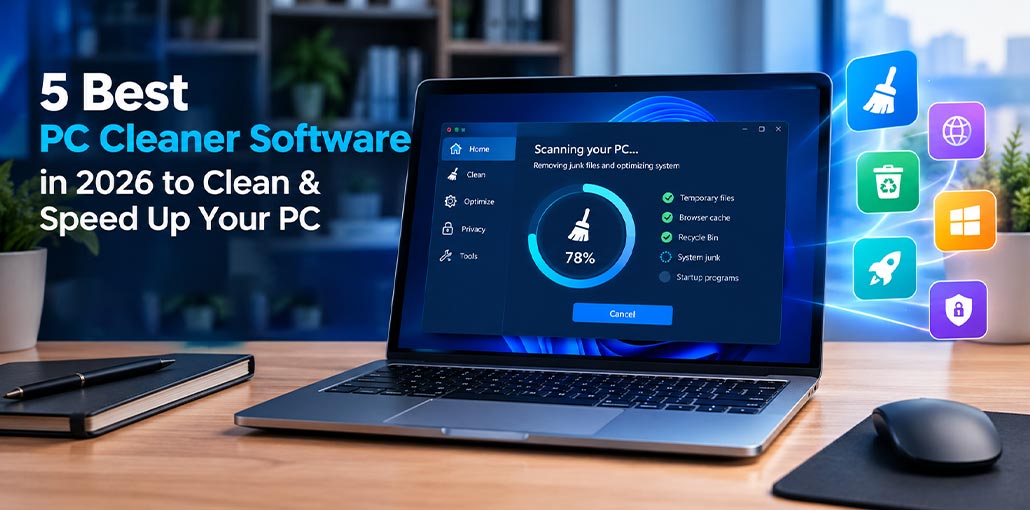
Is your Windows PC becoming slower over time? Temporary files, browser cache, leftover files, unused applications, and unnecessary startup programs can consume storage and affect system performance.
A good Windows PC cleaner can help remove unnecessary files and organize your system so your computer stays easier to maintain. But with so many tools available, choosing the right one can be difficult.
In this guide, we compare five popular PC cleaner software options for Windows 10 and Windows 11. We’ll look at their cleaning features, optimization tools, free options, and overall usability to help you choose the right PC cleaner for your needs.
What Is a PC Cleaner?
A PC cleaner and optimizer is software designed to help maintain a computer by finding and removing unnecessary files and providing tools for system maintenance.
Depending on the software, features may include:
- Temporary and junk file removal
- Browser cache cleanup
- Recycle Bin cleanup
- Startup program management
- Unused application removal
- Large-file management
- Privacy cleanup
- Basic system optimization
- Storage analysis
However, not every PC cleaner offers the same features. Some focus mainly on removing unnecessary files, while others combine cleaning with broader system optimization tools.
Also read: Top 10 Tips and Tricks for Windows 11
Quick Comparison: Best PC Cleaners
| PC Cleaner | Best For | Free Version | Main Features |
|---|---|---|---|
| CCleaner | General PC cleaning | Yes | Junk cleanup, privacy cleanup, startup tools |
| AVG TuneUp | PC optimization | Limited | Cleanup, maintenance, performance optimization |
| Wise Disk Cleaner | Lightweight cleanup | Yes | Junk files, temporary files, disk cleanup |
| Microsoft PC Manager | Windows maintenance | Yes | Storage management, health check, process management |
| IObit Advanced SystemCare | All-in-one optimization | Yes | Junk cleanup, system optimization, privacy tools |
Best PC Cleaners in 2026 — Detailed Review
1. CCleaner — Best PC Cleaner for General Cleanup
CCleaner is a long-established Windows cleaning utility focused on removing unnecessary files and helping with routine PC maintenance. Its current Windows feature set includes junk and browser cleanup, startup management, third-party app updates, and a Performance Optimizer that can put selected apps to sleep.
Key features:
- Junk and temporary-file cleanup
- Browser history, cookies, and cache cleanup
- Startup-program management
- Third-party software updates
- Performance Optimizer
- Cloud-drive cleanup on supported versions
Pros
- Straightforward interface
- Good range of cleaning features
- Free version available
- Useful for everyday Windows maintenance
Cons
- Some advanced functionality is paid
- Not every optimization feature is necessary for every PC
Best for: Users who want an established Windows PC cleaner for general maintenance.
2. AVG TuneUp — Best for PC Optimization
AVG TuneUp goes beyond basic file deletion by combining cleanup with optimization and application-management tools. AVG says its Windows version can scan for system junk and browser data, manage unused or outdated applications, and optimize background processes.
Its Quick Clean feature brings several maintenance tasks together, while additional tools include Disk Cleaner, Browser Cleaner, application management, and disk optimization.
Key features:
- System-junk cleanup
- Browser cleanup
- Automatic cleaning
- Application management
- Startup/background-process management
- Disk optimization
- Undo Center for supported changes
Pros
- Broad optimization feature set
- Automatic maintenance options
- Useful application-management tools
Cons
- Some features require a premium plan
- More extensive than necessary if you only want a basic junk cleaner
Best for: Users looking for a PC cleaner and optimizer rather than a simple disk-cleaning utility.
3. Wise Disk Cleaner — Best for Simple Cleanup
Wise Disk Cleaner is better suited to users whose primary objective is straightforward disk cleanup rather than a large all-in-one optimization suite.
Its main appeal is simplicity: a cleaner can scan Windows for unnecessary files and help free up storage without requiring users to navigate a large collection of unrelated system tools.
Key features:
- Junk-file cleanup
- Temporary-file removal
- Browser cleanup
- Disk cleanup
- Lightweight approach
Pros
- Simple concept
- Suitable for routine cleanup
- Good choice when you mainly want to free storage
Cons
- Fewer broader optimization features than full system suites
- Not designed to replace Windows’ complete system-management tools
Best for: Users searching for free PC cleaning software focused on removing unnecessary files.
Also read: Top 10 MacBook Memory Cleaner to Improve Mac Speed Instantly
4. Microsoft PC Manager — Best Windows PC Cleaner
Microsoft PC Manager is Microsoft’s own Windows maintenance utility. Microsoft currently lists compatibility with Windows 10 version 19042 and later and Windows 11. It includes system cleanup, storage management, health checks, process management, and startup management.
Its Deep Cleanup feature can scan for unnecessary system files, browser caches, and application caches, while Space Management can help identify large files and other storage consumers.
Key features:
- Deep Cleanup
- Storage management
- Health Check
- Process management
- Startup-item management
- Application uninstall
- Disk analysis
- Temporary-file cleanup
Pros
- Developed by Microsoft
- Free
- Windows-focused interface
- Combines several maintenance functions
Cons
- Not as feature-heavy as some third-party optimization suites
- Some functionality depends on Windows version and configuration
Best for: Windows users who want a simple, Microsoft-developed maintenance tool.
5. IObit Advanced SystemCare — Best All-in-One PC Cleaner and Optimizer
IObit Advanced SystemCare is positioned as an all-in-one PC cleaner and optimizer. Its feature set includes disk cleaning, large-file management, application/extension cleanup, startup optimization, RAM optimization, and additional privacy and security functions.
The current product also promotes AI-assisted cleaning and optimization in its newer versions.
Key features:
- Junk-file cleanup
- Disk Cleaner
- Large File Finder
- App and extension cleanup
- Startup optimization
- RAM optimization
- Privacy cleanup
- System monitoring
Pros
- Large selection of maintenance tools
- Free version available
- Combines cleanup and optimization
- Useful for users who want many tools in one application
Cons
- The large number of features may be overwhelming
- Some advanced functionality requires Pro
Best for: Users who want an all-in-one PC cleaner and optimizer.
How to Choose the Best PC Cleaner
The best PC cleaner depends on what you actually need.
For basic junk-file cleanup
Choose a tool focused primarily on temporary and unnecessary files. A lightweight cleaner can be enough if storage cleanup is your main objective.
For PC optimization
Look for software that includes startup management, application management, and additional maintenance features.
For a free option
A free cleaner can handle many basic maintenance tasks without requiring a subscription. However, check which features are actually included in the free version before installing it.
For Windows-specific maintenance
Microsoft PC Manager is designed specifically around Windows maintenance and can be a convenient option for users who prefer Microsoft’s own software.
For an all-in-one solution
A broader PC cleaner and optimizer may be more suitable if you want cleaning, startup management, optimization, and other maintenance tools in one interface.
Also read: 9 Best Duplicate Photo Finder & Cleaner Software
Are PC Cleaners Safe to Use?
Generally, reputable PC cleaning software can be useful, but you should always review what a program wants to remove before performing a deep cleanup.
Avoid blindly deleting files simply because a cleaner labels them as unnecessary. Some files may be useful for applications or system functions.
Before using any cleaner:
- Download it from the official developer website.
- Review the files selected for removal.
- Keep backups of important data.
- Be cautious with registry-cleaning features.
- Avoid unknown or suspicious “PC cleaner” programs.
- Keep Windows and your security software updated.
A PC cleaner should be viewed as a maintenance utility, not a guaranteed solution for every performance problem.
Do PC Cleaners Actually Make a PC Faster?
PC cleaners can free up storage and remove unnecessary files, but the performance improvement depends on the computer.
For example, removing several gigabytes of temporary files can improve available storage, but it may not dramatically increase CPU or GPU performance.
If a PC is slow, other factors can matter more, including:
- Too many startup applications
- Insufficient RAM
- An aging hard drive
- Background processes
- Outdated drivers
- Malware
- Limited storage space
- Hardware limitations
Therefore, cleaning should be considered one part of overall PC maintenance.
Windows PC Cleaner vs Windows Built-in Tools
Before installing third-party software, remember that Windows already includes several maintenance features.
Windows provides tools for managing storage, uninstalling applications, controlling startup programs, and removing temporary files.
A third-party Windows PC cleaner can be useful when you want these functions combined into a single interface or want additional cleanup and optimization features.
Final Verdict
There isn’t one PC cleaner that is perfect for every Windows user.
CCleaner is a well-known choice for general cleanup, AVG TuneUp focuses on broader maintenance and optimization, Wise Disk Cleaner is suited to straightforward cleanup, Microsoft PC Manager provides Windows-focused maintenance tools, and IObit Advanced SystemCare combines cleaning with broader optimization features.
Before choosing PC cleaner software, compare the actual features you need, whether they are available in the free version, and whether the software is compatible with your Windows version.
Frequently Asked Questions About PC Cleaners
Is there a free PC cleaner that actually works?
Yes. There are several free PC cleaning software options that can handle basic tasks such as removing temporary files and browser junk. Just check what the free version actually includes before installing it.
What is the difference between a PC cleaner and a PC optimizer?
A cleaner mainly focuses on removing unnecessary files. A PC cleaner and optimizer usually includes additional tools for things like startup programs, applications, system settings, and performance management.
How often should I clean my PC?
You don't need to run a cleaner every day. For most people, checking temporary files and storage every few weeks or when disk space starts getting low is enough.
What should I look for in PC cleaner software?
Look for clear scan results, safe cleanup options, storage management, startup controls, easy-to-use settings, and transparent pricing. Don't choose a cleaner simply because it claims to make your PC dramatically faster.





Leave a comment