

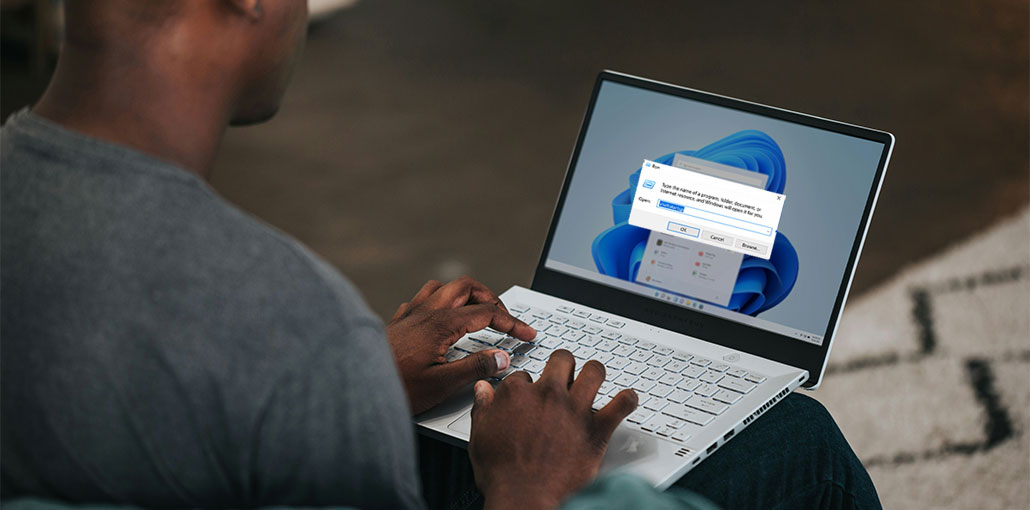
When your computer boots up, Windows loads startup programs to run alongside its OS. These can be managed using the Startup Folder on a Windows PC. We will explain how to find the Windows Startup Folder and manage it for everyone and registered users.
How to Find the Windows Startup Folder in Windows 11/10
There are various methods available in Windows 11 and 10 to locate the Windows Startup folder. They include File Explorer, the Run Dialog, Task Manager, Command Prompt, or even the Windows Registry. Each method helps you detect and manage startup applications more effectively.
Method 1: Locate the Windows Startup Folder Using File Explorer
There are two types of startup folders available in Windows: one for all users and one for the user currently logged in on the device. Both folder paths are easily found in Windows File Explorer.
To open the Startup Folder for the current user, navigate to the following path in File Explorer:
C:\Users\Username\AppData\Roaming\Microsoft\Windows\Start Menu\Programs\Startup.
To open the Startup Folder for all users, go to:
C:\ProgramData\Microsoft\Windows\Start Menu\Programs\StartUp
- Instead of manually navigating through the long folder, you can simply press Win + R to open the Run box and then type shell:common startup and enter. The above Windows Startup Folder will open instantly.
- To locate the Windows Startup Folder for the current user, simply type. shell:startup after Win + R.
When you’re located in your Startup directory, you could be pleasantly surprised to find that the applications that typically start when you launch Windows aren’t in the folder.
You can add manually added shortcuts to programs here, as we’ve covered in a later section as well. They’ll be able to start on your computer from today. But apps that are automatically installed by third-party software, or by Windows 11, are managed through Task Manager.
Also read: File Explorer Not Responding on Windows 10? Causes and Easy Fixes
Method 2: Find Windows Startup Folder Programs Using Task Manager
The Windows startup folder is empty because its functions are being replaced by Task Manager, Registry, Command Prompt, and other system apps. That’s why some programs that you will encounter at startup cannot be located directly from your File Explorer.
- To access them through the Task Manager, press Ctrl+Shift+Esc. Then click the Startup tab.
- From here, you can manage the rest of the startup applications by right-clicking to enable or disable them.
- For certain startup programs in Task Manager, their “open file location” can be obscured. If you’re interested in the exact location of these startup files, you can use other methods as described below.
Method 3: Find Windows Startup Folder programs from Command Prompt
The programs can be found in the Startup Folder from the Windows Command Prompt or Microsoft Terminal.
- Start either one of these applications in Admin mode. Enter the following command:
WMIC startup get caption, command
- The commands and captions above will provide a brief overview of all the startup programs and their exact routes to the initial.
- When the file locations are known, you can easily find the individual applications running in File Explorer.
Method 4: Locate Startup Programs Using the Windows Registry
If you’re unable to access undesirable startup programs using these methods, you should check the registry. Windows Registry is among the last places to look.
- To get it, press Win+R. Then, type regedit.
- Once you have it open, follow the path to find all the running programs.
- Computer\HKEY_CURRENT_USER\SOFTWARE\Microsoft\Windows\CurrentVersion\Run
- Find the programs that you couldn’t disable in your Windows Task Manager. Right-click them to remove the programs from AutoStart.
- Replace “HKEY_CURRENT_USER” with “HKEY_LOCAL_MACHINE” and follow a similar route to locate system applications that start, like “RealTek Audio” and “Windows Security Health systray.exe.”
- You shouldn’t remove important programs, such as the browser you’re using and RealTek Audio.
These methods can help you find all startup folders on your system, even those that appear disabled or hidden away from view.
How to Manage the Windows Startup Folder
Once you’ve found the Windows Startup Folder, there are numerous options to manage the Startup folder. Add or remove startup programs, delay their loading individually, and change the launch sequence.
How to Add Programs to Startup Folder in Windows 11/10
If you’re looking to modify Windows startup programs by adding them, the most efficient method is to make a shortcut for the application in the Windows Startup Folder.
- Click the Start button and use its menu search function to find the program or app.
- Choose “Open file location” to navigate to the File Explorer location where the app shortcut is saved.
- Open the Startup folder of Windows by using Win + R, then type shell:startup.
- Copy-paste or drag the shortcut for the program file to transfer it into the Startup Folder.
How to Remove Programs from the Startup Folder in Windows 11/10
What can you do to stop applications from opening when you start? The easiest method is to go into the Startup Folder using Win + R, then type shell:startup. Select the program you want to delete from the Startup Folder, right-click, and choose “Delete.”
Not all program files will be displayed in the Startup Folder. Another option to uninstall software from Windows startup is to click “Startup apps” from the search menu. This is where you can disable the other programs you don’t require at Windows boot.
Also read: Force Quit Windows: 5 Easy Ways to Close Frozen Apps and Programs
How to Delay Windows Startup Programs?
Too many startup applications can slow down your desktop. Your Windows desktop screen is kept in check by CPU-intensive launch screen apps.
You can delay the loading of startup applications individually or in groups. To do this, you can use the GitHub application dubbed LaunchLater. With less than 2MB, it’s a lightweight application and extremely secure to use.
- Go to “Code” on the download page and click “download ZIP” to download the software’s ZIP file.
- Download the file and unzip it using an application such as 7-Zip. Then click on the “setup program.”
- It is necessary to complete the simple installation. Follow the on-screen directions up to the point where
- LaunchLater has been installed onto your system.
- Open the downloaded app and then click “Import startup items.” This will fill the screen with all your Windows startup apps.
- Select the applications you want to create a delay for and then click “Import selected.”
- With each app, you can set a delay of moments. Simply click “Save” to finalize your setting.
Change the order in which Windows startup programs load using integrated options; however, LaunchLater gives an effective means for delaying specific apps’ starts slightly.
Conclusion
The Windows Startup Folder is an invaluable feature that enables you to control which programs run when your PC boots up. In a few easy steps, you can locate the Startup folder, add and remove items, and optimize startup settings to enhance the overall Windows experience.
This article was an informative guide to understanding the Windows Startup folder. With the help and tips we’ve shared with you, you’ll be well on your way to enjoying the most efficient and productive computer experience.
FAQs: Windows Startup Folder
Where is the Windows Startup Folder?
The current user Startup Folder is: C:UsersUsernameAppDataRoamingMicrosoftWindowsStart MenuProgramsStartup You can also open it instantly using shell:startup.
Why is the Windows Startup Folder empty?
Many modern applications no longer store shortcuts in the Startup Folder. Instead, they use Task Manager, the Windows Registry, or scheduled tasks to start automatically.
Does disabling startup apps improve PC performance?
Yes. Disabling unnecessary startup applications can reduce boot time, lower memory usage, and improve overall system performance.
Is it safe to delete items from the Windows Startup Folder?
Yes, it's generally safe to remove shortcuts for programs you don't want to start automatically. However, avoid removing essential system or security applications unless you're sure they aren't needed.









Leave a comment