


If you purchase a brand-new iPad or iPhone or upgrade to a new iOS version, you have to activate it. This is the initial step to set up and start a new adventure with your iOS device. But you may not turn on the iPad when you set it up, or after it is removed.
Many users see messages such as:
- “Unable to Activate iPad.”
- “The activation server cannot be reached.”
- “Could not activate iPad.”
- “Your iPad could not be activated because the activation server is temporarily unavailable.”
Are you in the same situation? You may have experienced the “Unable to Activate iPad” error message might be caused by various circumstances. However, you’re dealing with this post is here to assist you. Here we’ll discuss five simple solutions to resolve the issue of an iPad unable to activate.
Why Does the “Unable to Activate iPad” Error Occur?
Before troubleshooting, it’s important to understand what causes the activation failure.
- Temporary Apple server outages
- Weak or unstable internet connection
- Incorrect Apple ID credentials
- Activation Lock issues
- Software glitches
- SIM card or carrier-related problems (for cellular iPads)
- Hardware-related issues
Understanding the root cause can help you choose the right solution.
Also read: iPad Running Slow? Easy Ways to Speed It Up
How to Fix an Unable to Activate iPad Error
Here are some solutions for the “iPad could not be activated” or unable to activate iPad ” error. Many will help you complete a problematic activation process; some could work for both periodic and ongoing “activation required” pop-ups. Therefore, continue reading for the best ways to activate your iPad right today.
1. Check Apple’s System Status Page
Sometimes, your iPad activation error is linked to Apple servers. If the servers are down or under maintenance, the device cannot connect to the server. Therefore, it is essential to check if the Apple servers are functioning properly.
- Open a web browser on another device.
- Visit Apple’s System Status page.
- Locate iOS Device Activation in the list of services.
- Check whether the service is available.
2. Remove and Reinsert the SIM Card
Many reports suggest that the iPad’s SIM failure may prevent you cannot activate iPad. However, if you do not have a new SIM card to insert, a few customers suggest removing their old SIM card to complete activation. To take out the SIM card, look for it in the SIM tray of your phone. To take it off, try inserting the SIM tray remover tool, or a small clip into the small hole in your SIM tray.
Since you’re effectively removing internet and mobile connectivity, taking off the SIM isn’t as easy for iPhone users. This is a good chance, as getting a new SIM card from your provider solves the could not activate iPad issues, it could prove useful.
3. Verify Your Internet Connection
But your iPad won’t activate even after you have removed and then reinserted the SIM card. If this is the case, something could hinder the iPad from connecting to Apple servers. Sometimes, it will inform you that the iPad cannot be activated without an internet connection. So, you will know the reason might be concerned with the Wi-Fi issue. You can then choose one of the following options to fix the unable to activate iPad issue.
- Connect to a reliable Wi-Fi network.
- Switch from cellular data to Wi-Fi.
- Try a different Wi-Fi network.
- Disable VPN services temporarily.
- Restart your router.
- Temporarily disable firewall or network security software if applicable.
4. Factory Reset iPad
Performing a factory reset can eliminate underlying software conflicts and network-related issues that may be responsible for the iPad activation error.
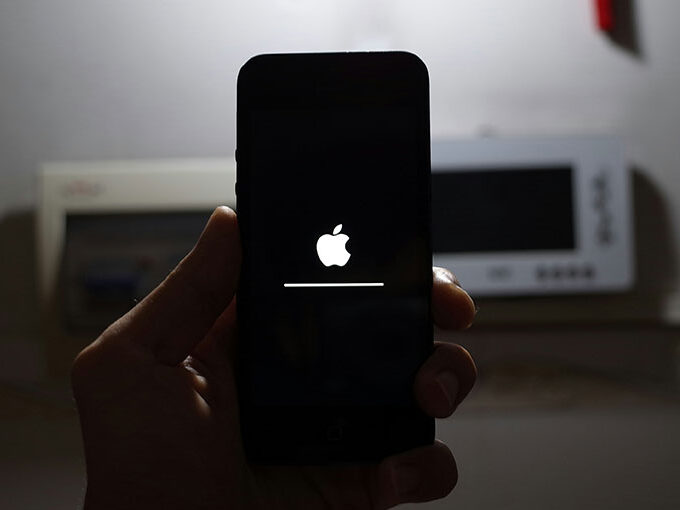
- Press and hold both the Home and Sleep/Wake buttons at the same time until an Apple logo appears to complete the factory reset.
- Start the setup process again and select a Wi-Fi connection.
- If WiFi isn’t available, however, you can attempt to activate your iPad via iTunes.
5. Activate Your iPad Using Finder or iTunes
If activation is not completed or a failed attempt to activate it using iTunes (or Finder if you are using macOS Catalina or subsequent versions) on your personal computer. This will help you navigate through the activation process.
- Update iTunes or use Finder on Mac
- Connect iPad to computer using a USB cable
- Open iTunes/Finder and wait for device detection
- Follow on-screen instructions to complete activation
- Your iPad should activate successfully
Also read: 6 Best Tools to Jailbreak iPad No Computer Needed
6. Contact Apple Support
We’re sure you’ve tried all the methods above to fix the ” could not activate iPad or Unable to Activate iPad error. If it’s still saying iPad activation server can’t be reached, you may have an issue due to the activation server’s temporary unavailability.
Contact Apple support to assist with resolving the unable to activate iPad issue. You have two options to reach Apple support: chat or call.
Tips to Prevent Future Activation Issues
- Keep your iPad updated with the latest iPadOS version.
- Maintain access to your Apple ID credentials.
- Back up your device regularly.
- Verify Activation Lock status before purchasing a used iPad.
- Use a stable internet connection during setup and updates.
Bottom Line
In the end, that’s all you need to do when troubleshooting to fix the ” unable to activate iPad issue. Find the root cause of the issue and try the above solutions to solve it.
FAQs: Unable to Activate iPad
Can I activate my iPad without Wi-Fi?
Yes. You can activate your iPad using a cellular connection (if supported) or by connecting it to a computer running Finder or iTunes.
Why am I seeing “Unable to Activate iPad”?
This usually happens due to poor internet connection, Apple server issues, SIM card problems, incorrect Apple ID, or software glitches.
Will updating iOS fix activation issues?
In some cases, updating or restoring iOS using iTunes or Finder can resolve activation errors.
What should I do if nothing works?
If all troubleshooting methods fail, contact Apple Support or visit an authorized service center for further help.








Leave a comment