

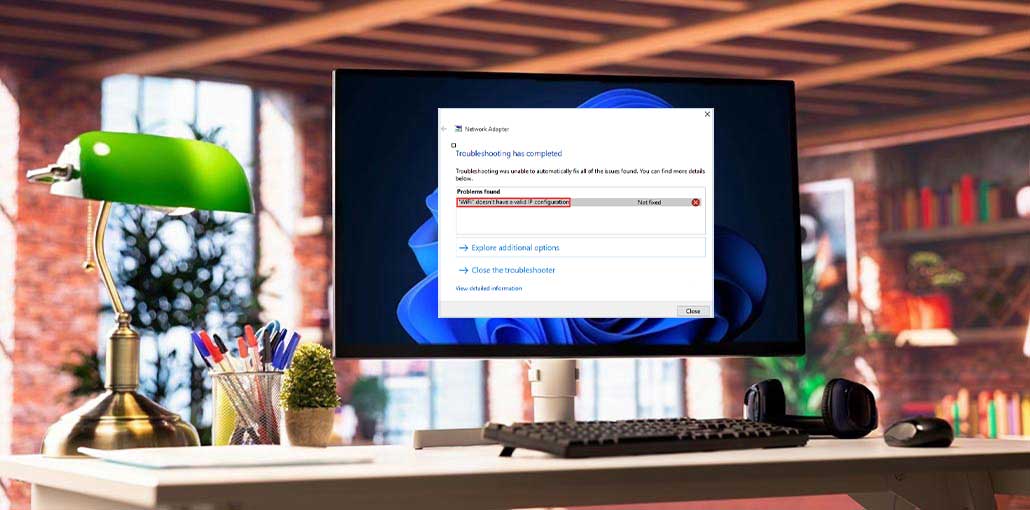
If you’re unable to connect to your WiFi and you receive an error message that “WiFi doesn’t have a valid IP configuration” in Windows 10. In this article, we provide 7 best methods to solve the issue.
It’s more convenient for you to use WiFi to work from another location. Occasionally, you will get this “WiFi doesn’t have a valid IP configuration ” error message in Windows 10.
This error prevents users from accessing WiFi. If so, how to solve “Windows 10 WiFi doesn’t have a valid IP configuration” error? Continue reading, and see several helpful solutions.
Common Causes of the Error
Several factors can trigger the “WiFi doesn’t have a valid IP configuration” error, including:
- Corrupted network settings
- Faulty or outdated WiFi drivers
- DHCP server issues
- Incorrect TCP/IP configuration
- Router malfunctions
- Network adapter problems
- Antivirus or firewall conflicts
- Windows updates causing compatibility issues
Understanding the root cause can help you choose the most effective solution.
Also read: Why Chromebook won’t connect to WiFi? Easy Fix Guide for 2026
Best Ways to Fix “WiFi Doesn’t Have a Valid IP Configuration” Error
1. Reset TCP/IP
You might get the “WiFi doesn’t have a valid IP configuration” error message due to IP configuration issues. Resetting TCP/IP could fix the issue. Here are the steps:
- Type cmd ” in the search bar, and then right-click on Command Prompt to select Run as Administrator.
- Type in the following commands one after the other and then hit Enter following each command:
netsh winsock reset
netsh int ip reset
- Close the Command Prompt and restart your computer to determine whether the issue has been resolved.
2. Release and Renew Your IP Address
If you have issues on your network, you will see the “WiFi doesn’t have a valid IP configuration” error on screen. You can release the IP address and then renew it to fix the issue. Follow the steps :
- Open Command Prompt as an administrator in the manner mentioned in the previous paragraph.
- Type in the following commands one after the other and hit Enter following each command:
IPconfig /release
ipconfig /renew
- Close the Command Prompt and then restart your system to see whether the issue persists.
3. Set Your IP Address Manually
You can also configure your IP address manually to eliminate that “WiFi doesn’t have a valid IP configuration” error message. Follow the steps below for how to do it:
- Press Win + I keys simultaneously to open Settings and select Network and Internet.
- Click the status tab, and then click to change adapter options in the left panel.
- Find your wireless network, right-click it to select properties.
- In the Properties window, select Internet Protocol Version 4 (TCP/IPv4) and then click Properties.
- Select Use the following IP address, and then enter your IP address, Subnet mask, and default gateway. Click “OK” to save your changes.
- Restart the PC to determine if the problem persists.
4. Increase the Number of DHCP Users
Routers typically limit 50 DHCP users. This can cause you to get the message IP configuration failure. To fix this issue, you’ll have to connect to the router manually and expand the number of users on DHCP. Check the router manual to see how to improve the number of DHCP users on your router.
5. Perform a Clean Boot
Sometimes, you can do a clean boot to fix your “WiFi doesn’t have a valid IP configuration” error. A clean boot will remove all third-party apps or services that could interfere with the wireless connection.
Steps:
- Press Windows + R, type msconfig, and press Enter.
- Go to the Services tab and check Hide all Microsoft services.
- Click Disable all.
- Open the Startup tab and click Open Task Manager.
- Disable all startup programs.
- Restart your computer.
After restarting, check if your WiFi connection is working properly.
6. Uninstall Your Antivirus Software
If you have installed third-party antivirus software, it can be the reason “WiFi doesn’t have a valid IP configuration” error. If that’s the case, you should try to remove it from your computer.
If you can eliminate the error by uninstalling your antivirus software, you should try an alternative antivirus software.
Also read: Who is Better For Security: VPNs vs. Firewalls vs. Antivirus
7. Uninstall Wireless Adapter Driver
If you have a malfunctioning driver for your network, you can also receive an error message. So, you can try uninstalling your wireless adapter driver to resolve the problem. Here is the procedure:
- Press Windows + X and select Device Manager.
- Expand the Network adapters category.
- Right-click your wireless adapter and select Uninstall device.
- Click Uninstall to confirm.
- Restart your computer.
After the restart, Windows will automatically reinstall the wireless adapter driver. Check whether the WiFi issue has been resolved.
How to Prevent This Error in the Future
To reduce the chances of encountering this error again, follow these best practices:
- Keep Windows updated.
- Update network drivers regularly.
- Restart your router occasionally.
- Avoid installing conflicting networking software.
- Use reliable antivirus software.
- Maintain current router firmware.
These steps help ensure stable and reliable network connectivity.
Summing Up
If you continue to read the full blog, you will see 7 ways to fix the “WiFi doesn’t have a valid IP configuration” error message. If you encounter the problem, you can try the above solutions.
FAQs: WiFi Doesn’t Have a Valid IP Configuration
What does WiFi doesn't have a valid IP configuration mean?
This error means your computer is unable to obtain a valid IP address from the router, preventing it from connecting to the internet.
Why am I getting the WiFi doesn't have a valid IP configuration error?
Common causes include corrupted network settings, outdated WiFi drivers, DHCP issues, incorrect TCP/IP settings, or router problems.
Is this error common in Windows 10 and Windows 11?
Yes. The WiFi doesn't have a valid IP configuration error can occur in both Windows 10 and Windows 11 due to network or driver-related issues.
What is DHCP, and how does it relate to this error?
Dynamic Host Configuration Protocol automatically assigns IP addresses to devices. If DHCP fails, Windows may display the IP configuration error.







Leave a comment