

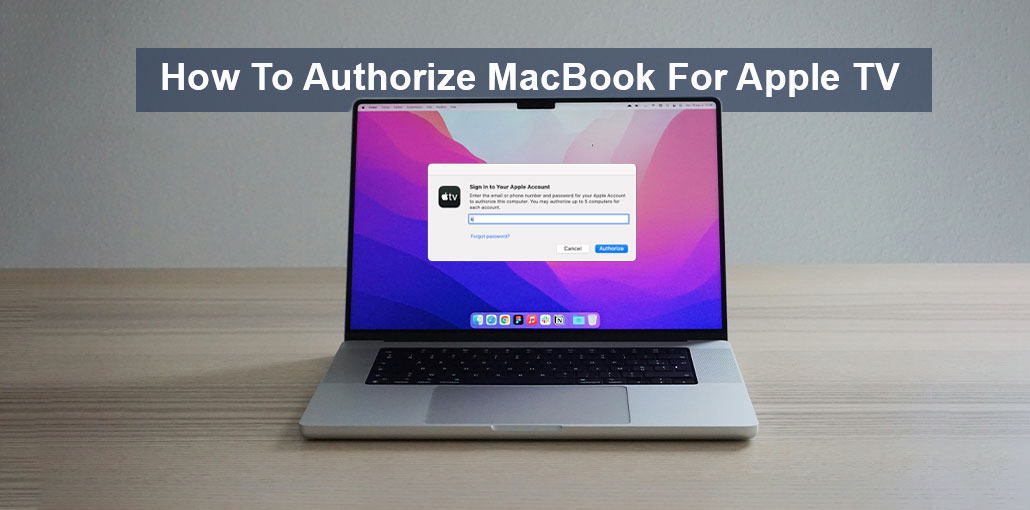
If you have a MacBook and you want to stream your favorite shows and also share pictures and videos. But you don’t know how to Authorize MacBook for Apple TV. There are distinct authorization requirements for Apple TV and the Apple Music App. When you connect to Apple TV, the music app will be connected automatically. It may seem difficult to authorize your MacBook to connect to your Apple TV, but don’t worry; this guide will show you how to Authorize MacBook for Apple TV step by step.
What Is Device Authorization?
Device authorization is the process by which one device gains permission to connect to another device, such as a MacBook, which can get authorization from Apple TV. You can share both audio and video by authorizing the MacBook to an Apple TV. This data-sharing is safe and secure.
Why You Need to Authorize Your MacBook for Apple TV
Apple puts a limit on the number of computers you can use to access purchases made with your Apple Account (formerly Apple ID). This includes TV and movie rentals and purchases from iTunes and music downloaded through iTunes Store. iTunes Store.
It’s important to note that the computers that you authorize for Apple TV and for music are identical. You cannot, for instance, authorize five computers for films and TV, and a different set for music. Additionally, when you authorize a device for Apple TV, it is immediately linked to an Apple Account for purchases. iPhones and iPads linked to the Apple Account for purchases don’t count toward the five-computer limit.
Also read: How to Use tubi.tv/activate Code on Firestick, Roku, Apple TV & Smart TVs [2025 Guide]
How to Authorize MacBook for Apple TV
This guide on how to Authorize MacBook for Apple TV simplifies the entire process. It also ensures that you enjoy a smooth viewing experience. Then follow these steps.
Method 1: Using the Apple TV App
- Open the TV app on your MacBook.
- Click the Account menu.
- Choose Authorize this computer.
- Sign in to your Apple Account.
- Click Authorize.
- You will see a pop-up saying that the authorization was successful.
Method 2: Using Apple Music or Apple Books
Alternatively, you can authorize a Mac using the Apple Music and Apple Books apps. The steps are similar. Just:
- Open Apple TV or Music App
- Sign in with your Apple Account
- Click the Account menu and click on Authorization
- Select Deauthorize This Computer
- Enter your Apple Account credentials
- Click Authorize
How to Check Authorized Computers
You can determine how many computers are already authorized by following the steps below.
- On Apple TV or Apple Music, select the Account menu and select Account Settings.
- Log in to Your Apple Account.
- In the Apple Account, locate the section ‘Computer Authorizations’.
In that section, you’ll find an explanation of how many computers have been approved.
How Do You Deauthorize a Computer?
If you already have five computer authorized and want to deauthorize one to make space for your MacBook, follow the previously mentioned steps for authorizing computer, but choose the option to deauthorize this Computer instead. Enter your Apple Account details and click Deauthorize.
If you do not own the computer you want to deauthorize, you’ll need to deauthorize all MacBook linked to the Apple Account. After that, you can re-authorize the computers you want to use it with. Follow the instructions below:
- If you are using Apple TV or Apple Music, go to the Accounts menu, then select Account Settings.
- Log in to Your Apple Account.
- Select Deauthorize This MacBook
- Authorize each computer you want to use using the instructions above to authorize the MacBook on each computer.
Also read: The macOS Installation Couldn’t Be Completed: 6 Proven Fixes That Work
Troubleshooting Authorization Issues and Fixes
- Authorizing doesn’t work. Verify that your internet connection works correctly. If yes, then follow the steps to see whether five computers are authorized to use your account. If not, reboot your Mac and attempt again.
- MacBook is valid, but you won’t be able to view rentals or purchases. Check that the Apple Account you used to authorize your MacBook is the same account that you used to make the purchase.
- Content not syncing. If you are still unable to view purchases or subscribe to services, even after you’ve verified that you have your correct Apple Account, sign out of your Apple Account on your MacBook and sign in again.
Conclusion
Following our guide on How to Authorize MacBook for Apple TV, you can easily authorize MacBook for Apple TV. If you can authorize your MacBook for Apple TV, you’ll be able to take advantage of a wide variety of options, including watching your favorite shows or sharing videos and photos, and presenting your work on the large screen.
FAQs: How to Authorize MacBook for Apple TV
Do I need to authorize my MacBook for Apple TV?
In most cases, simply signing in with your Apple Account is enough. However, you may need to authorize your MacBook if you're trying to play purchased or downloaded content.
How many computers can I authorize with Apple TV?
You can authorize up to five computers at a time using one Apple Account. This limit applies to both Apple TV and Apple Music.
Can I deauthorize all computers at once?
Yes, you can choose Deauthorize All from your Account Settings. This option is available once per year.
Can I authorize my MacBook using Apple Music or Books?
Yes, you can authorize your MacBook through the Music or Books app. Apple uses the same authorization system across these apps.









Leave a comment