

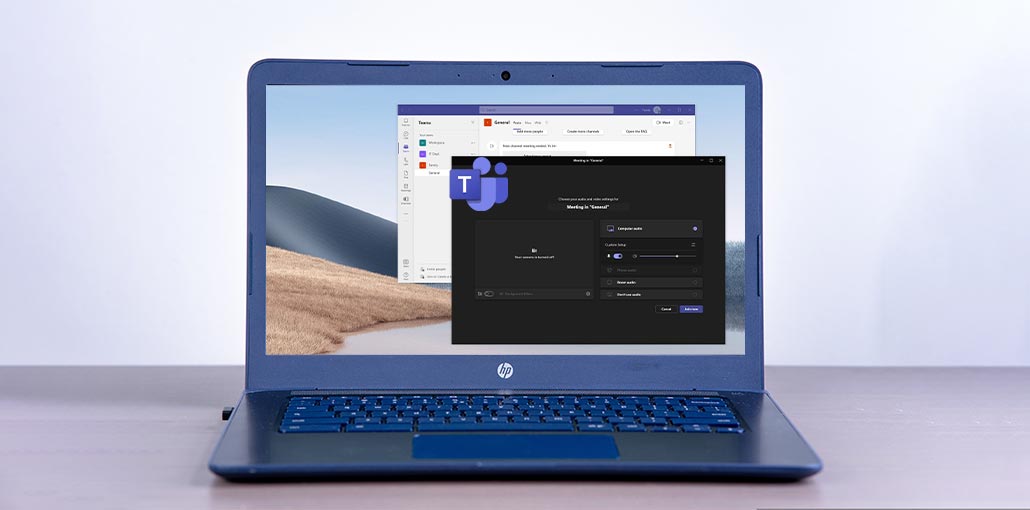
Microsoft Teams is a widely used virtual meeting software that allows seamless collaboration and communication for companies and individuals. But, as with other software, Microsoft Teams isn’t invincible to technical issues. A common issue users experience is the camera not working in Microsoft Teams. It can be frustrating, especially when having critical meetings or presentations. There are a variety of ways to troubleshoot and fix the Teams camera not working issue. Let’s take a look at each one of these troubleshooting steps.
Why Is My Camera Not Working in Teams?
Several factors can prevent your camera from working properly in Microsoft Teams. Common causes include:
- Camera permissions disabled
- Another app using the webcam
- Outdated camera drivers
- Incorrect Teams settings
- Antivirus or firewall restrictions
- Corrupted Teams cache
- Hardware connection problems
Before moving to advanced troubleshooting, start with the basic fixes for the Teams camera not working
issue below.
Also read: iPhone Camera Black Screen? Try These 7 Easy Solutions to Fix It
How to Fix Microsoft Teams Camera Not Working
We’ve identified that the Teams camera not working. Let’s take a look at the simplest ways to fix these issues:
1. Close Background Apps Using the Camera
Your device’s camera will only let one app use it. If an application uses your camera already, you’ll encounter the “MS Teams camera not working” error. If this happens to you, close the background application that is running on your camera. Then, you’ll find that your MS Teams camera should now be working. If you’re not sure which app is using the camera on your device, start by restarting your device.
2. Disconnect or Disconnect Other Camera Devices
This “camera not working on Teams” error could be caused by multiple devices. Make sure that you have the correct camera installed or connected. If you have several video input devices connected via Bluetooth or USB, unplug any devices you don’t want to use. You can leave the camera you would like to use in the MS Teams application.
You can disable or disconnect non-USB video input devices with the settings on your computer.
On Windows
You can disable unused cameras through Device Manager.
- Open the Start Menu
- Search for Device Manager
- Click Cameras
- Right-click the camera you don’t want to use
- Select Disable device
- Restart Teams afterward.
On macOS
- Open System Settings
- Go to Privacy & Security
- Select Camera
- Review apps with camera access
- Disable unnecessary camera permissions
Now reopen Microsoft Teams and test the preferred camera.
3. Allow Camera Permissions for Microsoft Teams
“Microsoft Teams camera not working” issue could be due to not having the proper permissions to access your camera. It is possible to change this within the Privacy Settings.
Go to your application permissions and determine if Teams has permission to connect to your device for video input. When MS Teams’ camera access is restricted, change permissions to allow access.
Enable Camera Access on Windows
- Open the Settings on your computer. From the start menu, look for Settings, and then click Open.
- Go to Privacy > Camera
- Switch on the “Allow apps to access camera” button.
- Within the ” Choose Which app can access your camera” list, look for Microsoft Teams and toggle the enable access buttons.
Enable Camera Access on macOS
- Start your Privacy and Security settings. Click on System Preferences, and then choose Security and Privacy.
- Select Camera.
- Click on the Microsoft Teams button.
Microsoft Teams web app
- Open the Microsoft Teams web client by searching “teams.microsoft.com” on your browser.
- Click the site information widget (lock icon) in front of your web address bar.
- Go to Site Settings
- Click Allow permissions for Camera under the camera to enable camera access.
4. Change Camera Settings Inside Microsoft Teams
Once you’ve granted MS Teams permission to access your camera, you’ll be able to modify your in-app camera settings if video conferencing doesn’t work.
To modify your camera settings in MS Teams, follow the steps below:
- To choose the correct camera:
- Open Microsoft Teams
- Click the three-dot menu
- Select Settings
- Go to Devices
- Under Camera, select your preferred webcam
After that, begin an audio conference with a partner to see whether the “Teams camera not working” error has disappeared.
5. Update Microsoft Teams
If Teams does not detect the camera? An outdated version can cause various kinds of issues, such as camera problems. If you’re using an old version of the MS Teams app, you might be experiencing a glitch causing camera issues. It’s possible to fix this by upgrading your client.
To upgrade Microsoft Teams, follow the steps in the following steps:
- Open Microsoft Teams
- Click your profile picture
- Select Check for Updates
- Install any available updates
6. Reinstall Microsoft Teams
If none of the suggestions above worked, try reinstalling Microsoft Teams. Follow the steps below to install MS Teams again:
- Open Settings
- Go to Apps
- Select Microsoft Teams
- Click Uninstall
- Restart your device
- Download the latest version from the official Microsoft website
- Install and sign in again
7. Use Microsoft Teams Web Version
If reinstalling the app again doesn’t resolve the Microsoft Teams camera not working issue, you can try using the web-based version instead.
It is possible to join the MS Teams meeting using your browser, using the instructions provided:
- Open your web browser.
- Search for teams.microsoft.com
- Log in using the MS Teams credentials.
- After you log in, you will be asked if you would like to utilize the desktop app. Choose Use the web application instead.
- Choose one of your Teams.
- In the top-right corner of the window, choose the ect Meet button to start a conference.
- A pop-up appears asking whether you want to allow your internet browser to use your camera. Select Allow.
Once you’ve completed the above steps, you should be able to start a web-based conference using audio and video using MS Teams’ web version.
Also read: Top 10 Webcam Software You Should Try
8. Change Browser Camera Permissions
If your Microsoft Teams camera is still not working after using MS Teams‘ web version, it could be because you haven’t accessed your browser’s permissions yet.
For Microsoft Edge:
- Open Chrome Settings
- Go to Privacy and Security
- Select Site Settings
- Click Camera
- Allow Microsoft Teams access
- Also enable microphone permissions for full functionality.
For Google Chrome:
- Open Edge Settings
- Go to Cookies and Site Permissions
- Select Camera
- Allow Teams website access
Refresh the browser afterward.
9. Run the Windows Troubleshooter
Still receiving the “No camera found teams” error, and do not know why it’s happening after examining the options previously mentioned. Try to solve the issue with your computer. The built-in troubleshooter on your computer will help you identify the root cause of the problem, for example, an outdated camera driver.
10. Clear Microsoft Teams Cache
Make sure that your MS Teams desktop app is closed before proceeding with this option.
- Start your Run Dialog box. From the Start menu, search for Run and then choose Open. You can also use your shortcut keys, Windows + R key.
- Enter %appdata%\Microsoft\Teams
- Select OK.
- Eliminate the directory’s contents.
- Launch MS Teams.
Bonus Tips to Prevent Teams Camera Issues
To avoid future webcam problems in Teams:
- Keep Teams updated
- Update Windows or macOS regularly
- Avoid running multiple video apps simultaneously
- Restart your PC frequently
- Use certified webcams for better compatibility
Conclusion: Teams Camera Not Working Fix
In short, fixing your Microsoft Teams camera not working! Follow these simple steps, including checking connections and updating your drivers. This guide can help with common Microsoft Teams camera issues, such as frozen or blank screens. Make sure you stay up-to-date and compatible.
FAQs: Teams Camera Not Working
Why does my laptop camera work but Teams camera not working?
This usually means Teams lacks permission or is using the wrong camera device in its settings.
Why is my camera not detected in Teams?
This can happen if the webcam is disabled, not properly connected, or blocked by system settings or antivirus software.
What should I do if Teams camera not working during meetings?
Try restarting Teams, switching the camera in settings, or rejoining the meeting after closing other apps using the webcam.
How can I fix the Teams camera not working problem on Windows 11?
Check camera permissions, update drivers, close background apps, and ensure Teams is allowed in privacy settings on Windows 11.







Leave a comment