

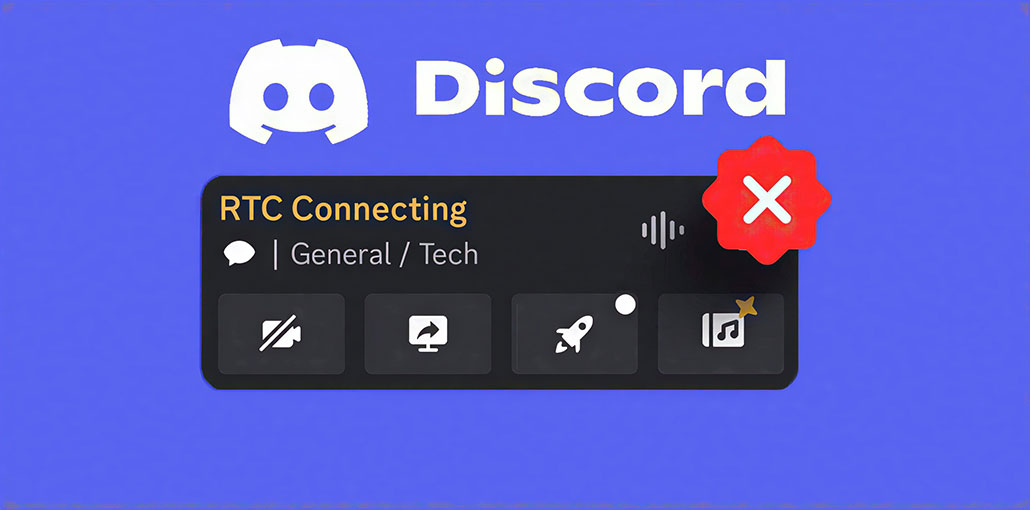
Discord is among the most popular platforms for chat, voice calling, and other features. When you join a voice channel or start a voice call on Discord, the status normally changes to ‘Voice Connected. ‘ The message will show”Voice Connected” in the lower left corner of your screen.
However, certain users have encountered an issue, “RTC Connecting Discord,” that takes a very long time to load. There are a few reasons the RTC Connecting error appears on your Discord. You can use basic troubleshooting techniques to fix this error.
In this article, we’ll explore the most efficient ways to solve the “RTC connecting Discord taking forever”.
What Is Discord RTC Connecting?
Discord uses the WebRTC protocol for live chat and voice call features. “Rtc Connecting discord meaning” is when you make a voice call, you may see the call stuck on RTC connecting with No Route error. In this scenario, you may not be able to speak to the person on the voice call until this error disappears. Most of the time, the error is resolved when you change the server region of the Discord account. You may need to employ advanced solutions to fix it if it’s not working.
Also read: Why Discord Error 3002 Happens and How to Fix It Quickly
Why Is Discord Stuck on RTC Connecting?
Before we move on to the solution portion of the guide, we’ll give the answer”Why is Discord stuck on connecting?” So you can identify the possible solution to fix this issue in your Discord. The issue is caused by two primary sources: your computer and your Discord server. We have provided all the possible causes of “Discord RTC Connecting takes a long time” below.
Internet Connection
A stable internet connection is required for voice calls to be connected through Discord. You’ll probably get the “RTC Connecting Discord” error when your computer is connected to an unstable internet connection. The speed of your internet connection is also important. Contact your Internet provider to correct it.
IP Address
RTC connection issues with Discord may occur when you’re using an active VPN service that changes the device’s IP address. Make sure you disable the VPN service while using Discord.
Discord Server
Sometimes, the issue may originate from Discord’s servers. If the Discord in your area is down, it may be experiencing connectivity issues, resulting in “Discord No Route or RTC Connecting error”.
How to Fix RTC Connecting Discord Error
Once you have a complete understanding of the reasons behind this RTC Connecting Discord issue, we’ll look at the solutions in this guide. We’ve provided a troubleshooting guide from basic to advanced, so you can go through them one by one to check which one solves the issue.
1. Restart Discord
The first thing you must do when faced with the RTC connection error on Discord is to restart the Discord application. It typically resolves minor connectivity issues and also refreshes Discord’s features and settings. Here’s how to restart Discord on your PC:
- Open Task Manager by pressing Ctrl + Shift + Esc.
- Locate Discord under the Processes tab.
- Right-click Discord and select End Task.
- Launch Discord again.
Then, join a voice channel and verify whether you can confirm that the RTC Connection Discord error has gone away.
If the problem continues, you should consider restarting your computer. Sometimes, Windows glitches or bugs can affect the program’s operation.
2. Check your Internet
As stated earlier, RTC Connecting Discord errors could also be caused by an unreliable internet connection. To make a call via Discord, be sure that your computer has a reliable internet connection and a reliable speed.
You can check a speed test online if your internet connection isn’t as strong. Also, restarting the router may also refresh the connection. Turn off the routers, then wait for a couple of seconds, then reconnect the switch to turn it back on.
3. Set a Different Server Region on Discord
Discord servers are sometimes down for unknown reasons. In some cases, you may be able to change to a different server in your area for VoIP voice calls and chat. Discord has various servers to choose from.
Here’s how you can set up a distinct Server region in Discord:
- Open Discord.
- Select your server.
- Click Server Settings.
- Locate the server region option.
- Choose a different region from the available list.
- Save the changes and reconnect to the voice channel.
4. Change DNS Settings
Sometimes, the DNS server may also trigger problems with the RTC connecting Discord issue. It’s defaulted, but you can change the setting manually if you experience network problems. It is recommended to use Google’s public DNS as the best and most trusted DNS server.
- Open Settings.
- Select Network & Internet.
- Click Advanced Network Settings.
- Choose Change Adapter Options.
- Right-click your active network connection and select Properties.
- Select Internet Protocol Version 4 (TCP/IPv4).
- Click Properties.
- Choose Use the Following DNS Server Addresses.
Enter the following values:
Preferred DNS Server: 8.8.8.8
Alternate DNS Server: 8.8.4.4
Save the changes and restart your computer.
5. Disable Your Firewall Temporarily
A firewall installed on your Windows computer helps secure internet connections and prevent potential threats. However, there are times when the firewall may interfere with the normal functioning of software, and RTC connecting Discord issues can be observed. Turn off the firewall to determine whether the RTC connection issue is resolved in this scenario. Switch it on once you’ve tried it. Here’s how you can turn off the firewall in Windows:
- Open the Control Panel.
- Click System and Security.
- Select Windows Defender Firewall.
- Click Turn Windows Defender Firewall On or Off.
- Select Turn Off Windows Defender Firewall.
- Save the changes.
Also read: Discord Messages Failed to Load? 6 Easy Fixes to Solve It Fast
6. Disable Quality of Service (QoS)
QoS stands for Quality of Service, allowing you to allocate your traffic for specific tasks. In this case, you might want to prioritize using the feature for voice calls compared to streaming video. Sometimes the QoS on Discord may hinder voice calls and result in RTC connecting Discord. Try turning off this feature and chek it solves the issue.
Here’s how you can disable QoS on Discord
- Log in to your Discord account, and click the Settings icon.
- Select Voice & Video.
- Scroll to the Quality of Service section.
- Turn off Enable Quality of Service High Packet Priority.
How to Prevent RTC Connecting Issues on Discord
To minimize future problems:
- Keep Discord updated.
- Use a stable internet connection.
- Avoid low-quality VPN services.
- Regularly update network drivers.
- Restart your router periodically.
- Ensure Discord has permission through firewalls and antivirus software.
Ending Notes
“RTC Connecting Discord” errors may occur for a variety of reasons, such as network-related issues, VPN conflicts, DNS problems, or Discord server outages. But you can fix it using the troubleshooting described above. In this article, we have discussed the best way to fix “rtc connecting Discord taking forever”.
FfAQs: RTC Connecting Discord Error
Why does Discord show RTC Connecting and No Route at the same time?
The RTC Connecting and No Route errors often occur together when Discord cannot establish a voice connection due to network restrictions, VPN issues, firewall settings, or server connectivity problems.
Does restarting Discord fix RTC Connecting?
Yes. Restarting Discord can resolve temporary glitches and network issues that may prevent the app from connecting to voice servers.
Is RTC Connecting a Discord server problem?
Sometimes. If Discord's servers are down or undergoing maintenance, users may encounter RTC Connecting errors until the service is restored.
How long should RTC Connecting last on Discord?
Under normal circumstances, RTC Connecting should only appear for a few seconds before changing to Voice Connected. If it lasts longer, there may be a network or configuration issue.









Leave a comment