

Are you looking to play a game that demands the most powerful performance from your system? Do you want to know your PC’s strengths and specifications?
The best part is that you don’t have to use your Control Panel to find your computer’s specifications. Instead, you can count on the scores and ratings of the built-in diagnostic tool, Windows Experience Index.
In this article, we’ll cover several methods to view Windows Experience Index diagnostic reports and assess your PC performance.
What Is Windows Experience Index (WEI)?
Microsoft created this feature as part of the Windows System Assessment Tool (WinSAT) to enable users to evaluate and monitor their hardware performance.
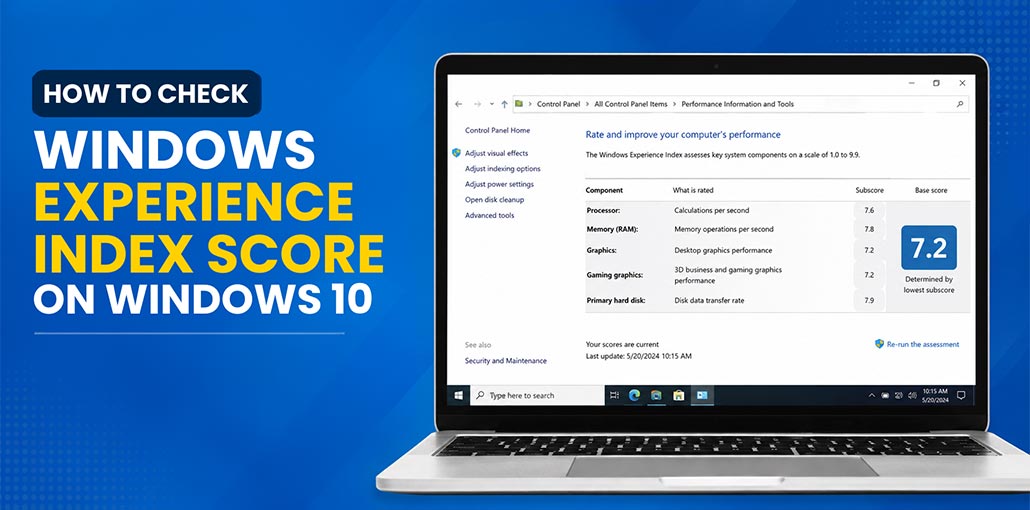
In particular, it uses an underlying rating system based on numbers (ranging between 1.0 and 9.9) to determine the state of the five major components of your computer. These are CPU, RAM, graphics characteristics (2D or 3D), and ROM.
They can also be referred to as sub-scores and base scores. The lowest score is usually the system’s overall rating itself and indicates that computers with a high score have high computing power.
Follow the steps below to figure out the Windows 10 system performance rating using the Windows Experience Index.
Also read: Why Is My Laptop So Slow? 8 Simple Ways to Speed Up Your Laptop
How to Check Windows Experience Index Score on Windows
The process is easy. All you need to do is run the WEI tool in Command Prompt after upgrading.
After that, use one of the methods described below to verify the reports.
Updating the Windows Experience Index Score in Command Prompt
- First, remove all XML files that are in the folder that you want to use below:
C:\Windows\Performance\WinSAT\DataStore - Use the Windows + X shortcut to open the Quick Link menu and select Command Prompt (Admin).
- Enter “winsat formal” (no quotes) in Command Prompt, then press the Enter key to start this diagnostic test.
You can now check the WEI score by following this method:
1. View the Windows Experience Index Score Under System Diagnostics
You can use Performance Monitor to access your Windows Experience Index diagnostic results. Follow these steps to find the latest available WEI scores on your PC.
- Press the Windows key + R simultaneously to open the Run dialog box.
- In the box, type “perfmon” (no quotes) and then select OK to start Performance Monitor.
- Click the drop-down button on the left pane, and then expand the folders that follow:
- Reports > System > System Diagnostics.
- In the System Diagnostics folder, locate the most recent XML file according to the date on your PC.
- Open the report and go to Hardware Settings > Rating for Desktops > Returned Objects.
- Then, you will see the test results with the WEI number for CPUScore, D3DScore, DiskScore, GraphicsScore, and MemoryScore.
2. View the Windows Experience Index Score via File Explorer
Windows stores the WEI assessment results in the WinSAT DataStore folder. You can open the latest assessment file through File Explorer to view your PC’s individual scores.
- Press Windows + E to open File Explorer.
- Enter the following path in the address bar:
%windir%\Performance\WinSAT\DataStore - Press Enter.
- Double-click the Formal.Assessment (Recent).WinSAT.xml file with the most recent date.
- Scroll down or use the search function to find the section with the <WinSPR> tag.
- Here, you’ll find the available WEI subscores. The SystemScore value represents the base score.
If there are no Formal Assessment files in the DataStore folder, generate the assessment using Command Prompt as explained above.
3. View the WEI Score in Windows PowerShell
PowerShell is one of the easiest ways to check your Windows Experience Index score. It displays the available WEI results without requiring you to open the diagnostic files manually.
- Press Windows + X to open the Quick Link menu.
- Select PowerShell (Admin).
- Enter the following command:
Get-CimInstance Win32_WinSat - Press Enter.
After that, available subscore ratings will appear. The WinSPRLevel value represents the overall system rating.
If your PC has a low score in a particular area, you may want to upgrade the corresponding hardware component or optimize your system to improve performance.
Also read: How to View Windows Crash Logs: 4 Simple Methods Explained
What Is a Good Windows Experience Index Score?
WEI scores traditionally range from 1.0 to 9.9, with higher numbers indicating stronger performance in the tested component.
As a general guide:
| WEI Score | General Performance |
|---|---|
| 1.0–3.9 | Low |
| 4.0–5.9 | Basic to Moderate |
| 6.0–7.9 | Good |
| 8.0–9.9 | High |
Wrap Up
We hope this guide helped you learn how to check your Windows Experience Index score in Windows 10. For more useful tips and solutions for common Windows issues, visit our blog.
FAQs: Windows Experience Index
What is a good Windows Experience Index score?
A WEI score of 6.0–7.9 generally indicates good performance, while 8.0–9.9 represents high performance.
What does WinSPRLevel mean?
WinSPRLevel represents the base Windows Experience Index rating reported by the WinSAT assessment.
Is a higher Windows Experience Index score better?
Generally, yes. A higher score indicates stronger performance in the hardware component being assessed.
Can I improve my Windows Experience Index score?
You may be able to improve individual scores by upgrading hardware such as RAM, storage, or graphics hardware. Keeping Windows and device drivers updated can also help maintain overall system performance.









Leave a comment