

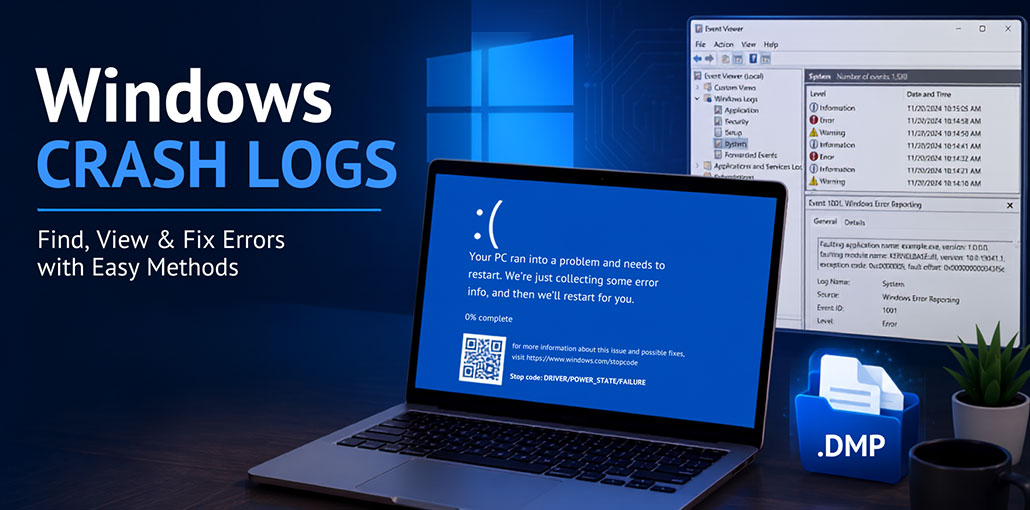
You’re working on a crucial file or playing a video game when suddenly your PC crashes. All the information is gone, and you’re left with no idea what happened!
In such situations, Windows crash logs can be the best way to investigate system issues and determine the source of the error. They contain all the relevant information in a simple-to-read “.txt file” viewable with Windows utilities like Viewer for Events, Event Viewer, Reliability Monitor, WinDbg, and more.
However, getting around these programs can be difficult; for this reason, we’ve compiled this guide with four easy ways to view Windows crash logs.
What Is a Windows Crash Log?
A Windows crash log is a record created when Windows or an application encounters a serious error. Depending on the type of failure, the information may appear in Windows Event Logs, Reliability Monitor, or a crash dump file.
Crash information can help you investigate issues related to:
- System crashes and unexpected restarts
- Blue Screen of Death (BSOD) errors
- Application crashes
- Driver failures
- Hardware-related problems
- Windows updates
- System services
- Memory and disk problems
However, a crash log does not always identify the exact root cause by itself. In some cases, you need to compare multiple events or analyze a dump file.
Also read: Windows Script Host Error: Proven Fixes for Windows 10 or 11
How to Find and Check Windows Crash Logs
1. Check Windows Crash Log Using Event Viewer
Event Viewer is a built-in tool for Windows users that records major potential errors, warnings, or other informational events. Whenever a Windows crash occurs, it’s instantly registered in the program and can be examined and analyzed in depth.
Here’s how to view Windows crash logs using Event Viewer.
- Press Windows + S and search for Event Viewer.
- Open Event Viewer from the search results.
- Expand Windows Logs from the left panel.
- Select Application to investigate application-related crashes.
- Select System when you want to investigate Windows or system-level problems.
- Look for Error and Critical events around the time the crash occurred.
- Double-click an event to open its details.
- Check the General and Details tabs for additional information.
- If necessary, select Filter Current Log from the Actions panel.
- Enter the relevant event information and select OK.
- Review the filtered events to find entries that match the time of the crash.
2. Find Windows Crash Log with Reliability Monitor
If Event Viewer seems complicated, Reliability Monitor provides a simpler view of Windows crashes and other failures.
It displays system stability over time and lets you see when applications, Windows components, or other system processes experienced problems.
How to use Reliability Monitor
- Press Windows + S and search for Reliability History.
- Select View reliability history.
- Reliability Monitor will display a timeline of system activity.
- Look for dates containing red X failure icons.
- Select the date when your computer crashed.
- Review the failures listed for that day.
- Select an error to view additional information.
You may see details such as the name of a failed application, problem description, or a Problem Event Name.
Reliability Monitor is especially useful when you know approximately when the crash happened but don’t know which event to investigate in Event Viewer.
3. View Windows Crash Logs Using PowerShell
PowerShell provides another way to retrieve crash-related information from Windows event logs.
This method can be useful if you prefer using commands instead of navigating through Event Viewer.
Steps to check crash events with PowerShell
- Search for PowerShell in Windows.
- Right-click it and select Run as administrator.
- Enter the following command:
wevtutil qe System /f:text /c:10 /q:”*[System[(EventID=1001)]]” - Press Enter.
- Windows will display matching system events in the console.
4. Analyze Windows Crash Dump Files
Windows can create memory dump files when certain system crashes occur, particularly blue-screen failures. These files contain technical information that can be useful for deeper analysis.
Small memory dump files are commonly stored in:
C:\Windows\Minidump
The files normally have a .dmp extension.
Unlike Event Viewer entries, dump files aren’t designed to be read as ordinary text. An advanced debugging tool such as WinDbg can be used to analyze them.
How to analyze a dump file with WinDbg
- Install WinDbg using Microsoft’s official Windows debugging tools.
- Open WinDbg.
- Open the crash dump file from the File menu.
- Browse to the location of the .dmp file.
- Load the dump file.
- In the command window, enter:
- !analyze -v
- Press Enter.
- Review the generated analysis.
The output can contain information about the bug check, suspected modules, drivers, and other technical details.
Look at fields such as MODULE_NAME and IMAGE_NAME for clues about the component involved in the crash.
Use these simple techniques you can examine and access Windows crash logs.
Also read: How to Clean Up Junk Files and Speed Up Your PC
Why are Windows Crash Logs Important?
Windows crash logs provide useful information about failures that aren’t always obvious from what you see on the screen.
For example, your computer might simply restart without displaying a clear explanation. By checking the Windows error logs, you may find information about events that occurred immediately before the restart.
Crash information can help you investigate:
- System crashes
- Blue screen errors
- Application failures
- Driver problems
- Unexpected restarts
- Windows errors
- Hardware-related failures
- Software conflicts
The most useful approach is to compare the crash time with the events recorded around that same period.
How to Fix Problems Found in a Windows Crash Log
Viewing Windows crash logs is only the first step. After identifying a possible cause, you can take appropriate troubleshooting steps.
1. Install Windows Updates
Check Windows Update for available system updates. Important updates can include bug fixes, security patches, and compatibility improvements.
However, if the crashes started immediately after an update, investigate whether the update or a related driver could be responsible.
2. Update or Reinstall Drivers
A faulty or incompatible driver can cause system instability.
Pay particular attention to recently updated hardware drivers, especially graphics, network, storage, and chipset drivers.
If the crash started after a driver update, rolling back to the previous version may also be worth considering.
3. Check Windows System Files
Corrupted system files can cause unexpected Windows behavior.
Open Command Prompt or Windows Terminal as administrator and run:
sfc /scannow
Allow the scan to finish and follow any instructions provided by Windows.
4. Test Your Memory
Faulty RAM can cause crashes, freezes, and blue-screen errors.
Windows includes a built-in Windows Memory Diagnostic utility that can be used to check for memory problems.
Search for Windows Memory Diagnostic, open it, and follow the instructions to restart the computer and perform the test.
5. Check Your Storage
Storage problems can also contribute to system crashes.
If Event Viewer reports repeated disk, storage controller, or file-system errors, investigate the health and condition of the affected drive.
6. Check Recently Installed Software
If crashes started after installing a new application, driver, security program, or system utility, consider whether that change is related to the problem.
Removing or temporarily disabling the suspected software can help determine whether it is causing the crashes.
Wrapping Up
Windows crash logs are a collection of logs that are kept on your system whenever your PC experiences an issue. addition, you can identify the source of the issue with Windows crash logs.
That is why you should examine the four basic strategies we have provided to help you examine and analyse your Windows crash logs. Be sure to regularly check for the latest updates and conduct regular memory tests to preven this error from happening.
FAQs: Windows Crash Logs
Where can I find Windows Crash Logs?
You can find crash-related events in Event Viewer → Windows Logs → System. Minidump files are commonly stored in C:WindowsMinidump.
Can Windows Crash Logs show why my PC crashed?
Yes, they can provide useful clues about the cause, such as driver errors, application failures, or system problems. However, additional troubleshooting may sometimes be required.
What is a Windows crash dump file?
A crash dump is a file containing technical information captured when certain serious system crashes occur. It can be analyzed to investigate the cause of a crash.
How can I find recent Windows Crash Logs?
Open Reliability Monitor to see a timeline of recent failures, or use Event Viewer to review recent system and application events.









Leave a comment