

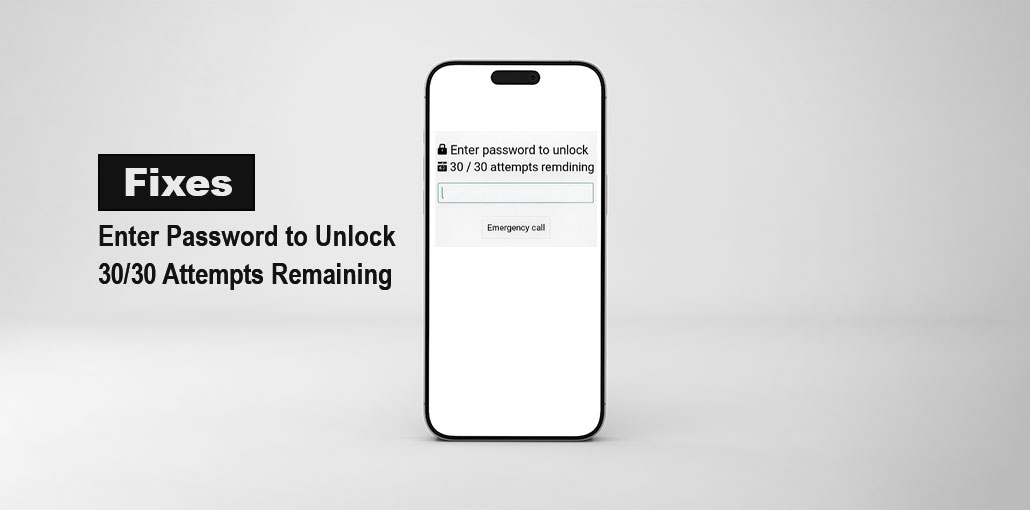
Have you ever witnessed that “Enter password to unlock (30/30 attempts remaining)” message on your Android phone? If you activate the security feature or if you enter the wrong passcode several times, the message can be alarming and depressing, particularly if you’re using an LG phone.
Don’t panic. This comprehensive guide will cover everything you should know about ” Enter password to unlock 30/30 attempts remaining,” from its true significance to four methods to resolve it efficiently. Strategies to avoid it from happening again are provided. If you’re removed from your Android devices for the rest of your life, do something!
What Does “Enter Password to Unlock 30/30 Attempts Remaining” Mean?
“Enter password to unlock 30/30 attempts remaining” appearing on the screen of your Android phone is a security alert from the system. This means you can access your device only after entering the correct password, and you will have 30 unsuccessful attempts to try. If you enter the wrong password, then the remaining time will be reduced.
This message is typically found on older Android 9.0 or earlier versions on LG phones. However, on modern Android devices, messages similar to this one are still available in a different form but with the same message, and require you to unblock the encryption system. This kind of hint is private and safe, without revealing the exact steps.
Similar Messages You Might See:
- “Enter your password to start Android”.
- “Too many attempts. Try again later”.
- “This device is locked due to too many attempts”.
- “Too many incorrect unlock attempts”.
Also read: Password Cracking: Common Techniques and Tools Used by Hackers
Why Does “Enter Password to Unlock 30/30 Attempts Remaining” Appear?
There are a variety of reasons that could trigger the “Enter password to unlock 30/30 attempts remaining” even when you haven’t enabled “Secure Startup”.
1. Wrong Password
If you do not remember the password for your screen or your family members or children are unable to complete their unlock attempts, the message will be generated.
2. Full-Disk Encryption (FDE)
Older Android models, such as LG phones, use full-disk encryption or secure start to secure the data stored within your phone. When you enable this option, the protected device will require the password you used to unlock it after a reboot, startup, or update. In addition, the latest Android devices do not use FDE, but file-based encryption (FBE), to protect specific files. This generates similar messages.
3. Second-hand Phone
If you purchase an old device that still activates the previous owner’s credentials, you may be asked to enter the original password to control the phone fully.
4. System Glitches
Sometimes, system issues could be due to “Enter password to unlock 30/30 attempts remaining.” This is a sign of unexpected errors in your device.
What Happens If You Use All 30 Attempts?
Once you have a good grasp of “Enter password to unlock 30/30 attempts remaining,” Many users want to know what would happen if you try to complete all 30 attempts. that depends on the Android models; the possibilities of outcomes aren’t all that positive, and it’s advised not to make a mistake when entering your password if you aren’t sure of it.
- Temporary lockout, with the possibility of waiting for a period. Once the time runs out, you can go back.
- A permanent lock is required, and you must factory reset to access your Android phone.
- Your device is not stolen; a data wipe can occur every 30 attempts.
How to Fix “Enter Password to Unlock 30/30 Attempts Remaining.”
If you get an “Enter password to unlock 30/30 attempts remaining” message on your Android device, you shouldn’t be rushing to waste time trying again and again. The positive side is that there are four effective options to help you fix the ” enter password to unlock 30/30 attempts remaining issue if you do not possess the correct password. It’s not feasible to solve it without erasing data.
1. Wait for the Timeout
If you get “Enter password to unlock 30/30 attempts remaining” pop-up or similar messages on your Android device, any other Face ID or Touch ID will not be able to block access by anyone else. The most secure and simple method is to remember the correct pattern or PIN, which is the only method to access your device without losing data.
However, you must come up with a plan instead of being completely blind. If you fail to complete several attempts, it might inform you that your device is temporarily locked and that you are in a timeout ranging from a few seconds to hours. In this case, it is best to calm down, sit back, and wait for the timeout to expire. When the timeout is over, the first thing to do is stop imagining or wasting your time. The next step is to connect with the password you’ve used before and include a particular number, dates, and a pattern.
2. Verify Google Account
If you’re certain you’ve found your password correctly, you can try this method. There are two possible scenarios for confirming you have a Google account. One of them is that your phone offers the option to select “Forgot Password” or any sign-in prompt that unlocks your device and retains your data. Another scenario is to often use after a factory reset to pass Factory Reset Protection (FRP) and then set the phone up again, and lose data.
- If you have a device running Android 9 or lower, you will see an option “Forgot Password” on the side of the screen that reads “Enter password to unlock 30/30 attempts remaining”. If it doesn’t, you can trigger the prompt by entering the wrong password or pattern.
- If you can choose this option, you input your Google account details and wait for the verification process to unlock your device.
- For the latest Android models, there will not be a similar prompt despite trying more. In these situations, you’ll see the prompt only if you have factory reset or deleted your Android phone.
- Enter your Google account details to bypass Factory Reset Protection (FRP). Then you can use your Android device however you want.
of Google’s Search My Device and factory reset erase all your data in the device and activate Factory Reset Protection (FRP). After the reset, you have to log in with your initial Google account to access the device again.
Also read: Best FRP Bypass Tools in 2025: Unlock Any Android Easily
3. Use Find My Device/Find Hub
If you’re still unable to overcome “Enter password to unlock 30/30 attempts remaining” by using the above methods, which preserve information, you should delete your phone’s data and consider this fix. Using Find My Device, you can wipe your Android phone, making it usable again. It is important to note that Find My Device cannot unlock phones without erasing data. It will only help you reset the device if you are prepared to lose all stored data. Follow the steps in this article:
- The device you require must go to Google’s website, Find My Device, Find Hub, right now.
- Log in to Find Hub with your Google account. Make sure that Find Hub is enabled, your Android is connected, and you can connect to the Internet.
- On the Search Hub list, search for “Devices” and select the phone you want to erase.
- Select the “Factory reset device” option, and then confirm the reset by entering your password a second time.
- Once you have erased the data, your device will be unlocked and disappear from Find Hub, but most importantly, all your phone’s data will be erased forever.
Sixth Step: After setting up your Android smartphone, you must verify your Google account to bypass FRP.
4. Factory Reset
Like Find My Device, factory reset is the last option to resolve “Enter password to unlock 30/30 attempts remaining” and will erase all your data. This solution requires a button operation and the next steps.
- If you’re stuck on the locked screen and are ready to reboot your device, press the power button to turn it off.
- Hold and press the Power and Volume Down/Up buttons to start the recovery. The sequence of buttons varies depending on the particular Android model.
For most Android phones: Power + Volume Up
For old Samsung and LG handsets: Power + Volume Down
- If your logo appears or the recovery menu appears, you may release the buttons.
- Use the volume keys and select “Wipe data/factory reset”.
- Press the Power button again to confirm the action.
- Choose “Factory Reset, and finally “Yes”.
- Then, as you are in your recovery menu select”Wipe cache partition” “Wipe cache partition” to reset the entire system.
- Once this process is complete, you will finally press those keys to choose “Reboot system now”.
- Your device is now erased. Restart it. It can take some time; therefore, be patient.
- After the restart, you can configure Android, and the message that locked you will go away.
- However, you will encounter Factory Rest Protection (FRP). Verify your Google account, and you can gain access.
Bottom Line
Following this comprehensive guideline, the next time you get the ” Enter password to unlock 30/30 attempts remaining” message on your Android phone, be calm and try to verify your Google account. If you are unable to resolve the issue, then you’ll have to perform a factory reset, which typically wipes all data. To avoid unexpected data loss, make sure to back up your phones.
FAQs: Enter Password to Unlock 30/30 Attempts Remaining
Can I unlock my Android phone without losing data?
Yes, but only if you remember the correct password or can use options like “Forgot Password” (on older Android versions). Otherwise, most methods like factory reset will erase your data.
How long is the lockout period after wrong attempts?
The lockout time varies depending on your device. It can range from a few seconds to several hours, increasing with repeated incorrect attempts.
Does “30/30 attempts remaining” reset after restarting the phone?
No, restarting your device usually does not reset the attempt counter. The system continues tracking failed attempts for security reasons.
How do I fix “Enter Password to Unlock 30/30 Attempts Remaining” on Android?
To fix this issue, try entering the correct password after waiting for the timeout. If you’ve forgotten it, use options like Google account recovery (on older devices) or perform a factory reset using Find My Device or recovery mode.






Leave a comment